
Maple Is Shutting Down: How to Move Your Family Planner Before December 31, 2026
Updated November 23, 2026
Maple, the family organizer app, says it will shut down on December 31, 2026, and that all data will be deleted after that date. If your family’s schedules, lists, and routines live in Maple, this guide walks you through what to save, how to choose the next app, and how to get your household running again in the first week. Facts about Maple were checked against Maple’s official notice and the acquisition announcement on November 23, 2026.
Quick answer
- 1. Save what you need: Before December 31, 2026, copy your recurring events, lists, chore routines, and notes out of Maple. Maple says the data can’t be recovered after the shutdown.See what to save
- 2. Pick the next app: Choose by your family’s phones (all iPhone, or a mix of iPhone and Android) and by what you used Maple for most.Compare the options
- 3. Run one week together: In the first week, add one real event and one shopping run with your partner, and check that you both see the same thing.See the first-week steps
What Maple’s shutdown notice says
- Shutdown date: Maple’s website says Maple will shut down on December 31, 2026.
- Why: Maple says it has been acquired by Wander. In an announcement dated July 29, 2026, Wander said it had acquired the team behind Maple.
- Until then: Accounts stay open and data stays accessible until the shutdown date.
- After that: Maple says all data will be deleted with no way to recover it, including connections to services such as Google Calendar, Apple Calendar, Outlook, and TeamSnap.
- Subscriptions: Maple says annual subscriptions will no longer renew, and monthly subscriptions stay active until the shutdown date.
Check the notice yourself: Maple recommends moving your data to other apps or services before the shutdown. Read the notice on Maple’s website for the latest details, since dates and instructions can change.
Before December 31, 2026: What to save from Maple
Go through Maple once with this checklist and copy anything you’d have to rebuild from memory. A screenshot or a note on your phone is enough for most items.
Recurring events
- School days off, early dismissals, and the school calendar for the rest of the year
- Practices, lessons, and games, with the day, time, and place
- Doctor, dentist, and therapy appointments, including follow-ups
- Who drives or picks up for each event
- Events that live only in Maple and not in another calendar
Shopping lists and to-dos
- Your regular grocery and household supplies list
- Open to-dos, with who owns each one and when it’s due
- Forms, sign-ups, and deadlines coming up in the next few weeks
Chore routines and notes
- Weekly and monthly chores and who takes each one
- Kids’ routines, such as morning and bedtime checklists
- Notes you keep for the household: sizes, Wi-Fi details for sitters, school contacts, account reminders
Connected calendars
- Write down which calendars and services you connected to Maple
- Check which events also exist in Google Calendar or Apple Calendar on your phone, and which existed only in Maple
Comparing Maple alternatives by household need
There isn’t one right replacement. Start with the part of Maple your family used most, then check that everyone’s phones can use the same app.
| Option | Phone apps |
|---|---|
| Good fit for | Families who mainly need a shared calendar and a shared list |
| What to know | Google Calendar with Google Keep, or Apple Calendar with Reminders, come with your phone account. Events, lists, and chores often end up in separate apps. |
| Option | Cozi |
|---|---|
| Good fit for | Families who want a shared calendar, shopping lists, to-dos, and recipes in one account |
| What to know | A long-running family organizer that announced 20 million members in 2017. Cozi says its free version is supported by ads and sponsors, and its paid plans add features such as a mobile month view and calendar search. |
| Option | FamilyWall |
|---|---|
| Good fit for | Families who want many features and more than one group |
| What to know | A family organizer app that supports more than one circle (group). Its help page says one Premium subscription can upgrade up to five circles. |
| Option | Skylight |
|---|---|
| Good fit for | Families who want a calendar screen on the kitchen wall |
| What to know | Built around a wall display for the home, with a phone app alongside it. |
| Option | ienon |
|---|---|
| Good fit for | Households with a mix of iPhone and Android who want plans and lists in one Home |
| What to know | Calendar, shopping list, to-dos, chores, household budget, anniversaries, and moods in one shared Home, with Inventory in Premium. Joining a Home, the shared calendar, lists, and basic widgets are free. |
- Plans and features change. Check each app’s own pages before you decide.
If you’re also comparing Cozi with other apps, the Cozi guide goes through the same questions in more detail.Cozi alternatives: a side-by-side guideHow to share a calendar on iPhone and Android
Moving your household to ienon, step by step
ienon doesn’t import Maple data. Plan to re-enter your recurring events and lists by hand, starting with the next two weeks. If some of your events already sit in Google Calendar or Apple Calendar on your phone, you can import those calendars.
- If you have an .ics export or a text list: Maple’s notice doesn’t describe an export format. If you do have an .ics calendar file or a grocery or to-do list as text, the free preview tool reads it in your browser: preview the events in the .ics file, and turn the list text into a checklist. Then copy the events and items into ienon by hand. Repeating events show a label in the preview, so set the repeat again when you add them in ienon.Family calendar & grocery list preview
How to set up your family in ienon
- 1Create your Home: sign in with Google (on Android) or with Apple or Google (on iPhone), and choose “Start fresh”. Check the Home name, then tap “Create this Home”.
- 2Invite your partner: open the top-left menu in “Home”, tap “Invite”, then tap “Copy Invite Link” and send it. An invitation link or QR code can invite up to 5 people and is valid for 7 days. The other person opens the link, signs in, and taps “Join this Home”.
- 3Add the first event: tap + in “Calendar”, enter the title, start and end times, and assignees, then tap “Save”. Leave “Add to personal schedule” unchecked so the Home can see it.
- 4Add the first shopping items: tap + in “Shopping” and enter what you need. The person who buys an item checks it off.
- 5Add a to-do: open “Todo” and tap +. Type the task’s title first, since “Add” stays off until the task has a title. Then choose the “Assignee” and the “Due” date, and tap “Add”.
- 6Bring in device calendars if you have them: open the calendar settings icon, choose “Import other calendars”, pick who can see each calendar, and tap “Import”.
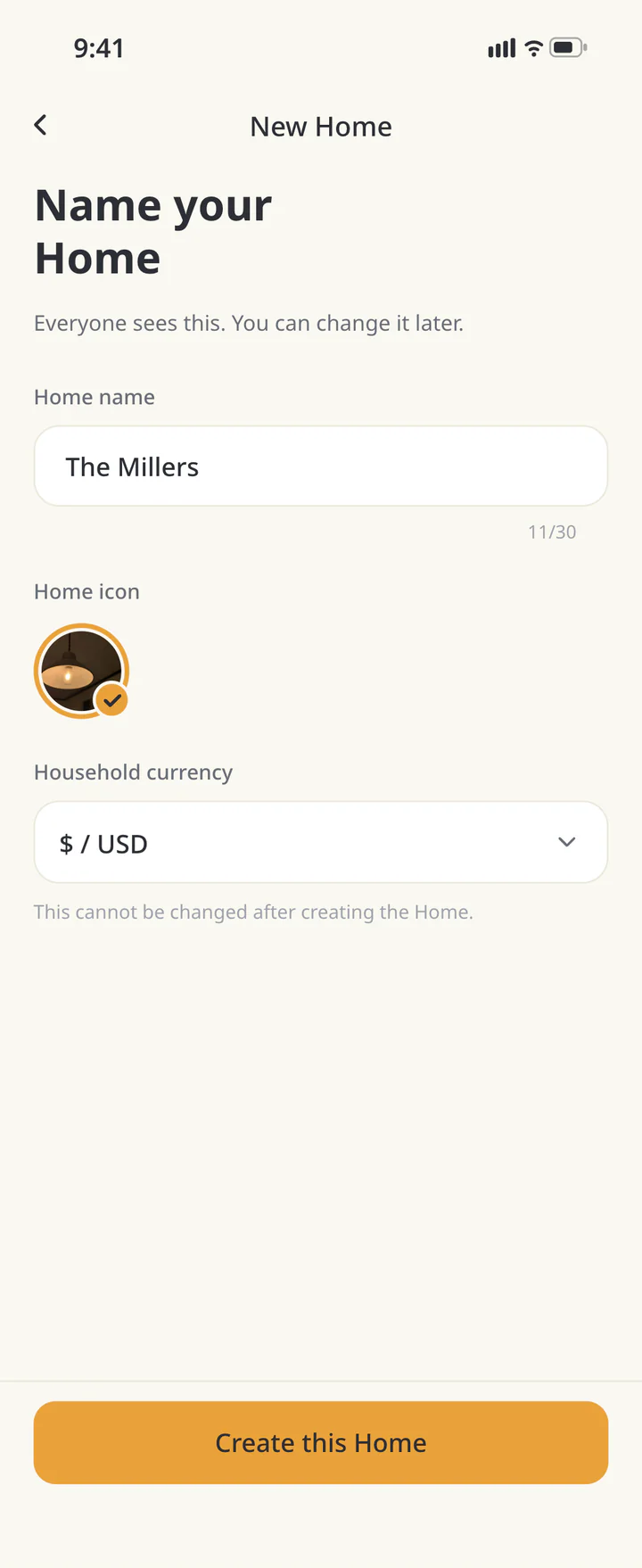 Sign in and create a Home
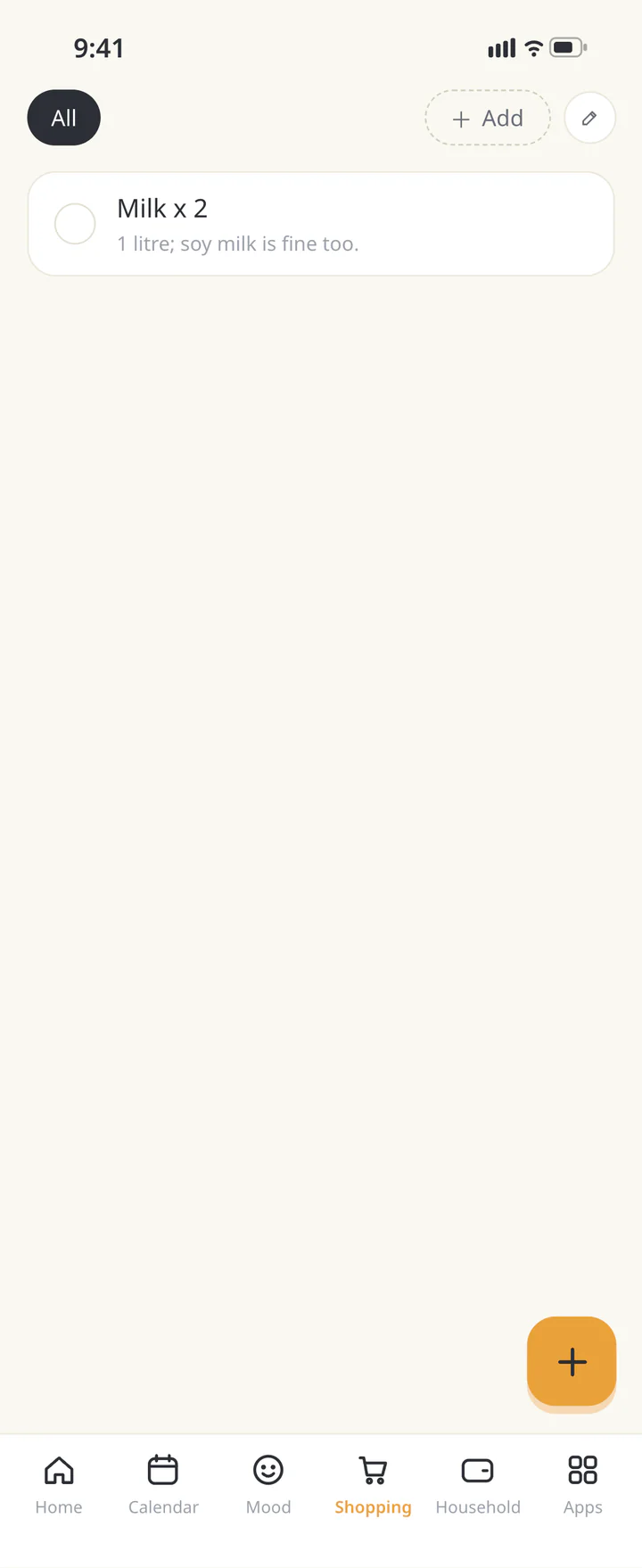 Add one plan or shopping item
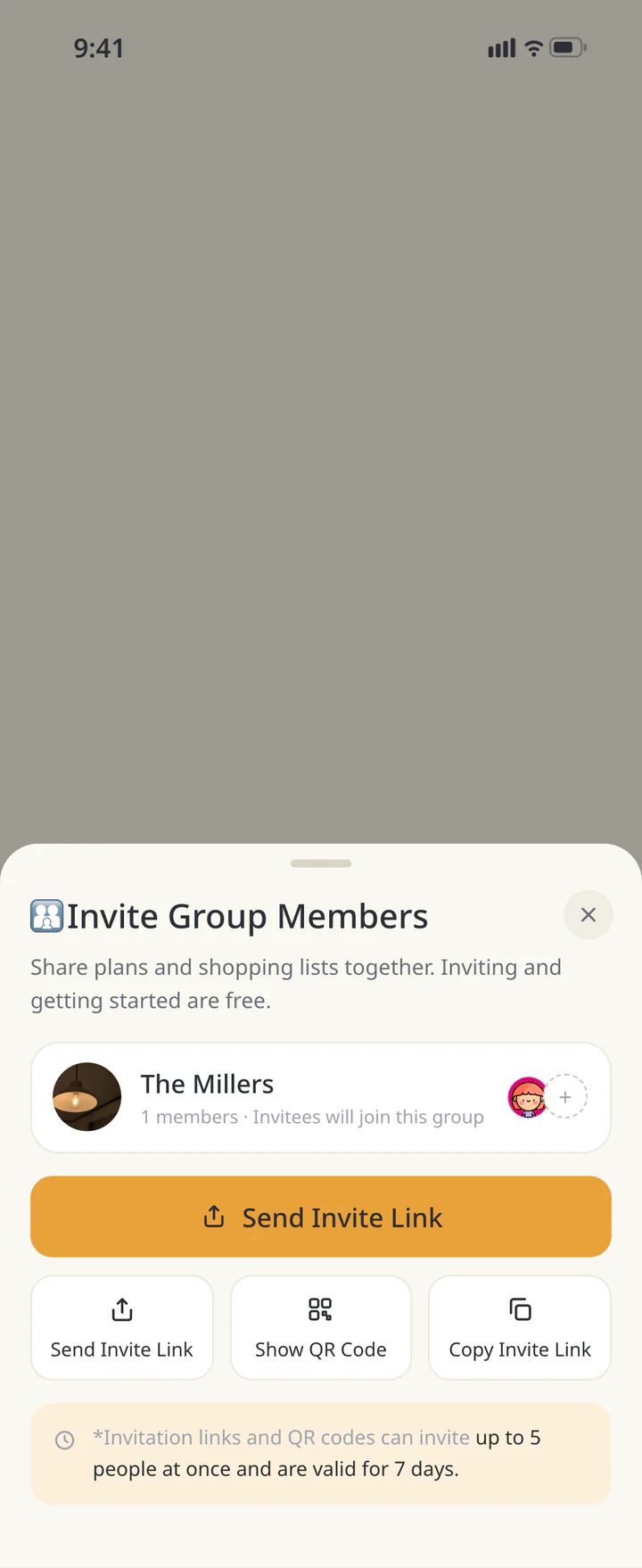 Invite someone when you are ready


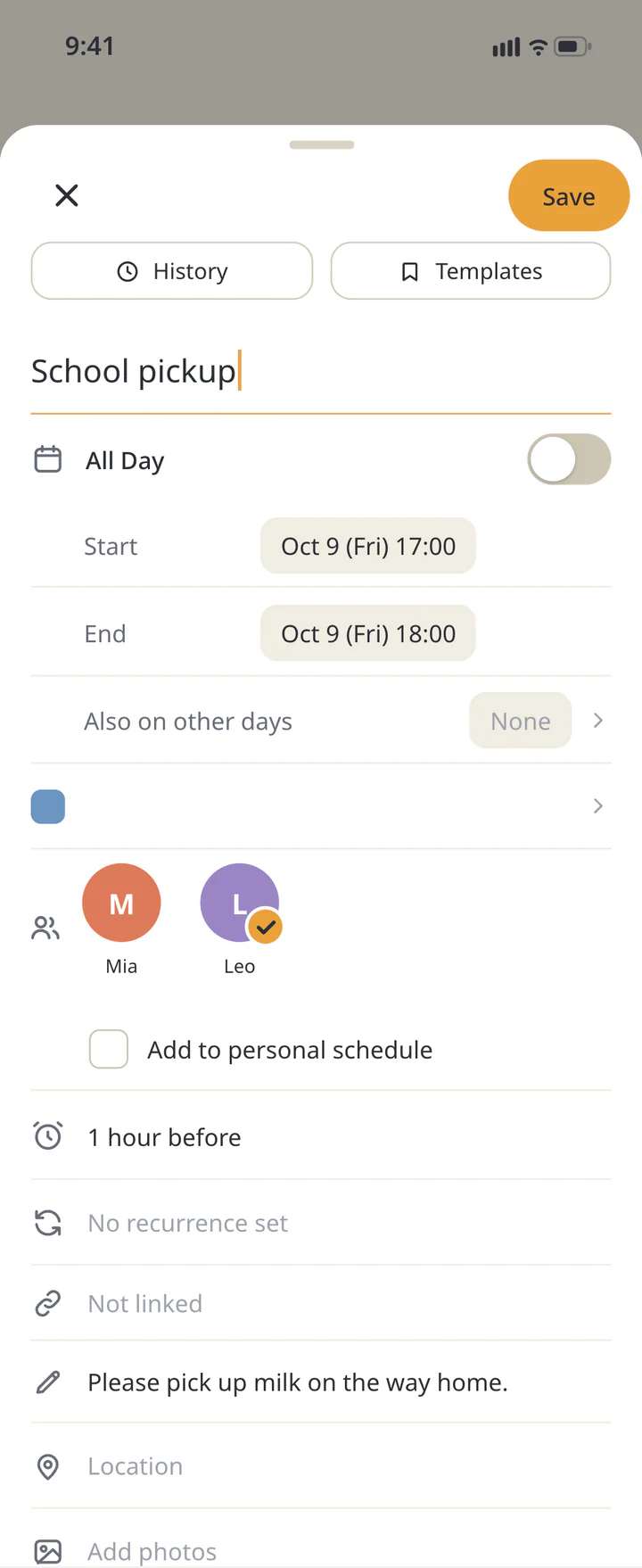

Things to know in ienon
- Everyone installs it: Each person installs ienon on iPhone or Android and signs in with their own account. On Android, sign in with Google. Sign in with Apple isn’t available on Android; it appears on iPhone and on the web.Invite someone to your Home
- No Maple import: There is no direct import from Maple. Re-enter the events and lists you saved, or import calendars that are already on your phone.Set event privacy and connect calendars
- Free and Premium: The shared calendar, shopping list, household budget, to-dos, chores, and messages are free to use with the people in your Home. The free plan shows ads. Premium removes ads and adds Inventory and more, and one subscription covers everyone in the Home.
- Due dates and alerts: A due date and a notification are separate. Check the app’s notification settings and your phone’s permission.Set due dates, recurring tasks, and chores
The first week: check that it sticks
- 1Pick one evening to add the next two weeks of events together.
- 2Add this week’s groceries to the shared list, and let whoever shops check items off.
- 3Give each recurring chore one owner. If you want to see how the work is split today, try the free chore check first.
- 4At the end of the week, look at next week together and fix anything that didn’t show up.
Moving apps is a good moment to talk about who keeps track of what.See who handles what with the Mental Load & Chore Split CheckMental Load Checklist: the invisible household tasks
Frequently asked questions
QWhat happens to my Maple data after December 31, 2026?
Maple says accounts and data stay accessible until the shutdown date. After that, all data will be deleted and can’t be recovered. Save what you need before December 31.
QWill my Maple subscription keep charging me?
Maple says annual subscriptions will no longer renew, and monthly subscriptions stay active until the shutdown date. Check your account or the store you paid through if you’re unsure.
QDoes ienon work if one of us has an iPhone and the other has Android?
Yes. ienon is on the App Store and Google Play. Each person signs in with their own account and joins the same Home, so you both see the same calendar and lists. On Android, sign in with Google. Sign in with Apple is available on iPhone and on the web, not on Android.
QIs it free for my partner to join?
Yes. Joining a Home is free, and the shared calendar, shopping list, to-dos, and chores are free to use. The free plan shows ads. One Premium subscription covers everyone in the Home.
QCan I bring a Maple .ics file or list into ienon?
There is no direct import from Maple. If you have an .ics calendar file or a grocery or to-do list as text, the free preview tool shows the events in the file and turns the list into a checklist in your browser. Nothing is uploaded. Copy what you need into ienon by hand, and set repeating events to repeat again.Family calendar & grocery list preview
QIs there something we can try in a browser before installing an app?
Yes. The free shared tools work in a browser with a link, and the Mental Load & Chore Split Check shows how household work is split today.Free shared toolsMental Load & Chore Split Check
Sources
- Maple, shutdown notice on the official website. Accessed November 23, 2026.growmaple.com
- Wander, “Wander acquires team behind Maple, adding Shopify alumni to help build The Shopify of travel” (GlobeNewswire, July 29, 2026). Accessed November 23, 2026.globenewswire.com
- Cozi, “Cozi Reaches 20 Million Members” (August 7, 2017). Accessed November 23, 2026.cozi.com/blog/20-million-members
- Cozi, Compare Plans and FAQ. Accessed November 23, 2026.cozi.com/compare-planscozi.com/faq
- FamilyWall Support, “How many circles can I have with a FamilyWall Premium subscription?” Accessed November 23, 2026.support.familywall.com
Keep your family’s plans in one Home
With ienon, everyone in the same Home shares the calendar, shopping list, to-dos, and chores on iPhone and Android. ienon is free to start.