
How to Share a Calendar with Your Family (2026)
Updated November 16, 2026
If everyone in your family has an iPhone, the built-in Calendar app can share an iCloud calendar. If some of you use Android, you need a different route. This guide covers each option using Apple’s and Google’s help pages (checked November 16, 2026), along with what each one can’t do.
Quick answer
- Everyone on iPhone: Share an iCloud calendar from the Calendar app, or use the shared calendar that comes with Family Sharing. Apple describes iCloud calendar sharing as sharing with other iCloud users.See the steps
- Google Calendar: Share a calendar from the Google Calendar app, or use the “Family” calendar that Google creates for a family group. Google’s help has steps for both Android and iPhone.See the steps
- A family app: Everyone installs the same shared calendar app on iPhone or Android. In ienon, everyone who joins the same Home sees the same events, and you can still keep personal events to yourself.See the steps
1. iPhone: share an iCloud calendar
Apple’s iPhone User Guide says you can share an iCloud calendar with other iCloud users in the Calendar app. They can see the calendar, and you decide whether they can add or change events. Here’s how to share a calendar:
- 1Open the Calendar app on your iPhone and tap the Calendars button.
- 2Tap the Info button next to the iCloud calendar you want to share.
- 3Tap Add Person, then enter a name or email address, or browse your contacts.
- 4Tap Done. The people you add receive an invitation to join the calendar.
- Editing: To change what someone can do, tap their name in the calendar’s info and turn Allow Editing on or off.
- Email address: Apple notes that your contacts must have an email address to share an iCloud calendar.
- Changes: When someone changes a calendar you’re sharing, you’re notified. You can turn this off in Settings > Notifications > Calendar > Customize Notifications (Shared Calendar Changes).
- Read-only link: To share with someone who doesn’t use iCloud, turn on Public Calendar in the calendar’s info and tap Share Link. Anyone who has the link can view and subscribe to the calendar, even if they don’t use iCloud, but they can’t change events.
Family Sharing’s shared calendar
Family Sharing lets you and up to five other family members share Apple services without sharing an Apple Account. Apple’s Personal Safety User Guide says that after the invitations are accepted, Family Sharing is set up on everyone’s devices automatically, including a shared calendar. One adult, the organizer, sets up the group.
- 1Open the Settings app on your iPhone, tap your name, then tap Family.
- 2Follow the onscreen instructions to set up your Family Sharing group.
- 3Tap Invite Others, then tap Invite People and follow the onscreen instructions to invite family members.
Good to know: Apple notes that you can only join one Family Sharing group at a time, and that Family Sharing is available on eligible devices.
Apple’s guides for Family Sharing:Apple: Set up Family Sharing on iPhoneApple: Manage Family Sharing
2. Google Calendar: share a calendar
This option works when everyone uses the Google Calendar app. Google’s help has steps for the app on Android and on iPhone and iPad (checked November 16, 2026). Here’s how to share a calendar:
- 1On your Android phone or iPhone, open the Google Calendar app.
- 2At the top left, tap Menu, then Settings, and select the calendar you want to share.
- 3Under “Shared with,” tap Add people or groups, then enter and choose a name or group.
- 4Choose what they can do with your calendar (the permission), then tap Save.
- 5They get an email. To add your calendar, they need to click the link in the email.
Permissions you can give (Google Calendar Help, checked November 16, 2026)
| Permission | What they can do |
|---|---|
| See only free/busy (hide details) | Find out when you’re busy, but not the names or details of events. |
| See event details | Find all details, like event names, times, places, and descriptions. |
| Make changes (see private events as free/busy) | Edit events that aren’t private. Private events can’t be edited. |
| Make changes and see event details | Edit events or tasks with a start and end time, and see who else the calendar is shared with. |
| Make changes and manage sharing | Fully control events and tasks, and share your calendar with others. |
- One calendar at a time: Sharing is set for each calendar. Put the events you want others to see in the calendar you shared with them.
- Work or school accounts: If the calendar belongs to a work or school account, your administrator decides whether you can share it.
- Someone else’s calendar: To share a calendar you don’t own, the owner has to give you the “Make changes and manage sharing” permission.
- If the email doesn’t arrive: Check that the email address is correct and ask them to look in their spam or trash folder. If that doesn’t work, remove them from the sharing list and add them again.
Google’s family calendar
When you create a family group on Google, a calendar called “Family” is created automatically. Everyone in the family group can find it in Google Calendar on any device where they’re signed in. The family manager can invite up to 5 people, who must live in the same country and be at least 13 years old (or the applicable age in your country). Kids under 13 can only be added if the family manager created the child’s supervised Google Account.
- 1If you don’t have a family group yet, go to g.co/YourFamily and select Create a family group, then Get started. Under “Ready to be a family manager?,” select Confirm. You become the family manager.
- 2Enter the names of family members you want to invite and select Send. If you already manage a family group, go to g.co/YourFamily, select Send invitations, enter your family member’s email address, and select Send.
- 3To add an event, open the Google Calendar app, tap Create in the bottom right, then Event.
- 4Tap the name of your family calendar, add a title and details, and tap Save in the top right.
- Who can edit: Anyone in the family can change events on the family calendar, manage how it’s shared, and edit its name.
- Notifications: By default, you get the same notifications for upcoming events as for your primary calendar, but not when a family member creates, edits, or deletes an event.
- Leaving the group: If someone leaves the family group, they lose access to the family calendar.
If your family has both iPhone and Android
- iCloud calendars: Apple describes sharing as being with other iCloud users. For someone who doesn’t use iCloud, the public calendar link lets them view and subscribe, but not add events.
- Family Sharing: The shared calendar comes with an Apple Family Sharing group. Apple’s setup steps are for iPhone and iPad, and Apple says Family Sharing is available on eligible devices.
- Google Calendar: The app and Google’s sharing steps cover both Android and iPhone. If everyone uses Google Calendar and you give a “Make changes” permission, you can edit the same calendar together.
3. Use a shared family calendar app
Another way is for everyone to install the same shared calendar app, available on both iPhone and Android. Each app handles joining and privacy differently. Here are the steps in ienon.
How to share a calendar in ienon
- 1The first person opens the top-left menu in “Home”, taps “Invite”, then taps “Copy Invite Link” and sends the link. An invitation link or QR code can invite up to 5 people and is valid for 7 days.
- 2The person joining installs ienon, opens the link, and chooses “Sign in with Apple” or “Sign in with Google”. They check the Home name and inviter, then tap “Join this Home”. The Apple option appears on supported devices.
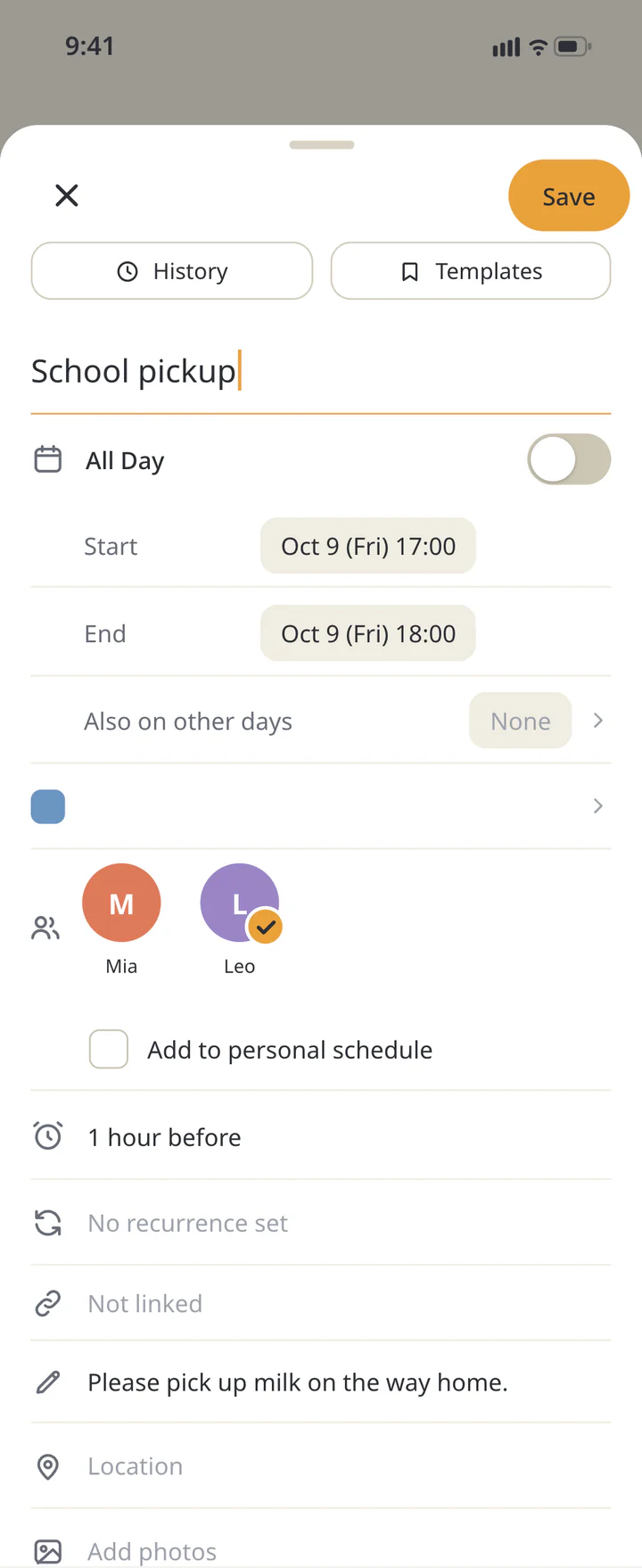
- 3In “Calendar”, tap + and enter the event title, “Start”, “End”, and assignees. For an event everyone should see, leave “Add to personal schedule” unchecked and tap “Save”.
- 4For an event only you should see, check “Add to personal schedule”. Choosing an assignee doesn’t replace this setting.
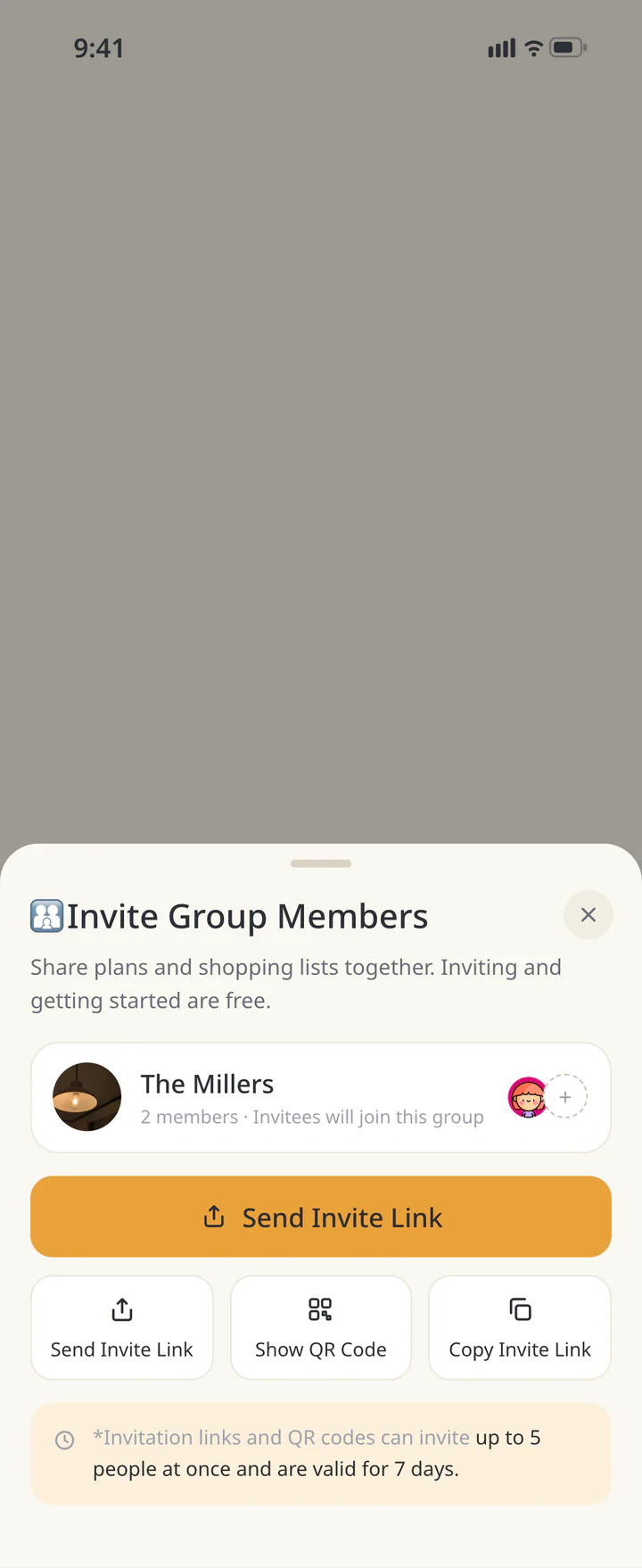 Bring both people into one Home
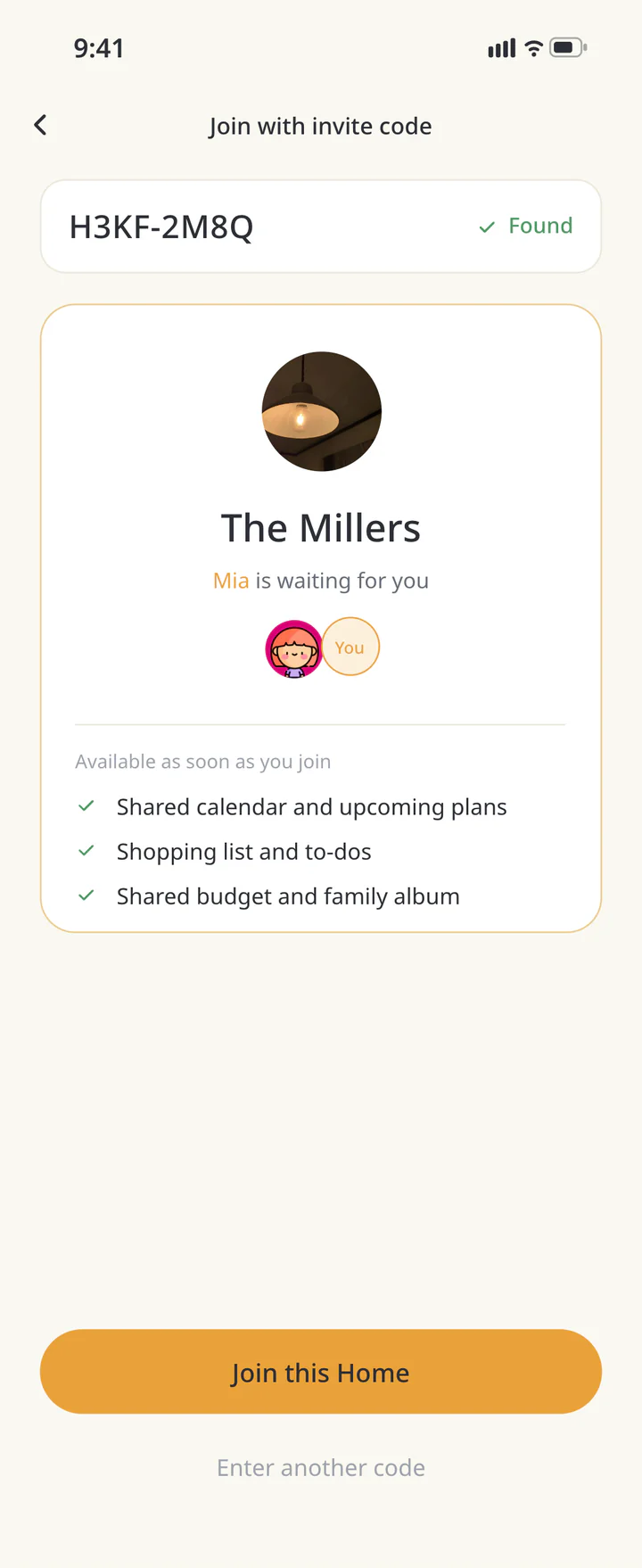 Check the Home you are joining
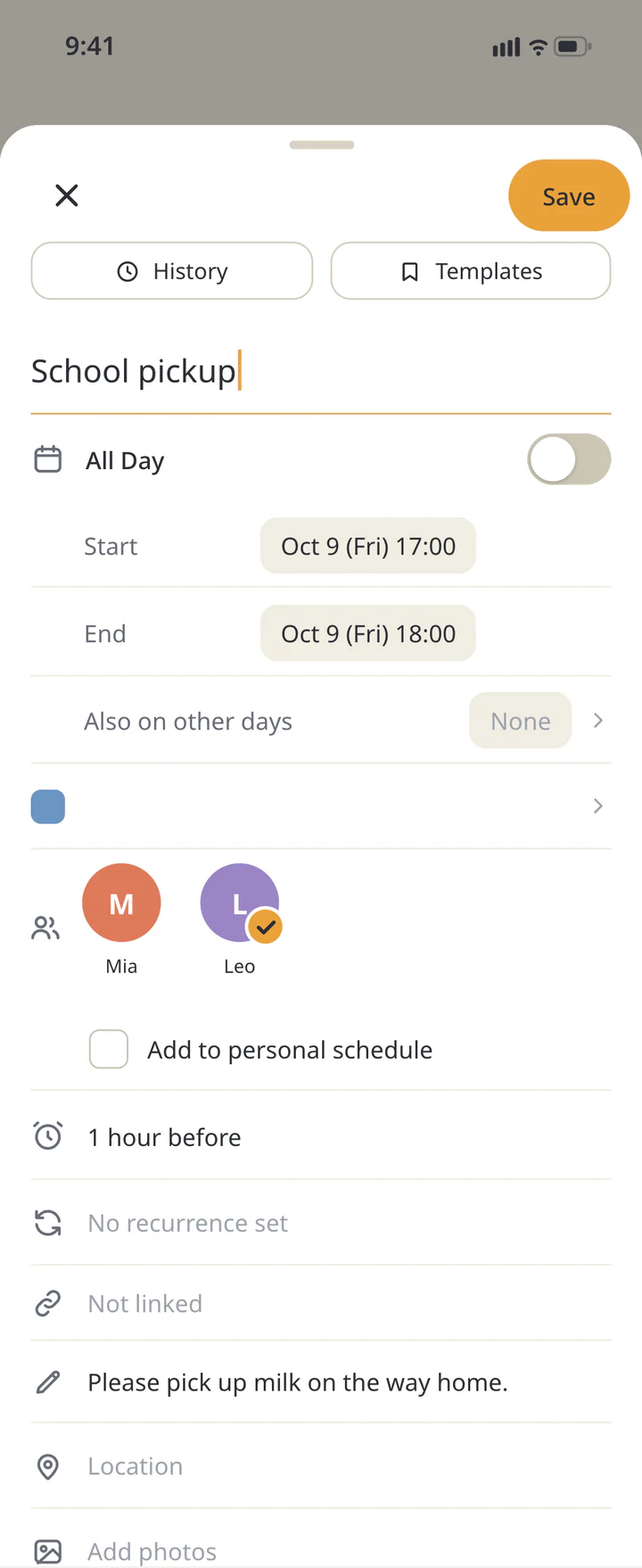 Add an event with times and assignees
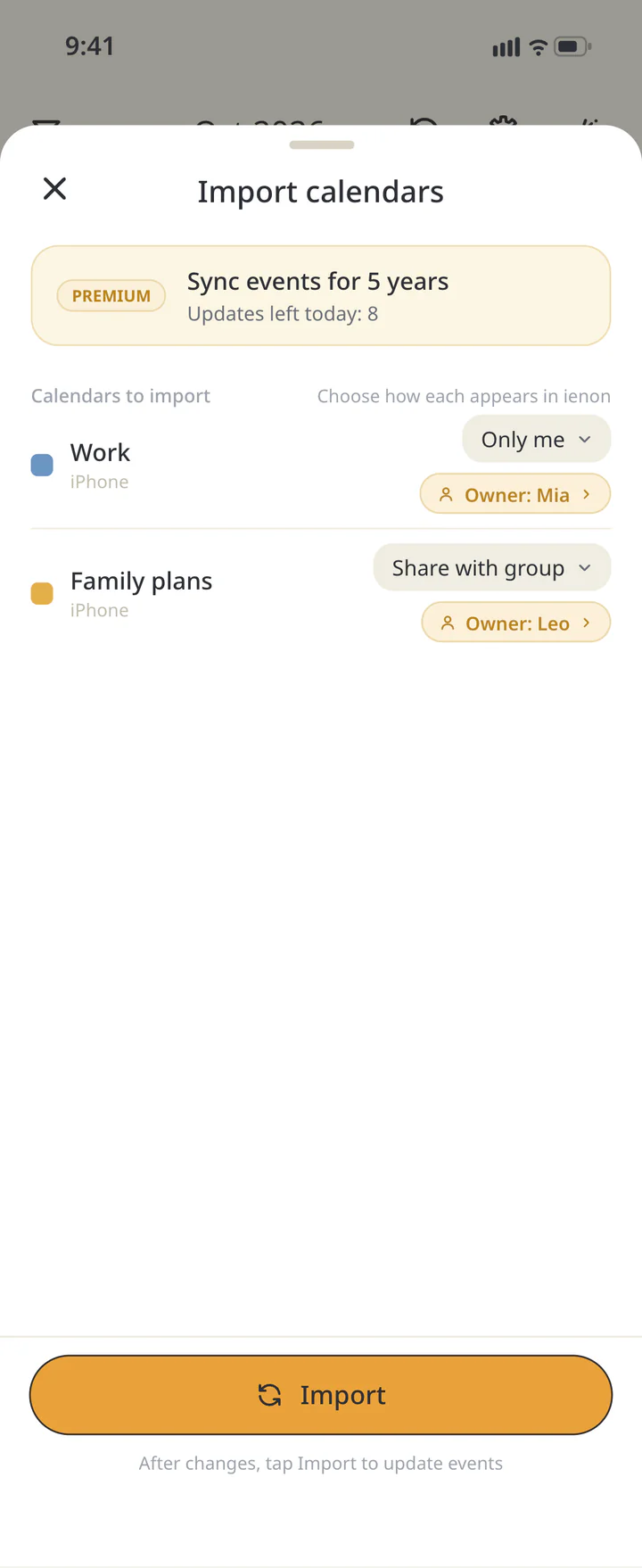 Choose visibility for each calendar



Things to know in ienon
- Everyone installs it: Each person installs ienon and signs in with their own Apple or Google account. The Apple option appears on supported devices. You don’t need to share login details. Invitations and basic sharing are free to start.Invite someone to your Home
- One Home: Two Homes with the same name don’t share events. Pick the Home you want to share and send the invitation from it. Records from separate Homes are not merged automatically.
- Device calendars: To see a work calendar or another calendar on your phone alongside ienon, use “Import other calendars” and choose “Only me”, “Share with group”, or “Do not share” for each one.Set event privacy and connect calendars
- Family without the app: “View in other calendars” (Premium) creates a URL that another calendar app can subscribe to. The external view is read-only and may update with a delay. Anyone with the URL can view the events, so keep it within your household.
Which one to choose
Here’s how the options differ, based on each company’s help pages.
| Option | iCloud calendar (iPhone) |
|---|---|
| What’s shared | One calendar at a time |
| What the other person needs | An invitation, and to be an iCloud user (their contact entry needs an email address) |
| Who sees and edits | Turn Allow Editing on or off for each person. The public link is read-only |
| Option | Family Sharing (iPhone) |
|---|---|
| What’s shared | A shared calendar set up for the Family Sharing group |
| What the other person needs | To join your Family Sharing group (you and up to five other family members) |
| Who sees and edits | Shared with your Family Sharing group |
| Option | Google Calendar |
|---|---|
| What’s shared | One calendar at a time |
| What the other person needs | The sharing email (they click the link to add the calendar) |
| Who sees and edits | Choose one of five permissions |
| Option | Google’s family calendar |
|---|---|
| What’s shared | The “Family” calendar of a Google family group |
| What the other person needs | To join your family group (up to 5 invited, same country, 13 or older, or a child whose supervised account the family manager created) |
| Who sees and edits | Everyone in the family can change events and manage sharing |
| Option | ienon |
|---|---|
| What’s shared | A Home (invite people to join the same Home) |
| What the other person needs | The invitation link, ienon, and an Apple or Google account (the Apple option appears on supported devices) |
| Who sees and edits | Shared events are visible to Home members. “Add to personal schedule” keeps an event to yourself |
- If everyone has an iPhone, start with an iCloud calendar or Family Sharing.
- If your family mixes iPhone and Android and everyone already uses Google Calendar, share a Google calendar or use Google’s family calendar.
- If you also want to share a shopping list or chores in the same place, try a family app.
Frequently asked questions
QCan I share my iPhone calendar with someone who uses Android?
Apple describes iCloud calendar sharing as sharing with other iCloud users. For someone who doesn’t use iCloud, you can turn on Public Calendar and send the link: anyone with the link can view and subscribe to the calendar, but they can’t change events. To edit the same calendar together, use Google Calendar or a family app on both phones.
QMy events don’t show up on my partner’s calendar. What should I check?
In Google Calendar, sharing is set for each calendar, so check that the event is in the calendar you shared. In iCloud, check that the other person accepted the invitation. In ienon, check that you’re both in the same Home and that “Add to personal schedule” isn’t checked for that event.
QCan I show when I’m busy without sharing the details?
In Google Calendar, the “See only free/busy (hide details)” permission shows only when you’re busy, not the names or details of events. In ienon, check “Add to personal schedule” to keep an event to yourself.
QWill I be notified when a family member changes an event?
On iPhone, you’re notified when someone changes a calendar you’re sharing, and you can turn this off in Settings. Google’s family calendar doesn’t send a notification when a family member creates, edits, or deletes an event.
QCan family members who won’t install an app still see our events?
An iPhone public calendar can be viewed and subscribed to by anyone with the link, even without iCloud (read-only). In ienon, a URL from “View in other calendars” (Premium) can be subscribed to in another calendar app. In both cases, anyone with the link or URL can see the events.
One shared calendar for iPhone and Android
With ienon, everyone who joins the same Home can use the calendar, shopping list, and chores together. Invitations and basic sharing are free to start.