
STEP BY STEP
Invite someone to your Home
Sharing starts when you join the same Home. Giving two separate Homes the same name does not connect them. The first steps are for the inviter; the remaining steps are for the person joining.
Before you start
- 01The inviter should open the Home they want to share.
- 02The person joining needs ienon and an Apple or Google account to sign in.
Steps
- 1
Step 1
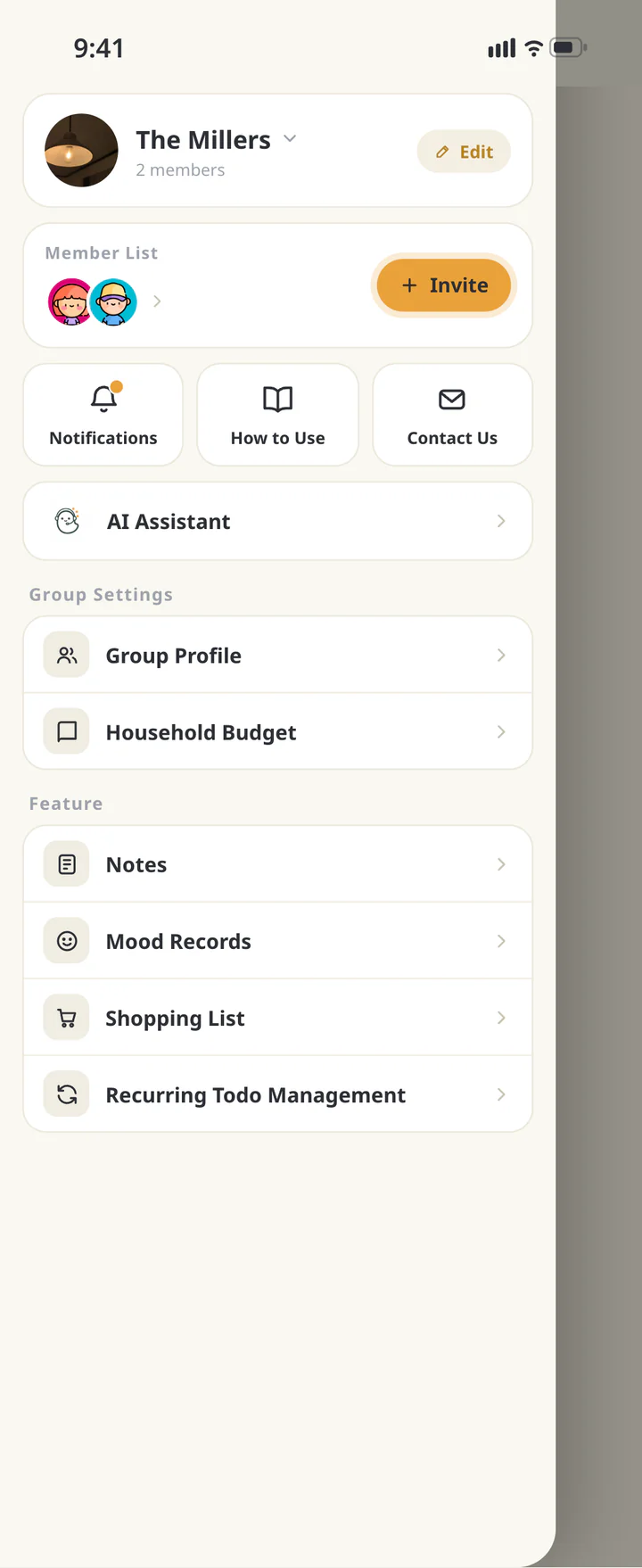
Inviter: open the Home menu
Open the top-left menu in “Home” and tap “Invite”. Check the Home name shown on the invitation sheet.
Inviter: open the Home menu - 2
Step 2
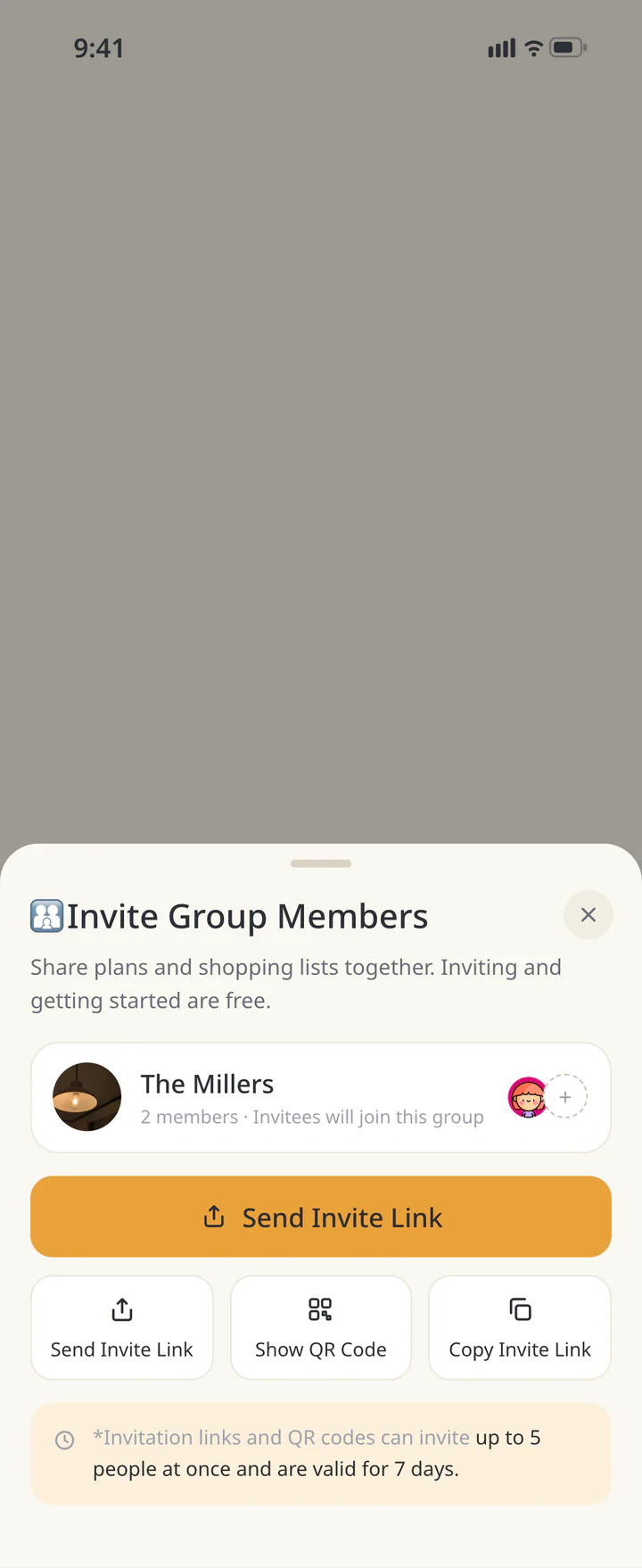
Inviter: copy and send the link
Tap “Copy Invite Link”, then paste it into your usual messaging app. A link or QR code is valid for seven days and up to five people. Create a new invitation here if it expires or reaches its limit.
Inviter: copy and send the link - 3
Step 3
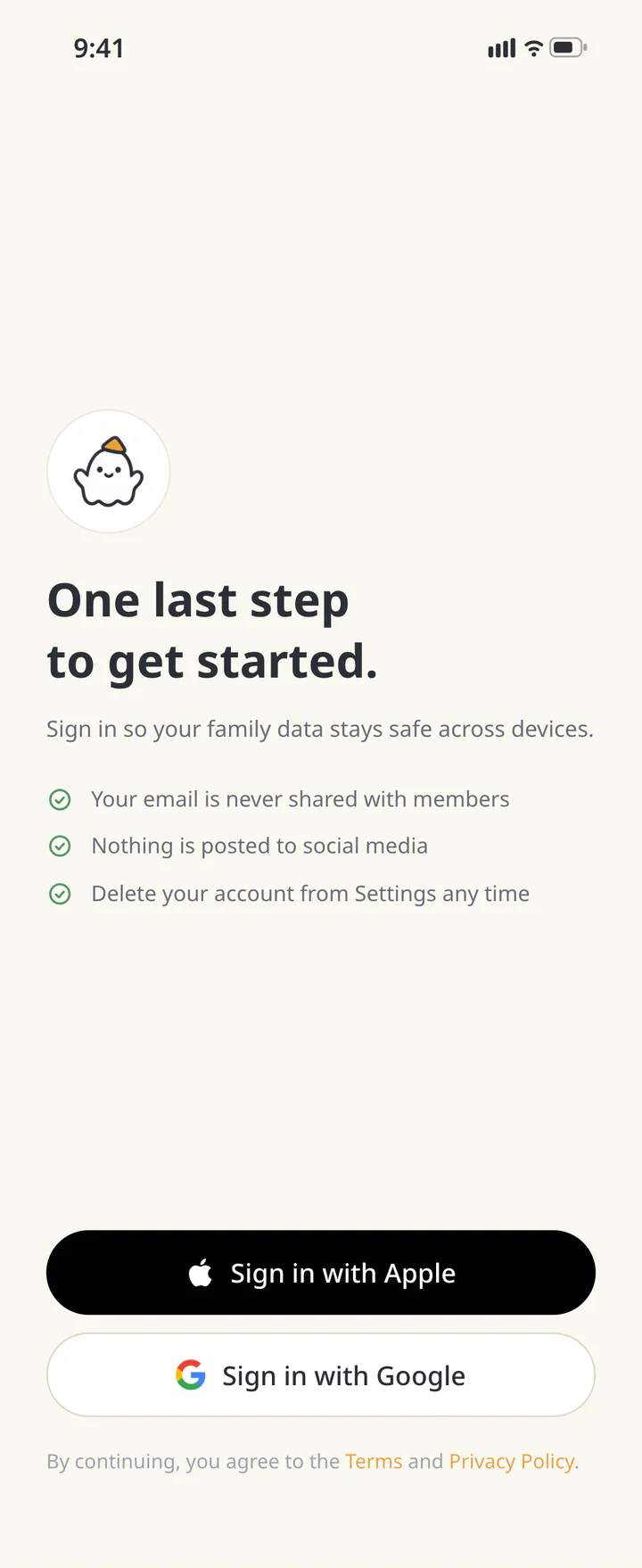
Joining: open the link and sign in
Open the invitation link. If you need to install the app, return to the message and open the link again afterward. If asked to sign in, choose “Sign in with Apple” or “Sign in with Google”. The Apple option appears on supported devices.
Joining: open the link and sign in - 6
Step 6
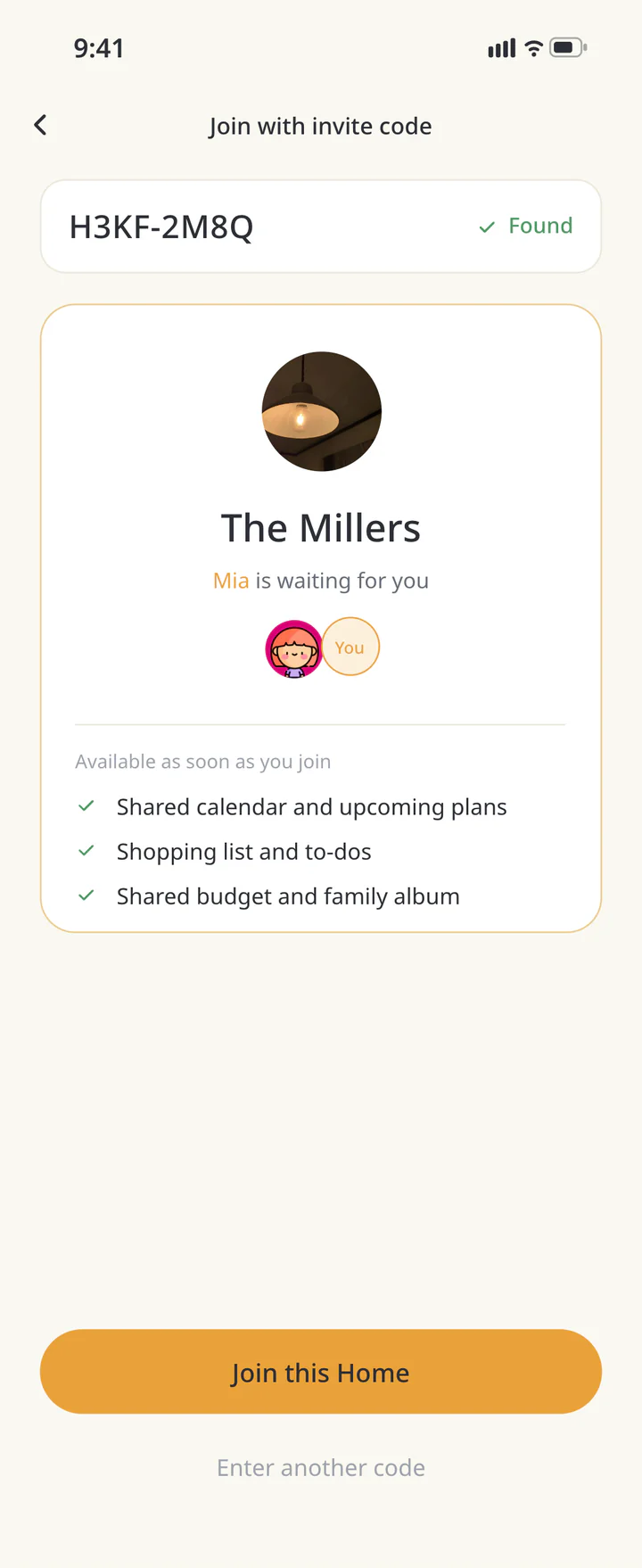
Check the Home you are joining
Check the Home name and inviter, then tap “Join this Home”. If you do not recognize the Home, use “Close” and check with the sender.
Check the Home you are joining - 7
Step 7
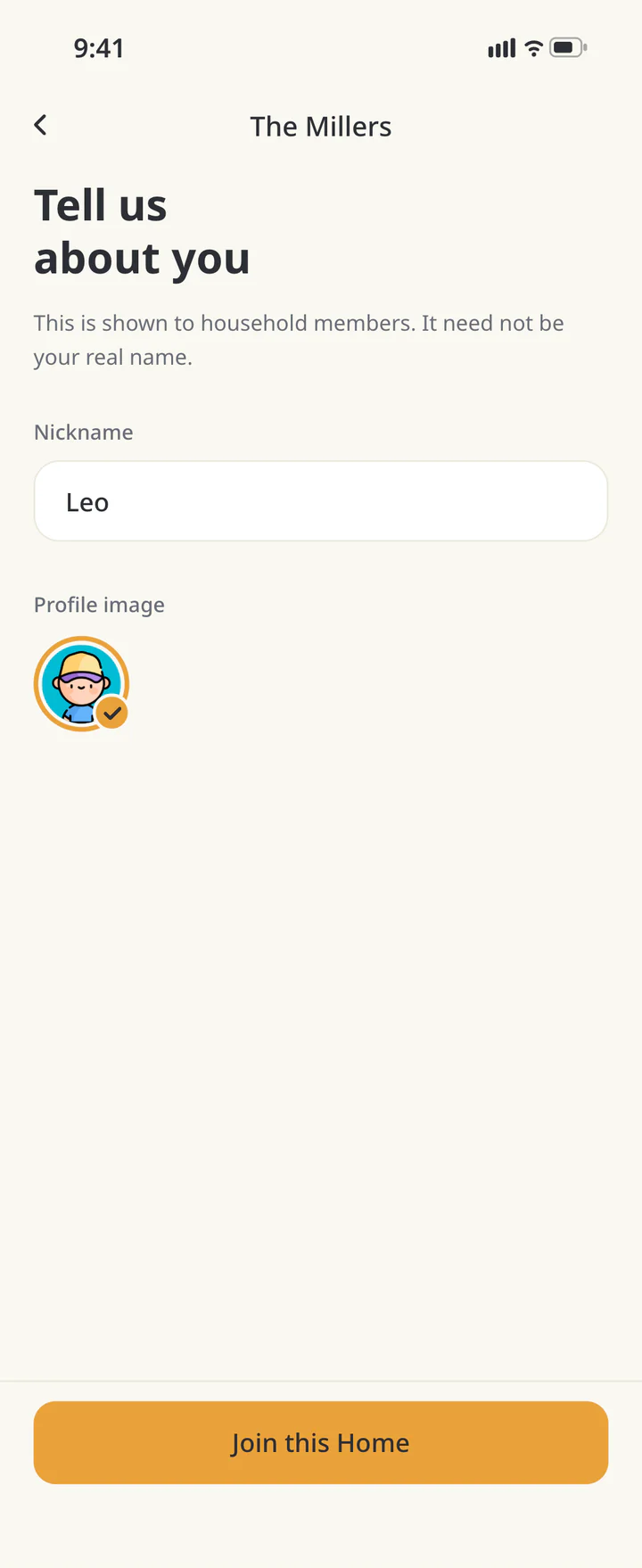
Set your name and profile image
If a profile form appears, enter your “Nickname”, choose a profile image, and tap “Join this Home” to finish joining. Returning members may skip this form.
Set your name and profile image - 8
Step 8
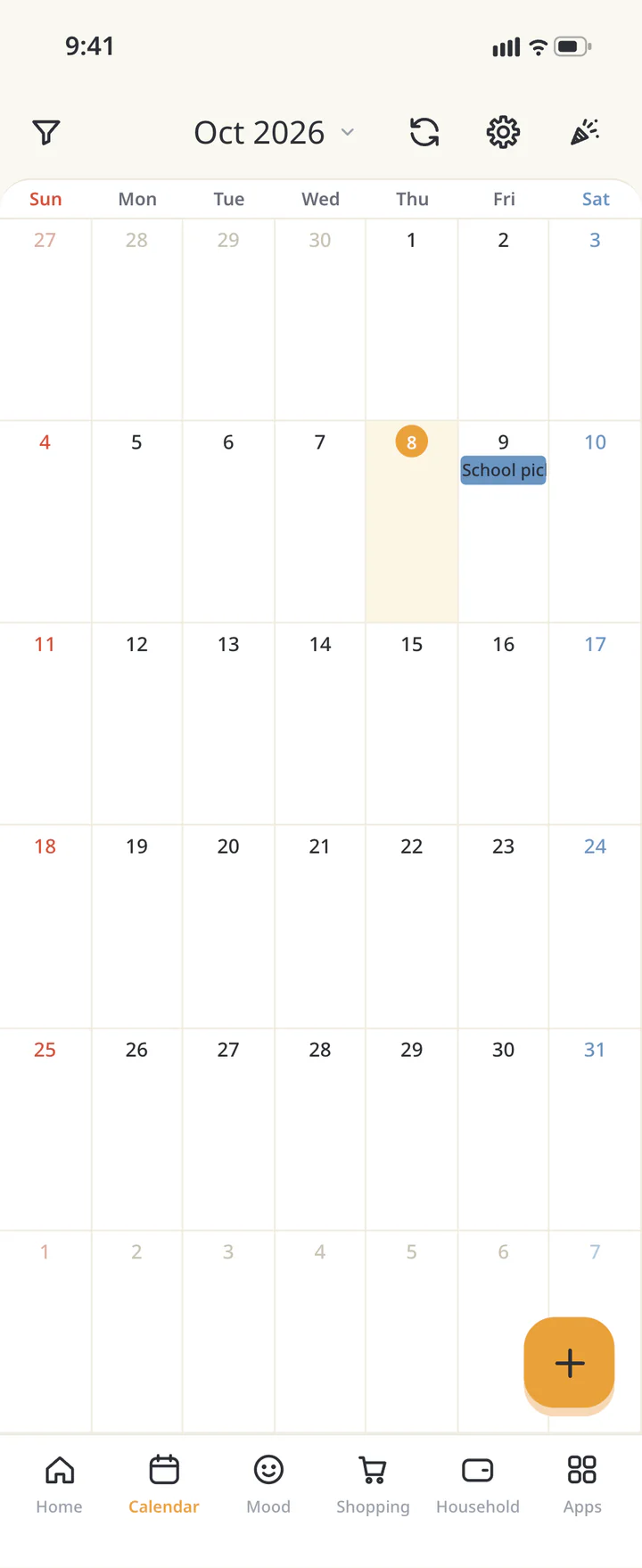
Check that you can see the shared content
After joining, open “Calendar” or “Shopping”. Seeing the inviter’s shared event or shopping item confirms you are in the same Home.
Check that you can see the shared content


If the link won’t open
Join with an invitation code
Step 4
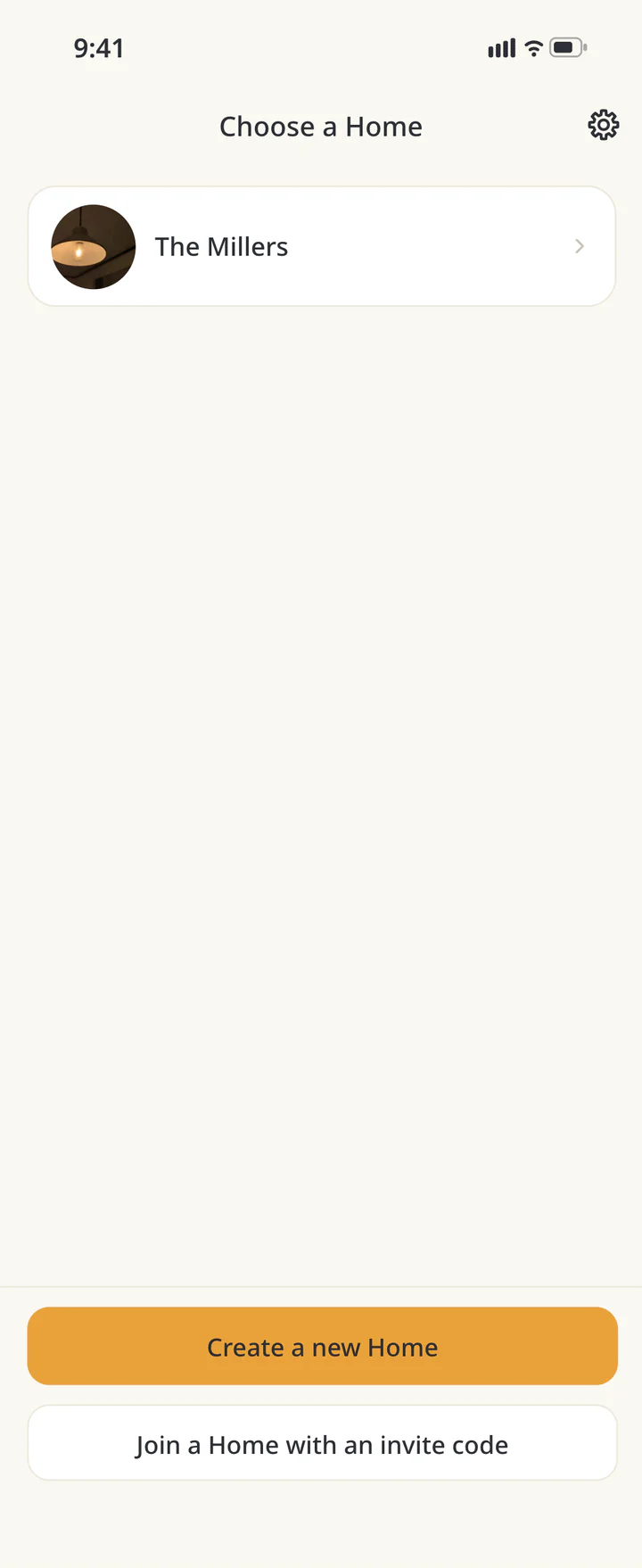
Using a code: choose the joining option
If the link has already opened the Home preview, skip code entry. With a code, choose “I was invited” if you have no Home yet. If you already have another Home, go to “User Settings” → “Choose a Home” → “Join a Home with an invite code”.
Using a code: choose the joining option Step 5
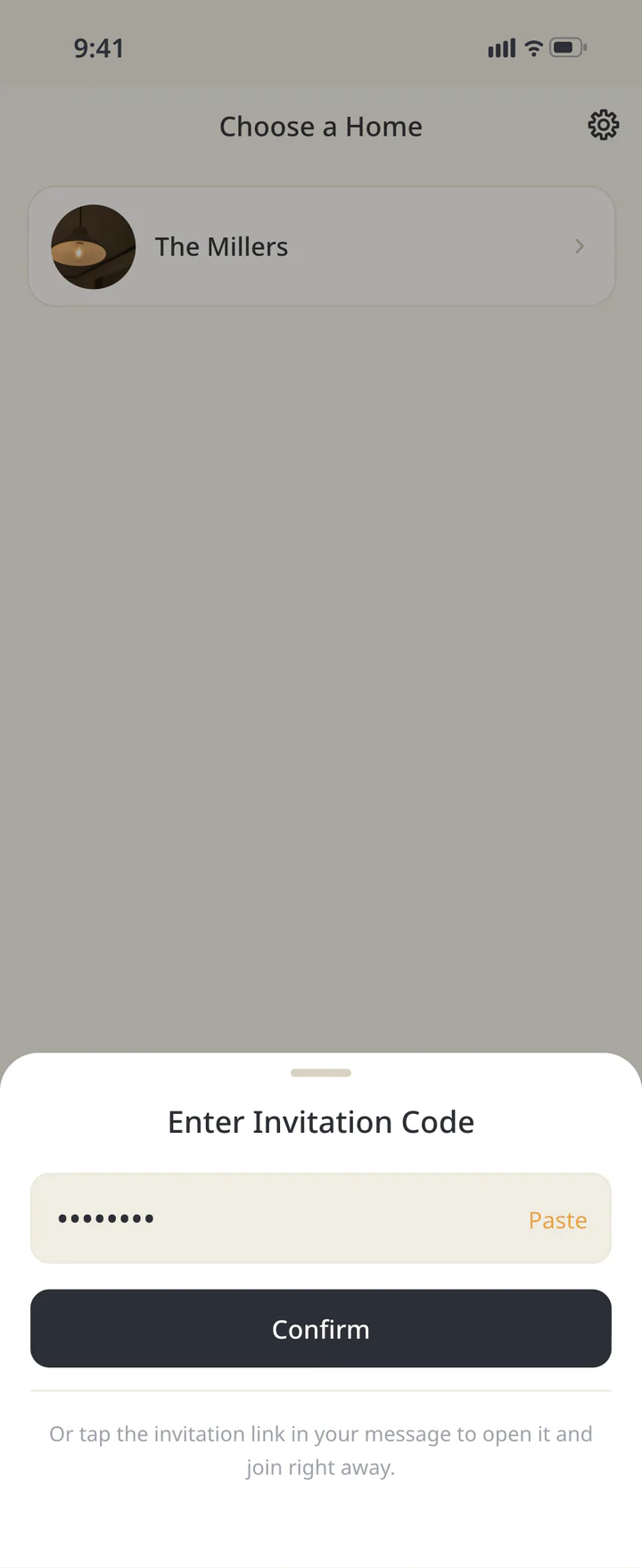
Enter and confirm the code
Enter the code in “Enter Invitation Code” and tap “Confirm”. You can also use “Paste” with a copied invitation message.
Enter and confirm the code


TROUBLESHOOTING
If something doesn’t work
QWe created separate Homes. What now?
Choose the Home you want to share and send an invitation from it. The other person can join with a code from “Choose a Home”. Records from separate Homes are not automatically merged.
QThe code does not work.
Check the on-screen error: the invitation may have expired, reached its limit, or already been used by you. Ask the inviter for a fresh invitation if needed. An invitation code and a referral code serve different purposes.
QDoes the person joining need to sign in?
Yes. Each person signs in with their own Apple or Google account. You do not need to share login details. Invitations and basic sharing are free to start.
Download ienon
Join one Home and share your first plan.
History: Published October 9, 2026 — checked against app 16.5.0