
STEP BY STEP
Set due dates, recurring tasks, and chores
Use a to-do for a one-off task and a recurring chore for regular household work. You do not need to enter the same job in both. Follow the branch that fits your task.
Before you start
- 01If a feature is not in your bottom tabs, open it from “Apps”.
- 02Decide who will do the task and when it is due or repeated.
Steps
Which side are you on?
- 1
Step 1
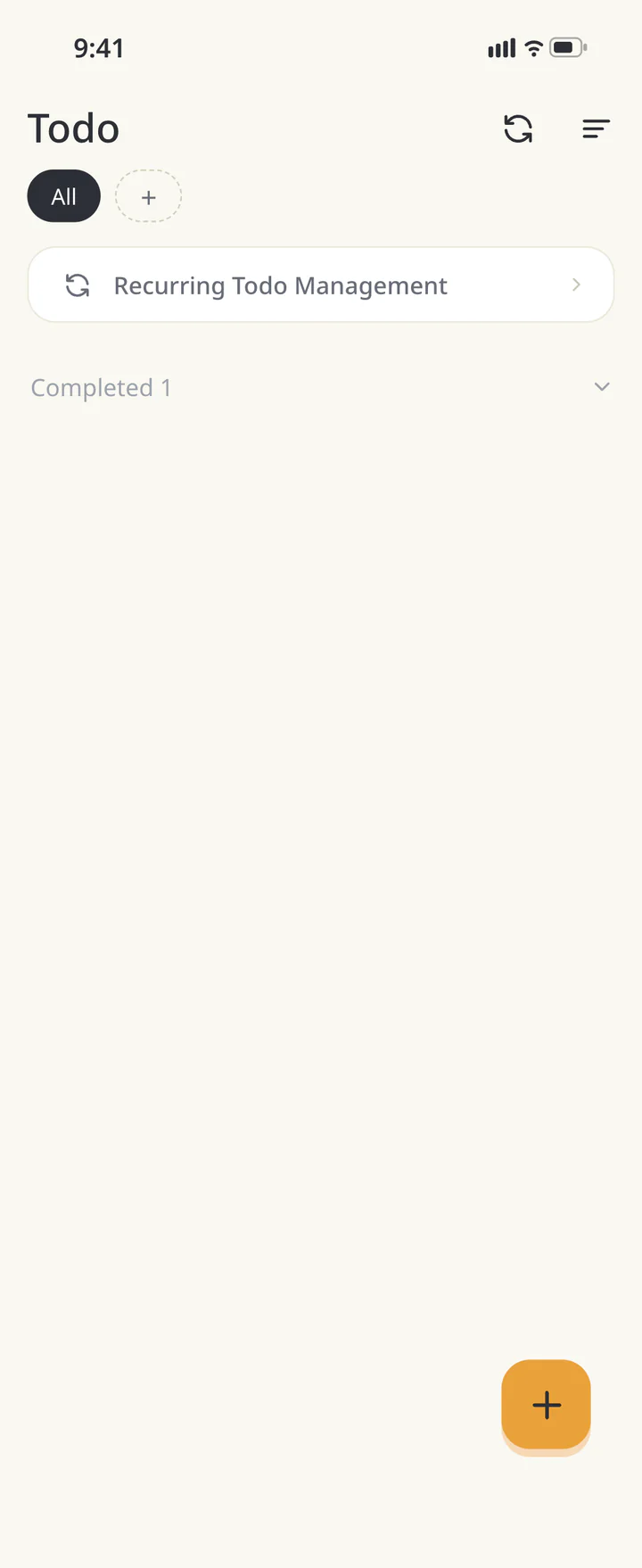
Open to-dos and add a task
Open “Todo” and tap +. Give the task a clear name, such as “Prepare the nursery forms”.
Open to-dos and add a task - 2
Step 2
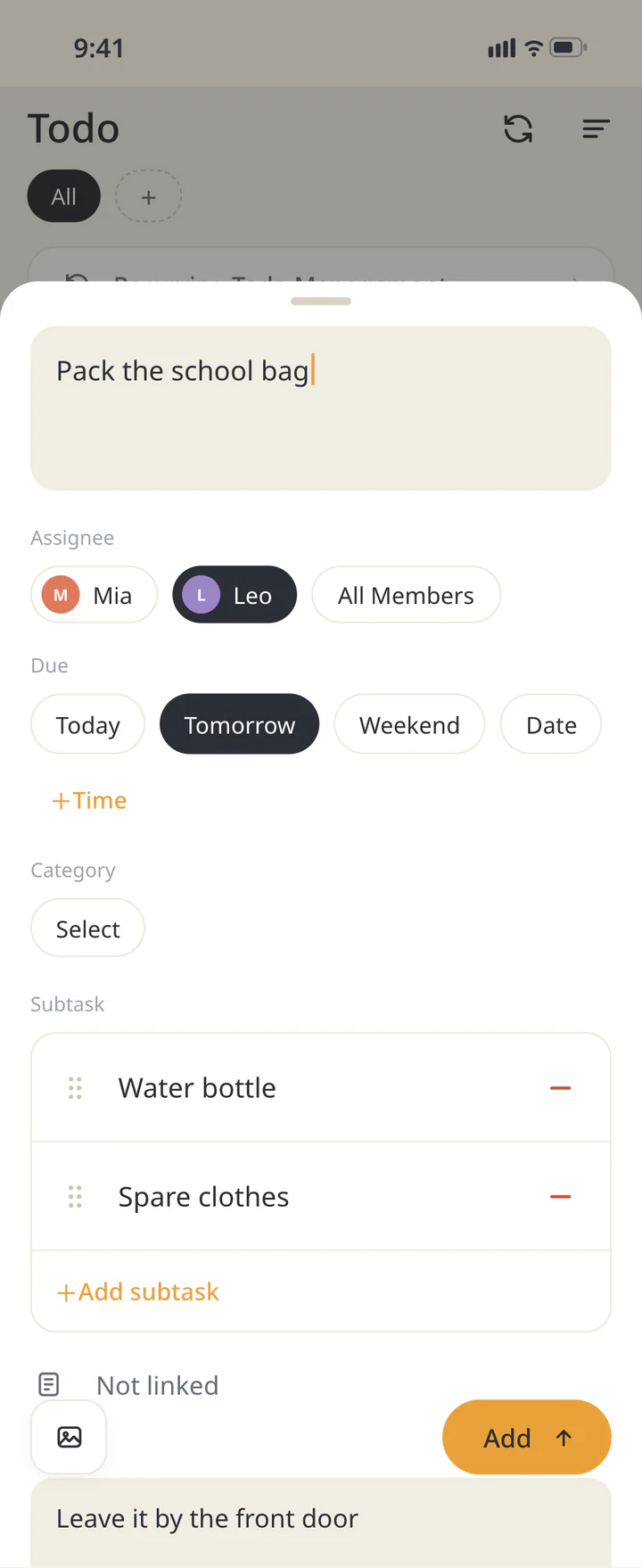
Set the assignee and due date
Choose the person under “Assignee” and the date under “Due”. Use “+ Time” if you also need a time. Split several items into “Subtask” and put extra details in the memo.
Set the assignee and due date - 3
Step 3
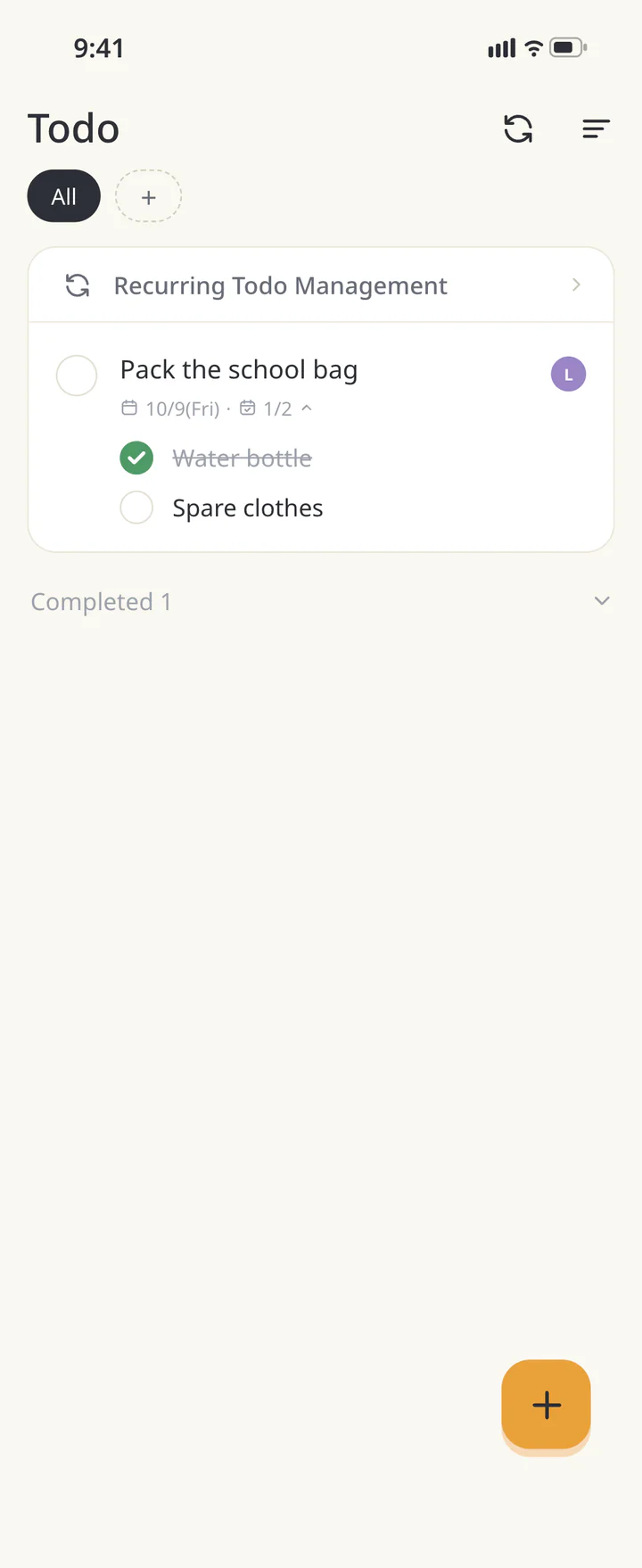
Add it and check it off when done
Tap “Add”. When the job is done, use its checkbox in the list. Setting a due date and marking a task complete are separate actions.
Add it and check it off when done - 4
Step 4If needed
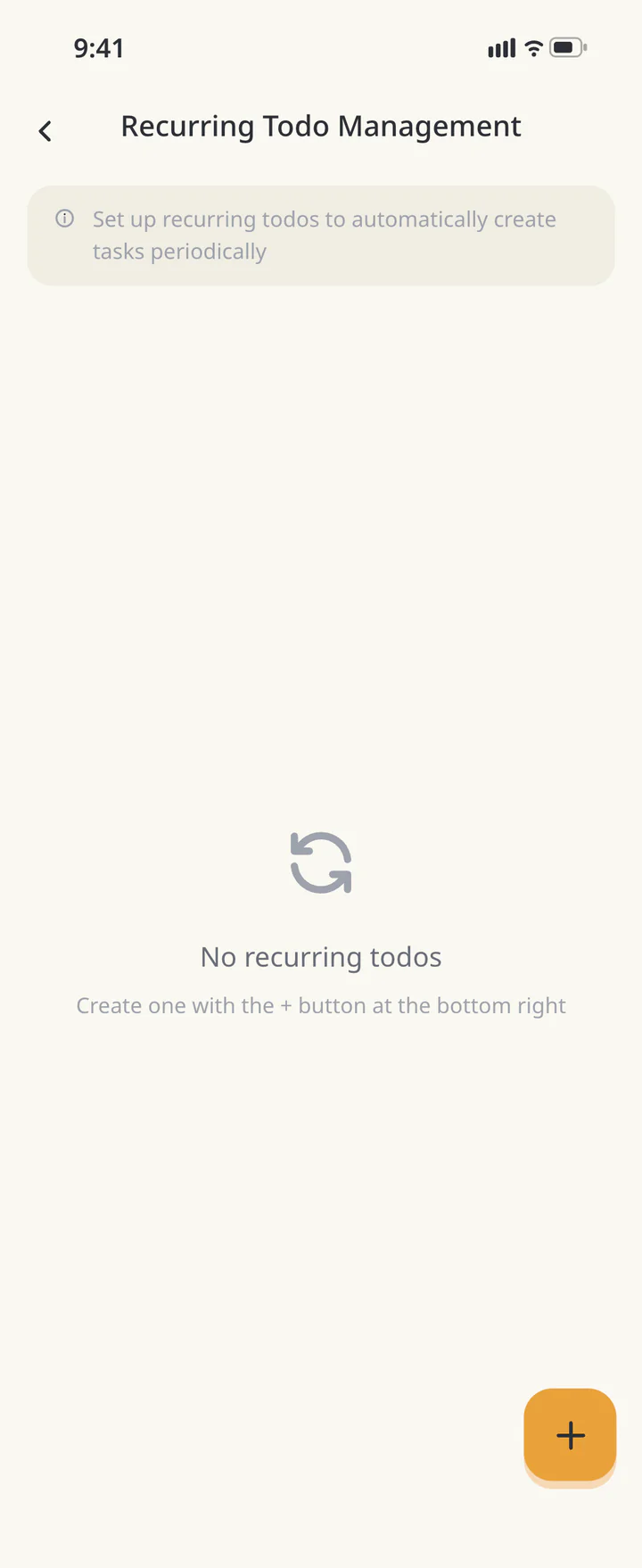
Open recurring to-do management
For a repeating task, open “Recurring Todo Management” and tap +. This is separate from the regular to-do form.
Open recurring to-do management - 5
Step 5If needed
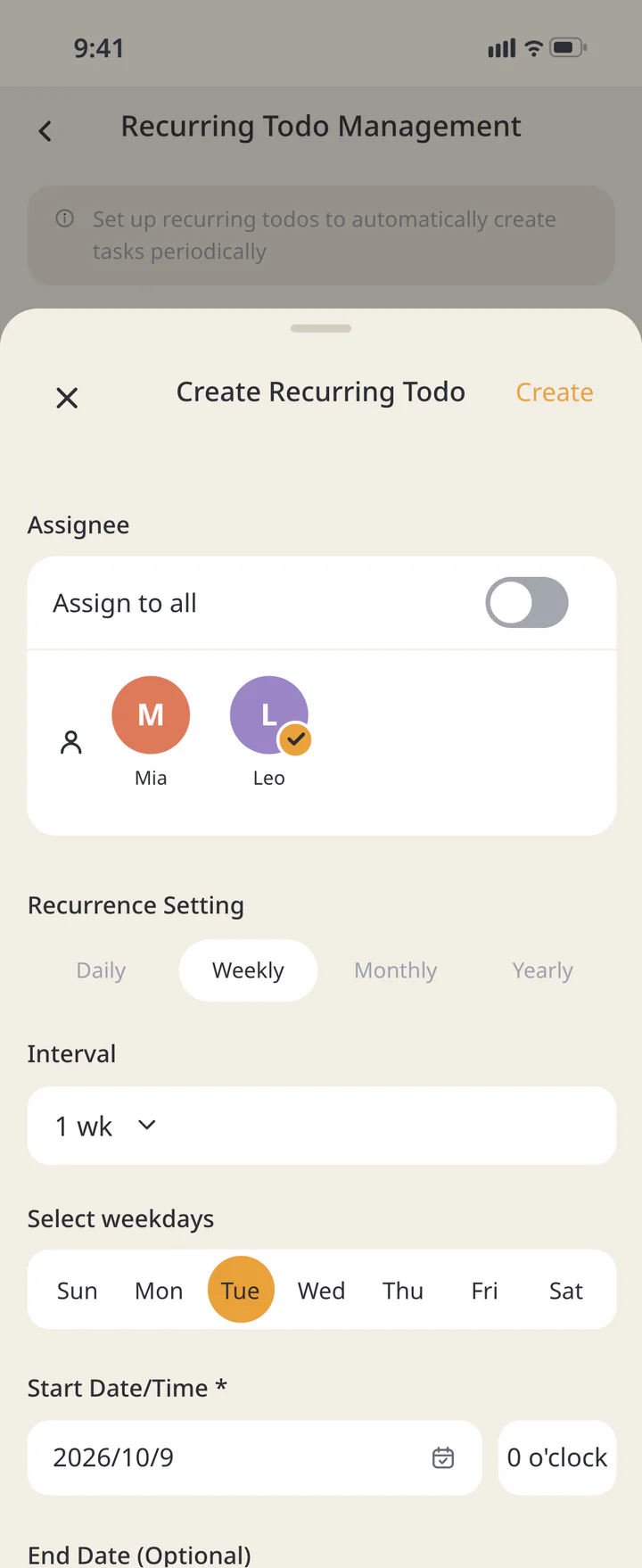
Set the recurrence and create it
Enter the name and “Assignee”. Set “Recurrence Setting” and “Interval”; choose weekdays for a weekly task. Set “Start Date/Time *”, then tap “Create”. Add an end date if needed.
Set the recurrence and create it - 6
Step 6If needed
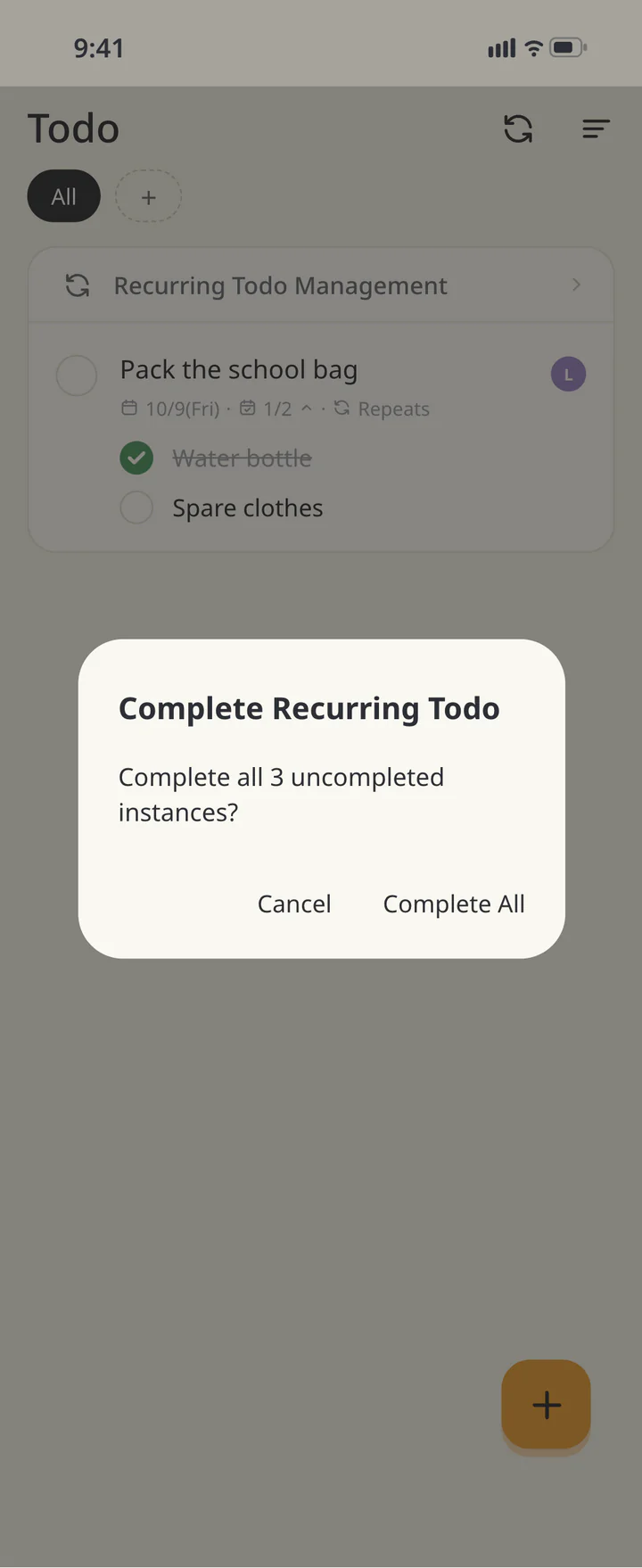
Read the recurring completion prompt
If a recurring to-do has several unfinished instances, checking it opens “Complete Recurring Todo”. Use “Complete All” only to finish them all. Choose “Cancel” to leave them unchanged.
Read the recurring completion prompt - 7
Step 7If needed
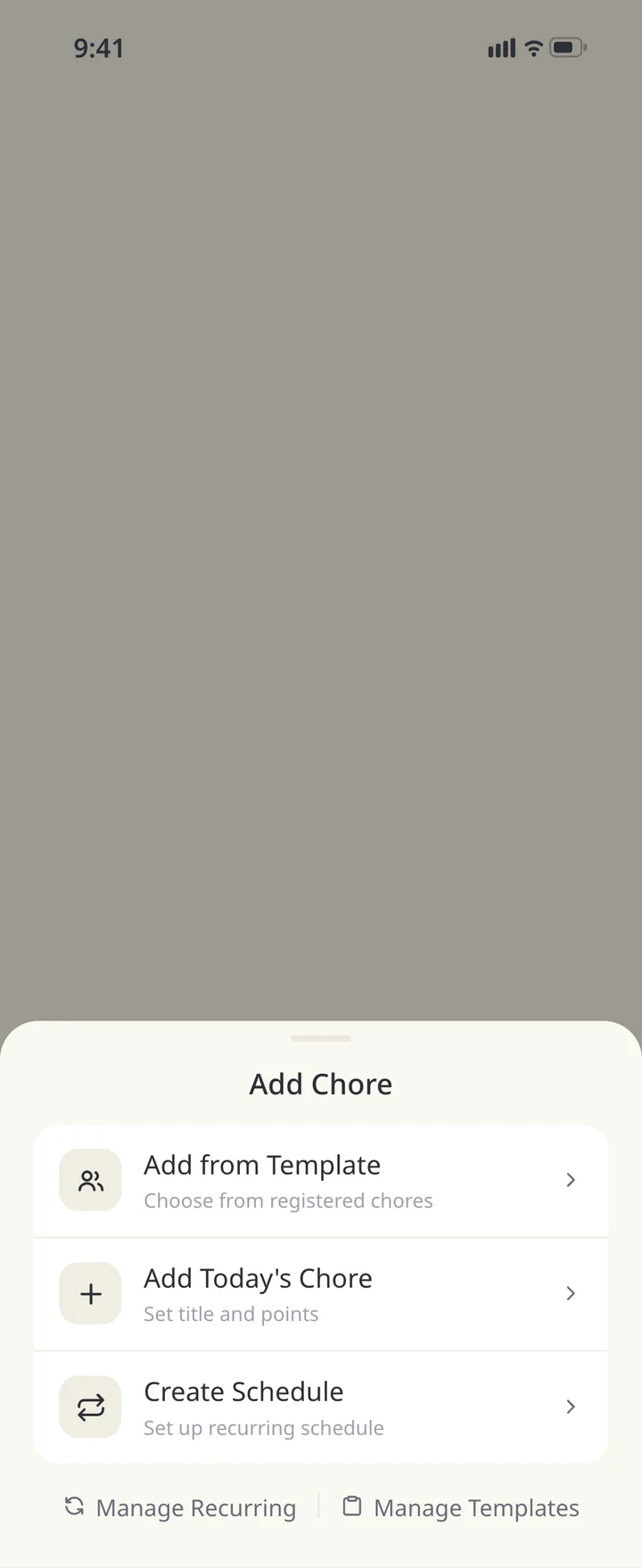
Create regular chores from Chore
For household duties, open “Chore”, tap +, and choose “Create Schedule”.
Create regular chores from Chore - 8
Step 8If needed
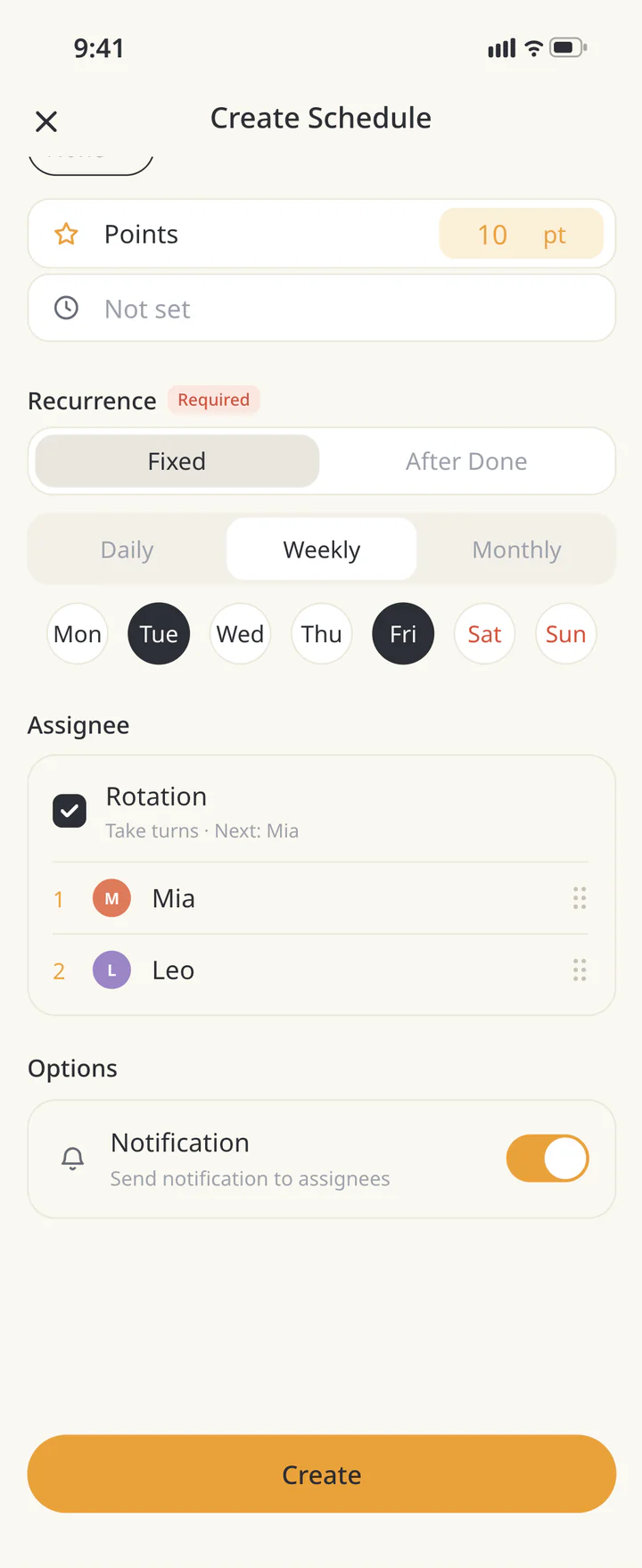
Set the chore schedule and assignees
Enter the chore name and choose the frequency and days in “Recurrence”. Select “Assignee”; use “Rotation” to take turns. Review the schedule and press the creation button at the bottom.
Set the chore schedule and assignees - 9
Step 9If needed
Finish the chore with the right person
Tap the chore under “Tasks”, check “Completed by”, and tap “Done!”. Select the person who actually did it, even if that differs from the assignee.
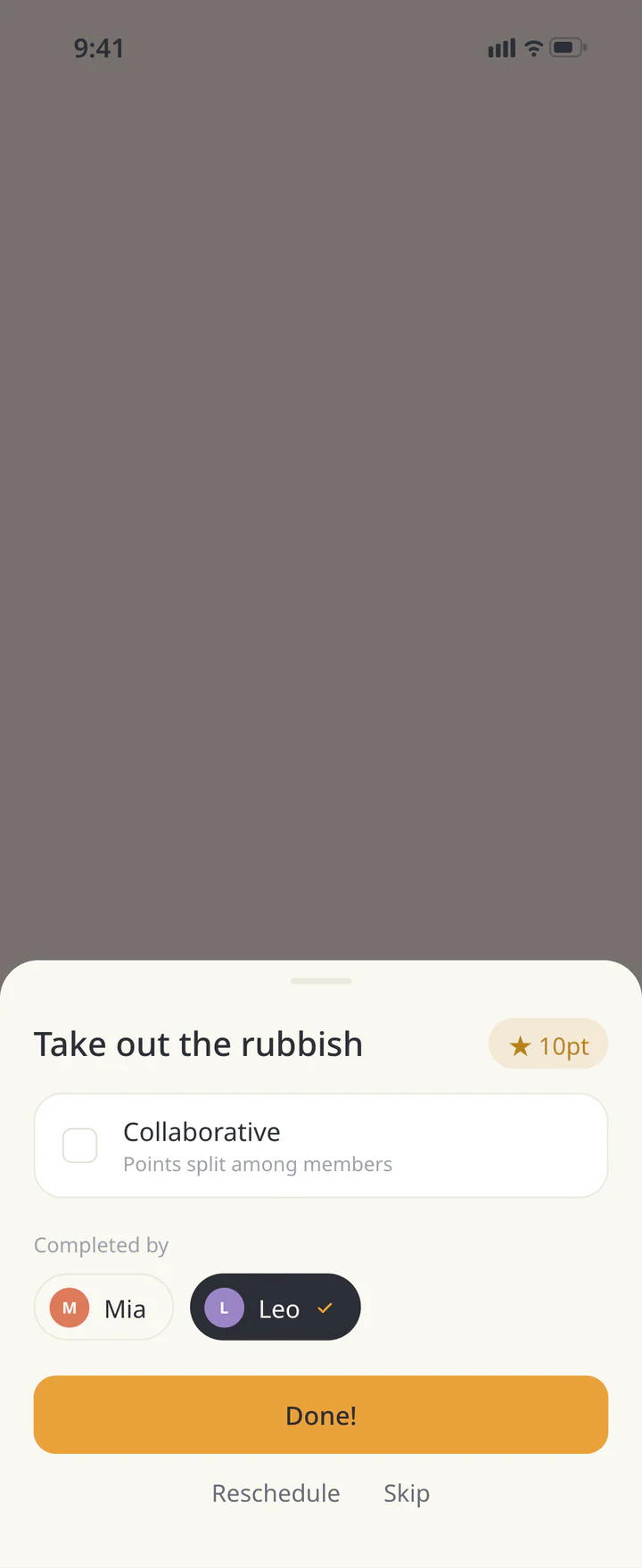
Finish the chore with the right person


TROUBLESHOOTING
If something doesn’t work
QShould I enter daily chores as to-dos too?
One place is usually enough. To-dos work well for deadlines and sub-items; Chore fits recurring duties and taking turns. Keeping one record avoids checking off the same job twice.
QDoes a due date guarantee a notification?
A due date and a notification are separate. Check chore notification settings, app notification preferences, and device permission.
Download ienon
Put one task where you can both see it.
History: Published October 9, 2026 — checked against app 16.5.0