
STEP BY STEP
Set event privacy and connect calendars
Assignees and visibility are separate settings. Save your ienon event first, then import device calendars if you want to see them together.
Before you start
- 01If a feature is not in your bottom tabs, open it from “Apps”.
- 02The calendar you want to import must already be available in your device’s calendar app.
Steps
Which side are you on?
- 1
Step 1
Tap + in the calendar
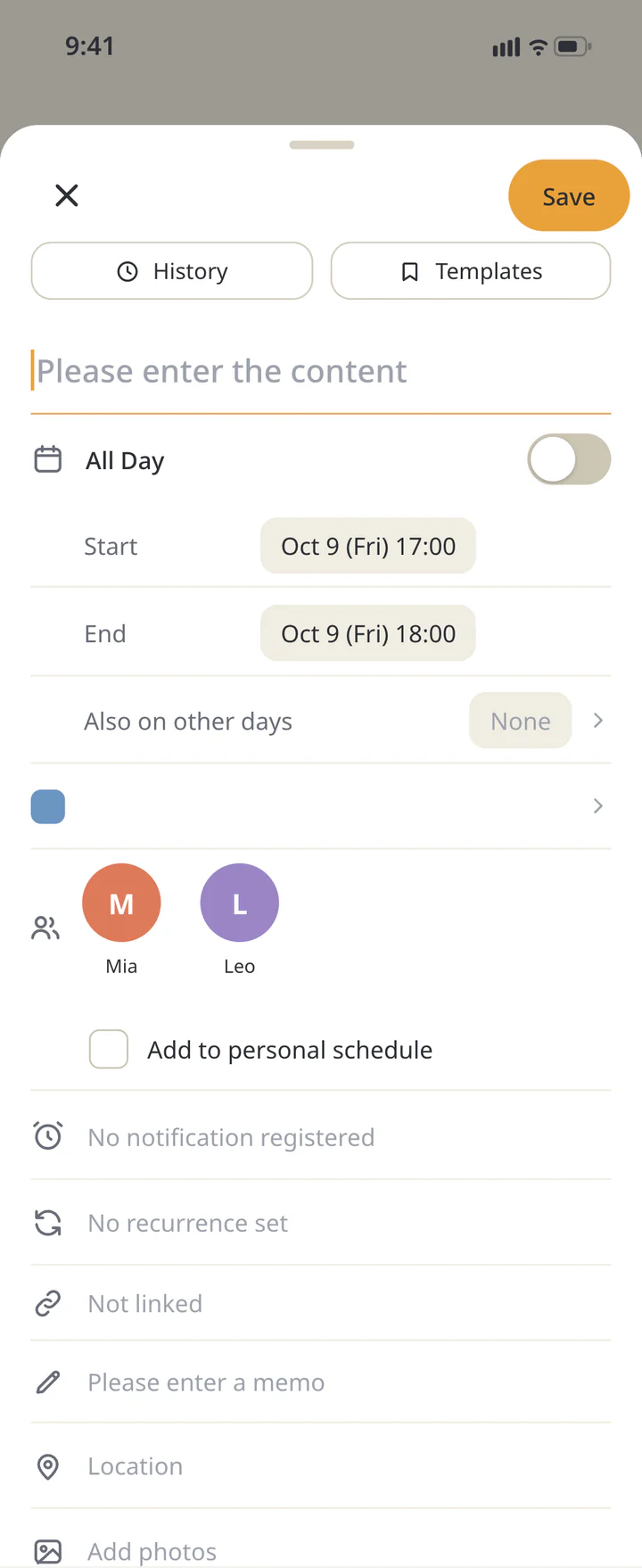
Open “Calendar” and tap + at the bottom right to add an event.
Tap + in the calendar - 2
Step 2
Enter the event and its times
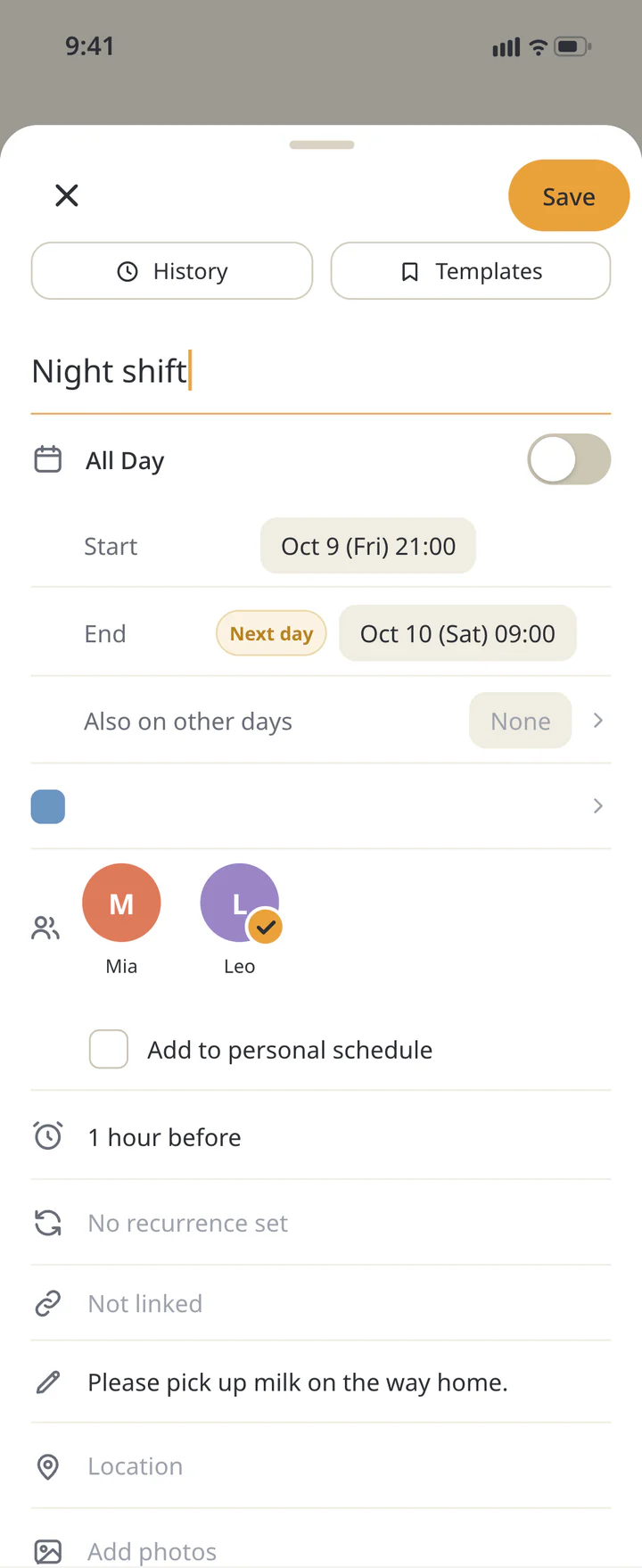
Enter the event title, then set “Start” and “End”. Use “All Day” when a time is unnecessary. For overnight shifts, check the end date as well.
Enter the event and its times - 3
Step 3
Set assignees and visibility
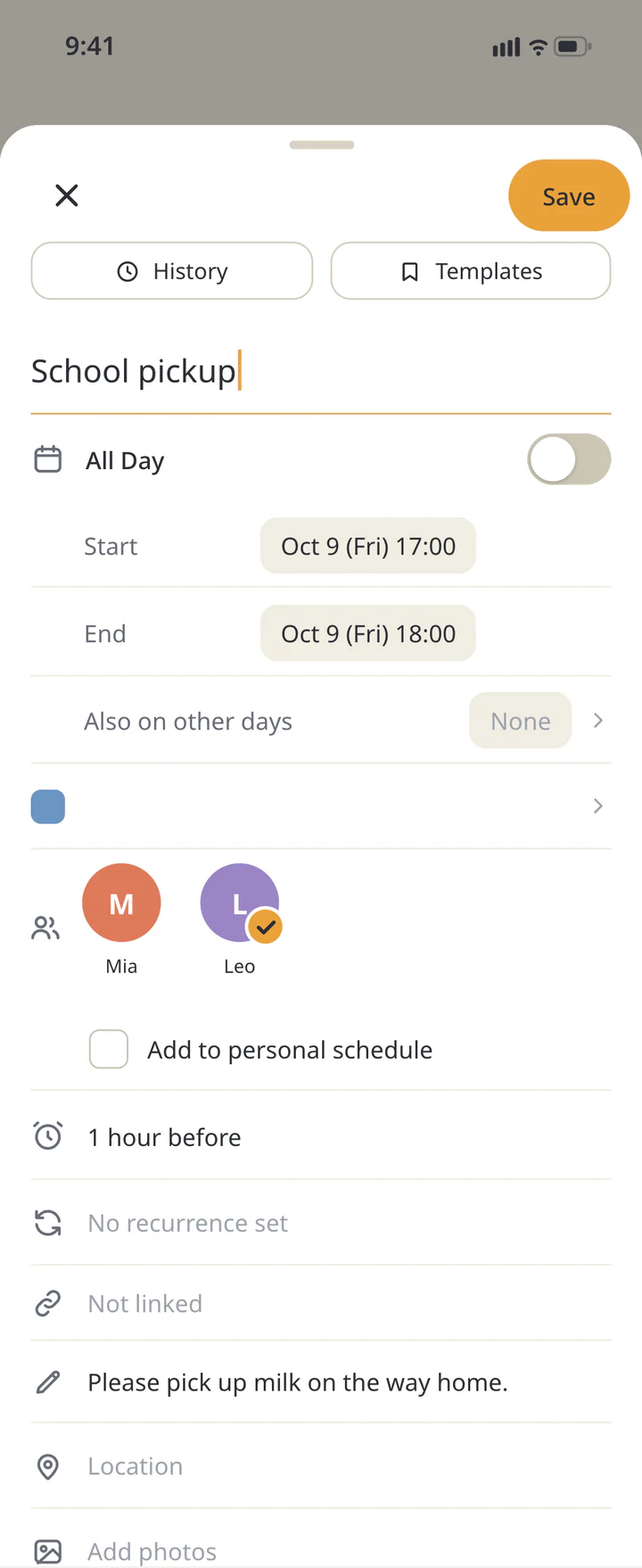
Choose assignees in the people row. Leave “Add to personal schedule” unchecked for a shared event; check it for a personal event. Selecting an assignee does not replace the privacy setting.
Set assignees and visibility - 4
Step 4
Review details and save
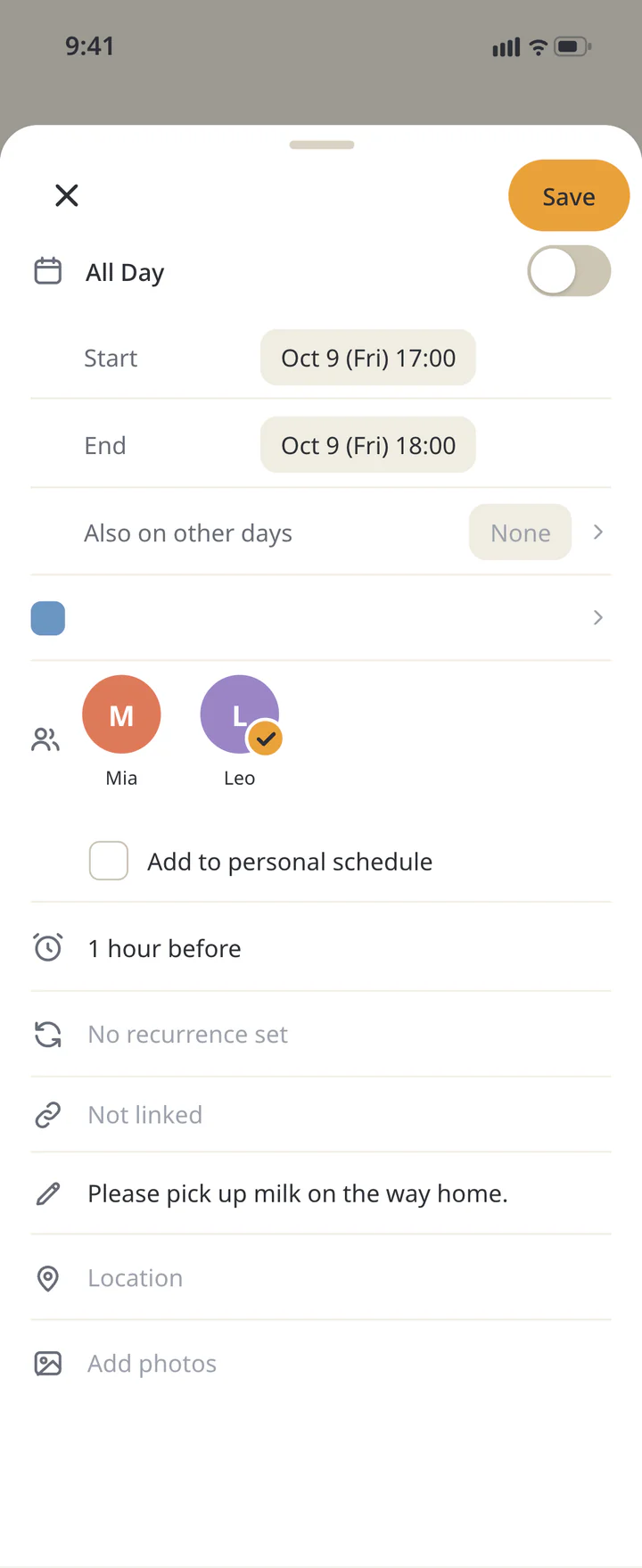
Add a memo if needed and choose a reminder in the alarm-clock row. Tap “Save”, then check the saved event in the calendar.
Review details and save - 5
Step 5If needed
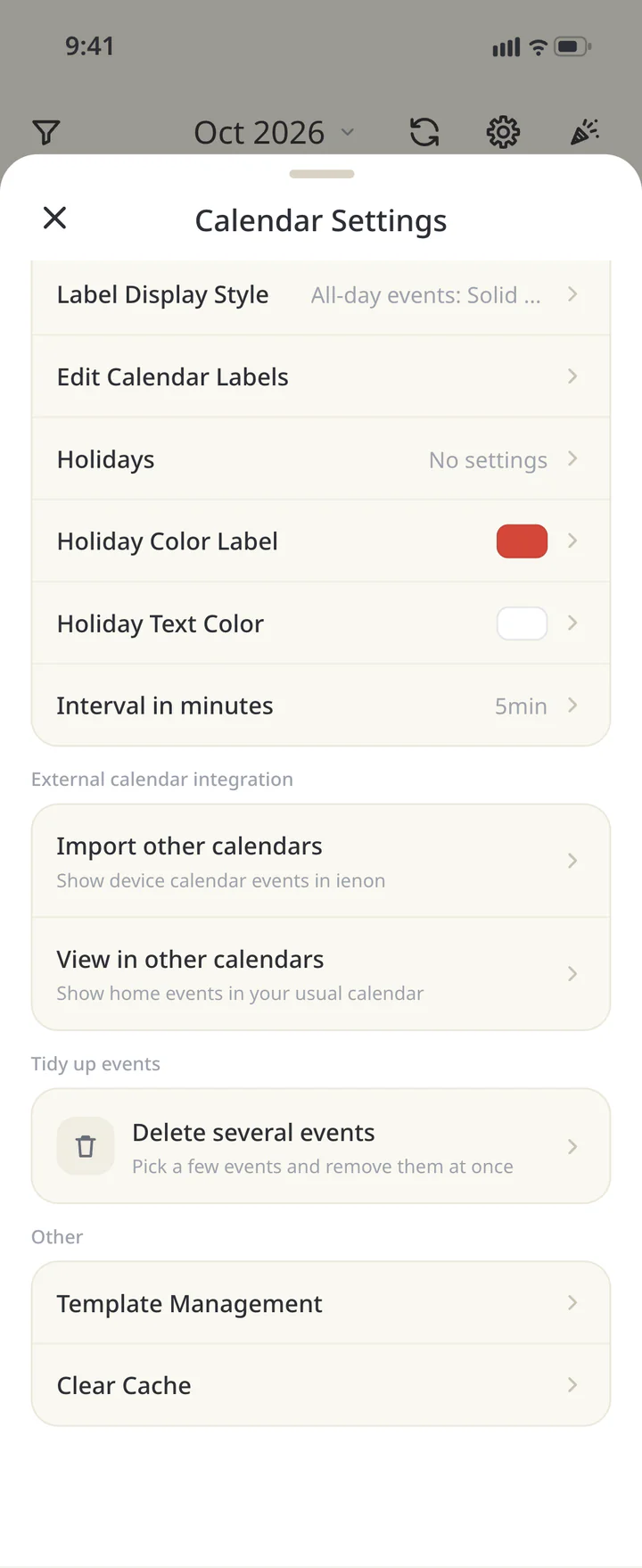
Open calendar import
To include device events, open the calendar settings icon and choose “Import other calendars”. Allow calendar access if your device asks for permission.
Open calendar import - 6
Step 6If needed
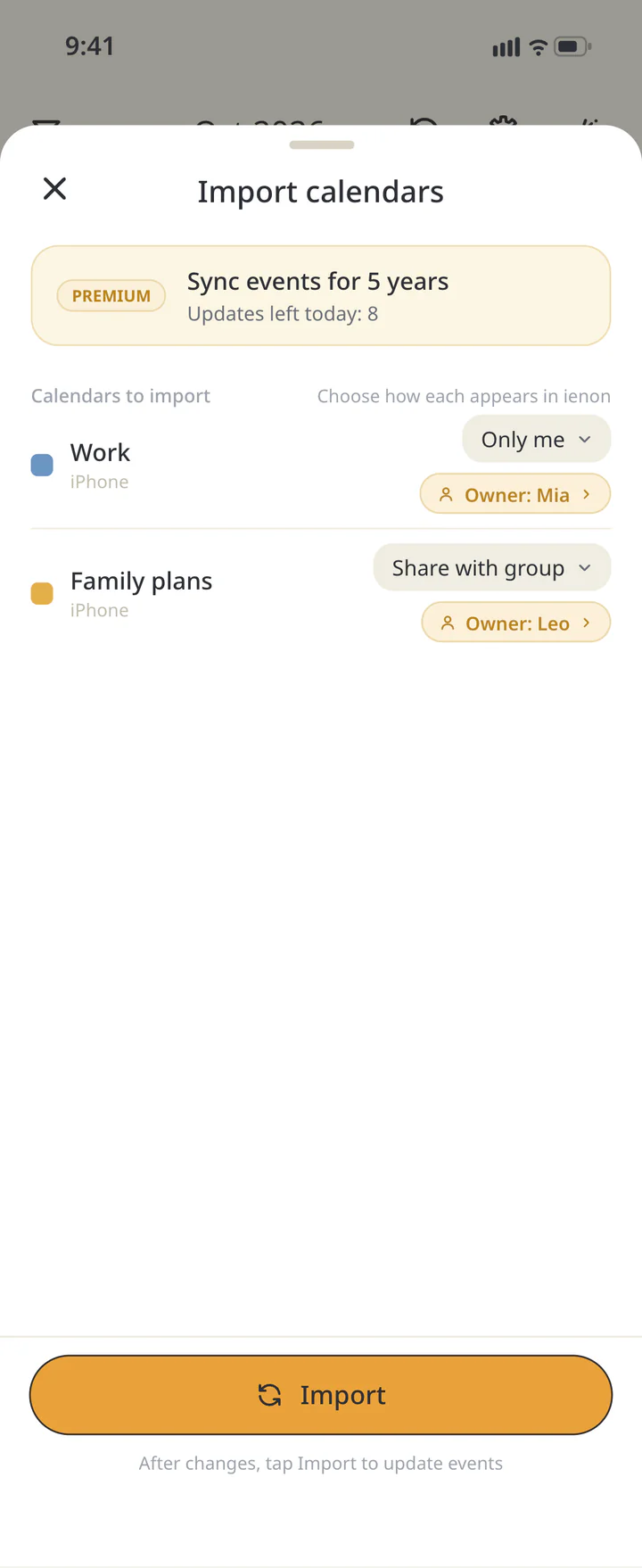
Choose visibility for each calendar
For each calendar, choose “Only me”, “Share with group”, or “Do not share”. For shared imports, check the event owner. Keep private work calendars set to only you.
Choose visibility for each calendar - 7
Step 7If needed
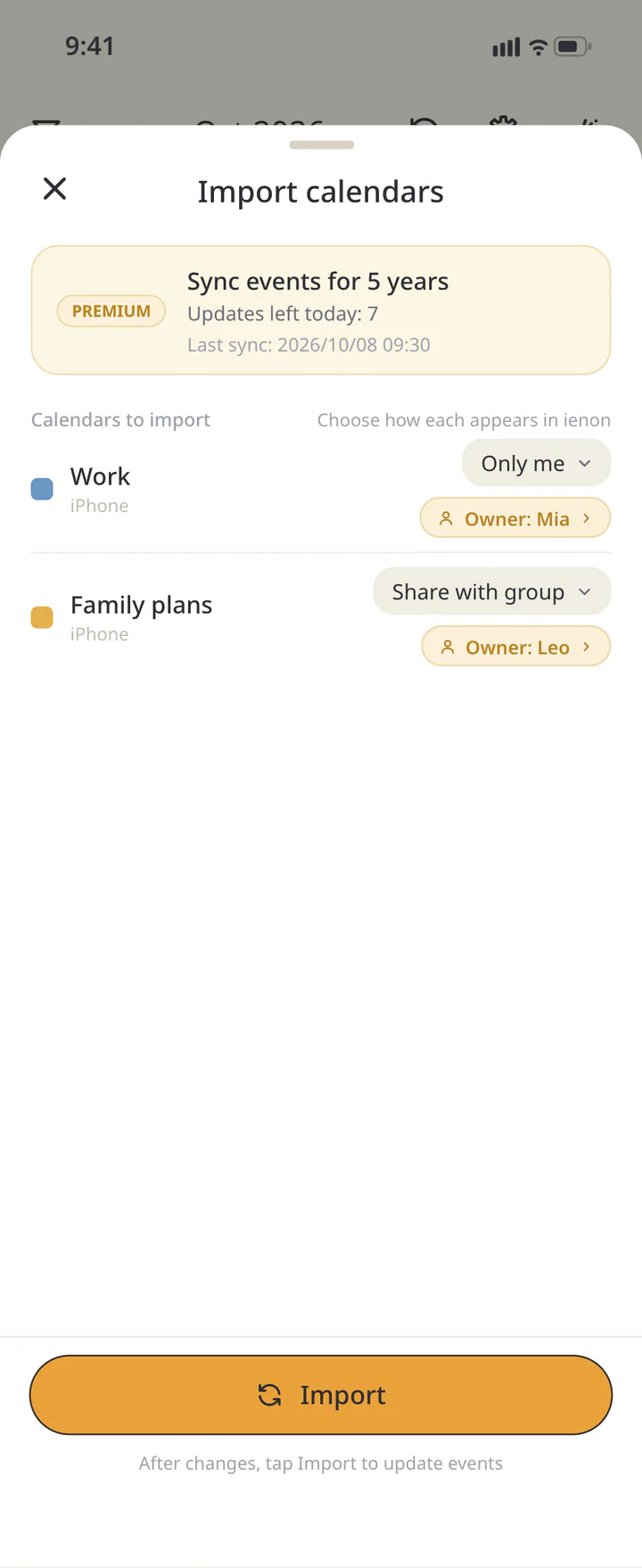
Import and check the result
Tap “Import”. Use the same button after changing import settings. If events do not appear, check permissions, the selected calendar, and the remaining updates shown on screen.
Import and check the result - 8
Step 8If needed
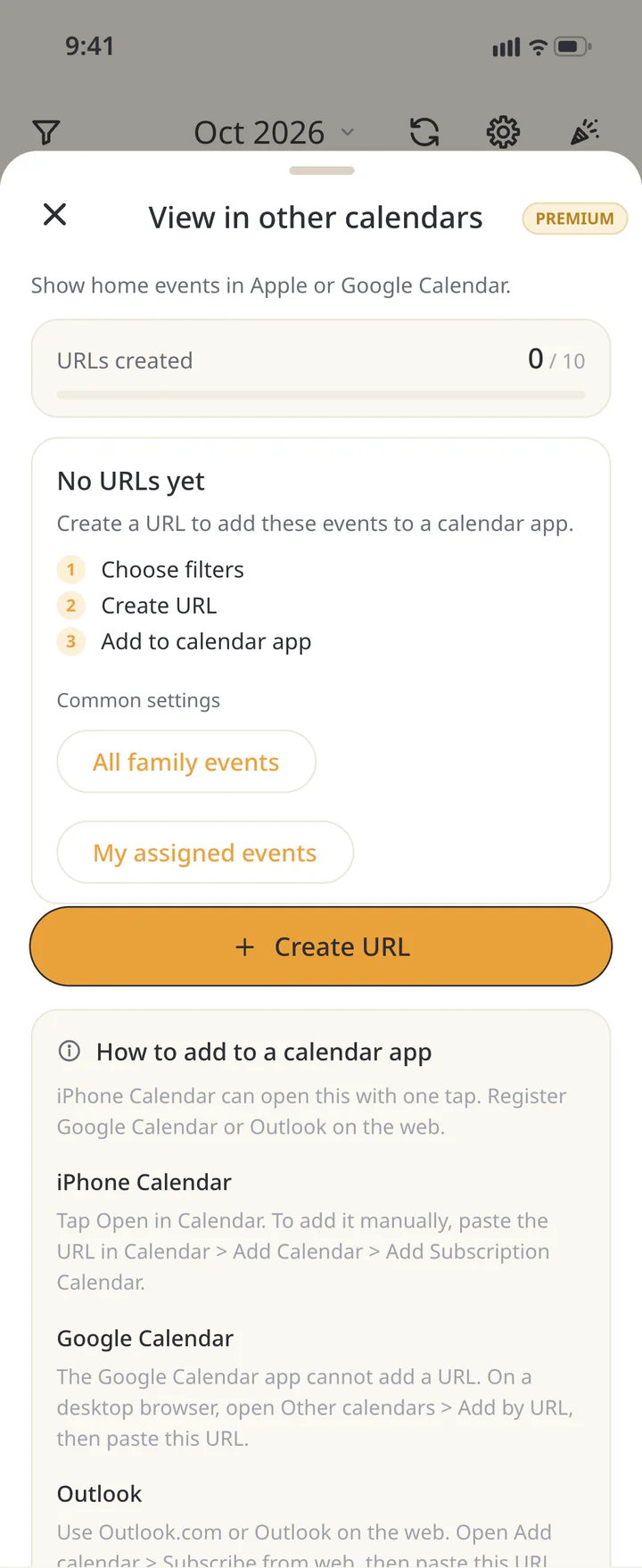
Find the entry for viewing ienon elsewhere
To view ienon events in another calendar, return to settings and open “View in other calendars”. This is a Premium feature with a separate entry from import. Follow the other calendar app’s instructions for adding it there.
Find the entry for viewing ienon elsewhere - 9
Step 9If needed
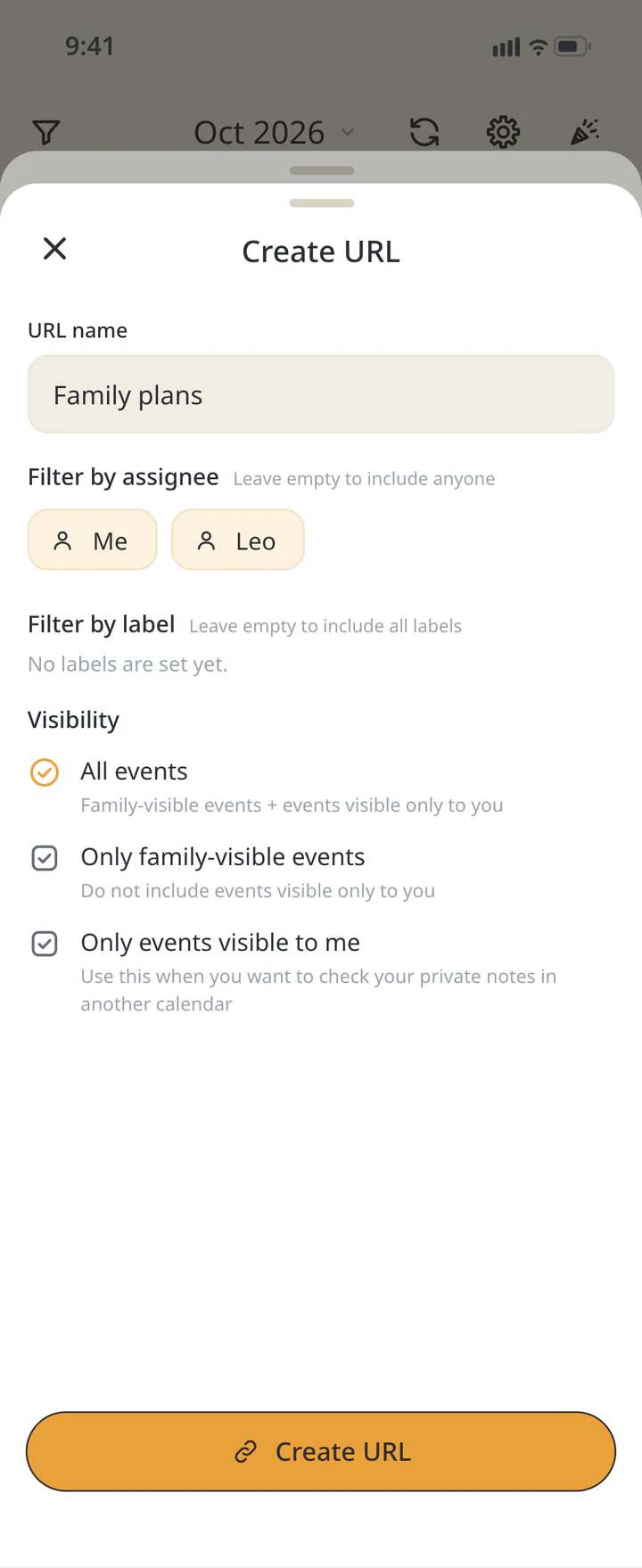
Create a URL with the right scope
Tap “Create URL”. Add a “URL name” and any assignee or label filters. Review “Visibility”; for shared events only, choose “Only family-visible events”, then tap “Create URL”.
Create a URL with the right scope - 10
Step 10If needed
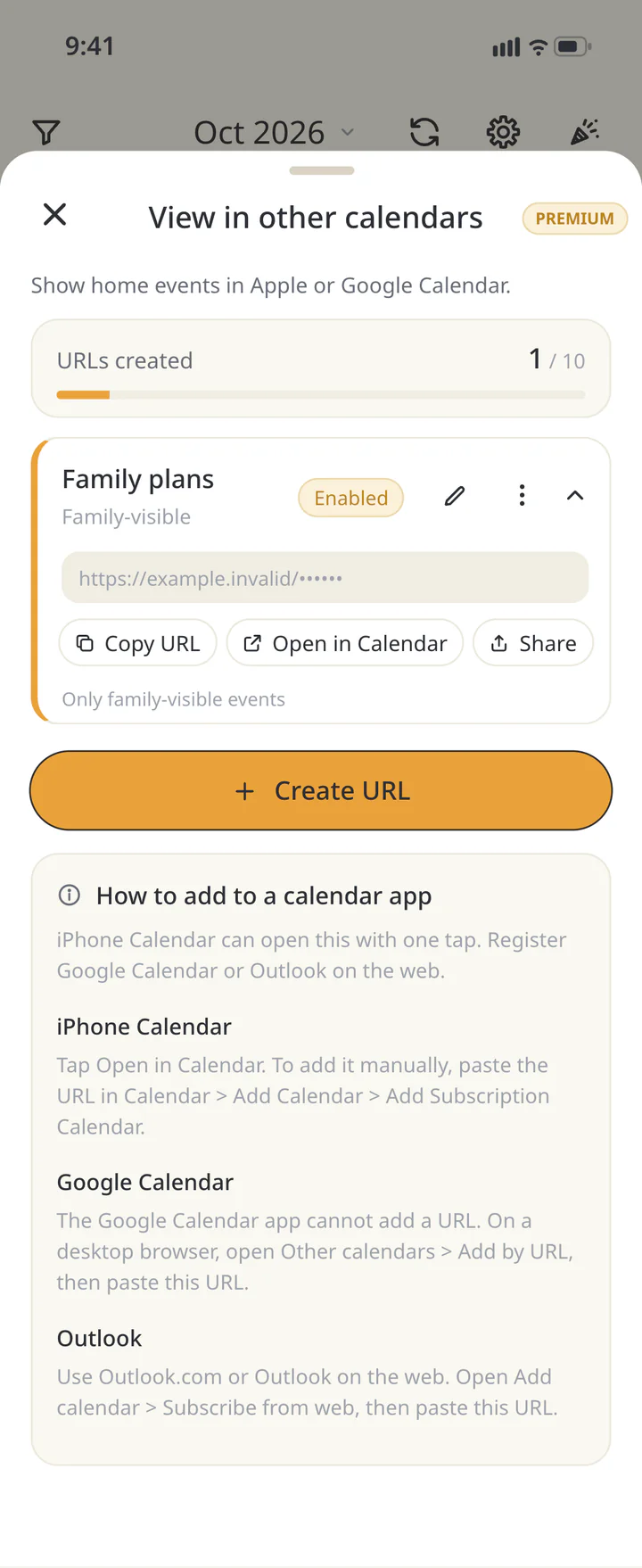
Copy the URL for an external calendar
Tap the created URL’s name to expand it, then choose “Copy URL”. On iPhone, “Open in Calendar” is also available. Follow the external calendar’s instructions to subscribe. Anyone with the URL can view the events, so keep it within your household. The external view is read-only and may update with a delay.
Copy the URL for an external calendar


TROUBLESHOOTING
If something doesn’t work
QCan only assignees see a shared event?
Assignees and privacy are separate. A shared event can be seen by other Home members too. Use “Add to personal schedule” for a personal event.
QDo I enter a Google Calendar account in ienon?
This entry imports calendars from your device. Check that the calendar you need appears in the import list, then choose its visibility.
QWill external changes appear immediately?
Not always. Check the last sync and remaining updates, then use “Import” when needed. Treat importing into ienon and viewing ienon elsewhere as separate directions.
QWhat if the export URL reaches the wrong person?
Use “Regenerate URL” in that URL’s menu. The old URL stops returning events, so calendars you use must subscribe again with the new URL.
Download ienon
Start with one plan you can both see.
History: Published November 13, 2026 — checked against app 16.5.0