
STEP BY STEP
Choose notifications and compare free and Premium features
Choose the alerts you need to keep up with your Home. Check both your in-app preferences and the device’s notification permission.
Before you start
- 01Check notifications on each person’s own device. Share these steps if another member needs to check theirs.
Steps
- 1
Step 1
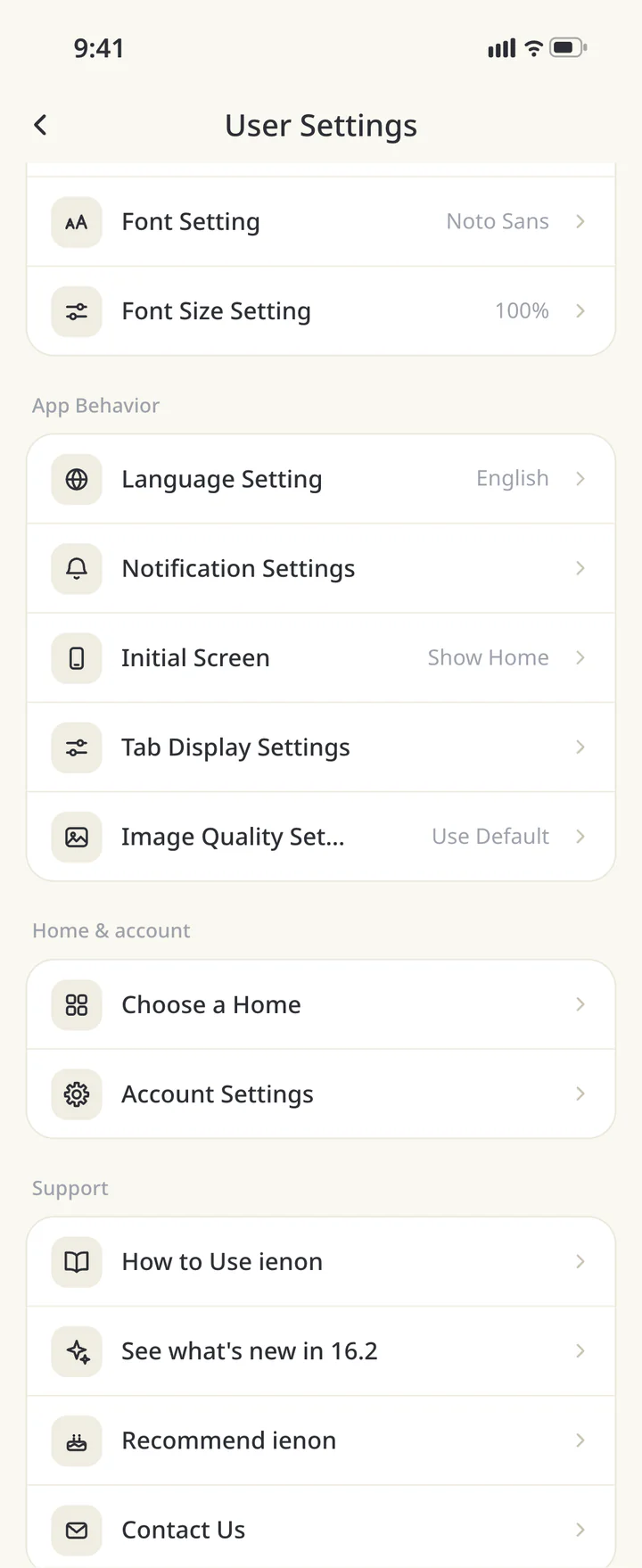
Open User Settings
Tap your own avatar in “Home” to open “User Settings”.
Open User Settings - 2
Step 2
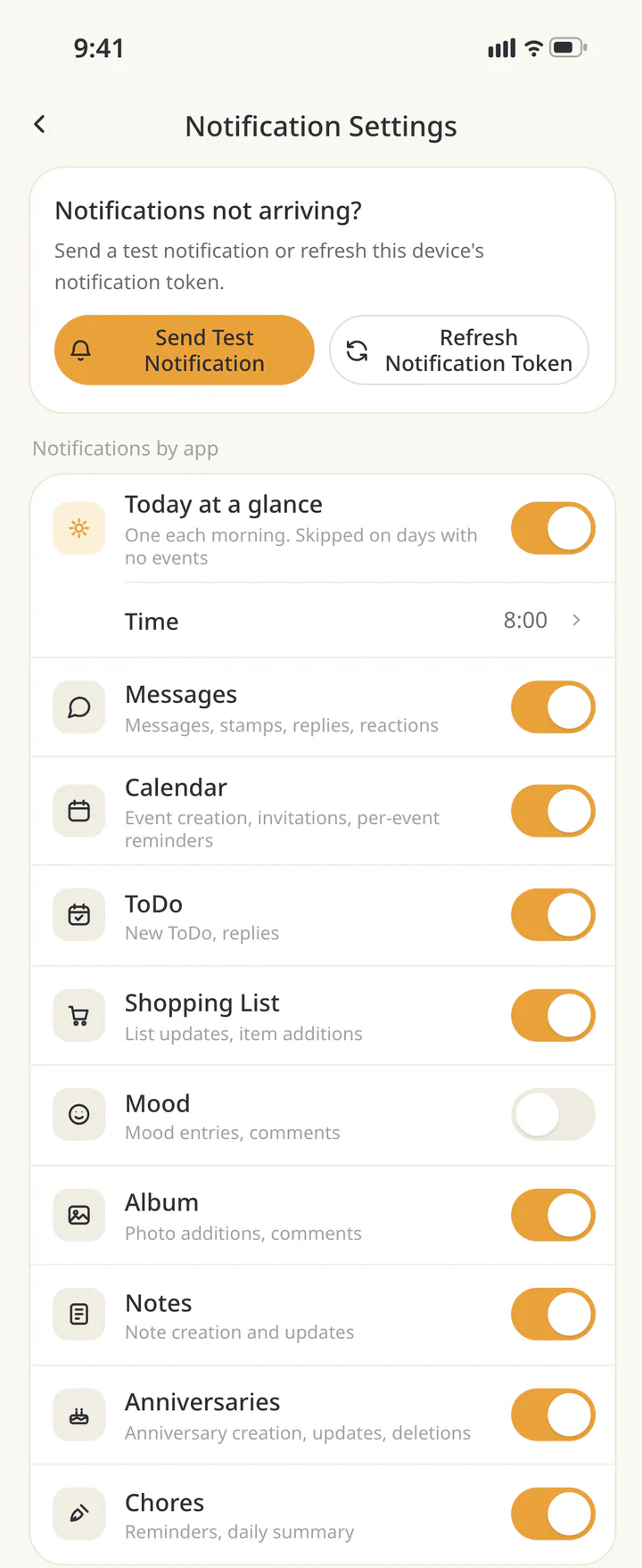
Choose alerts by app
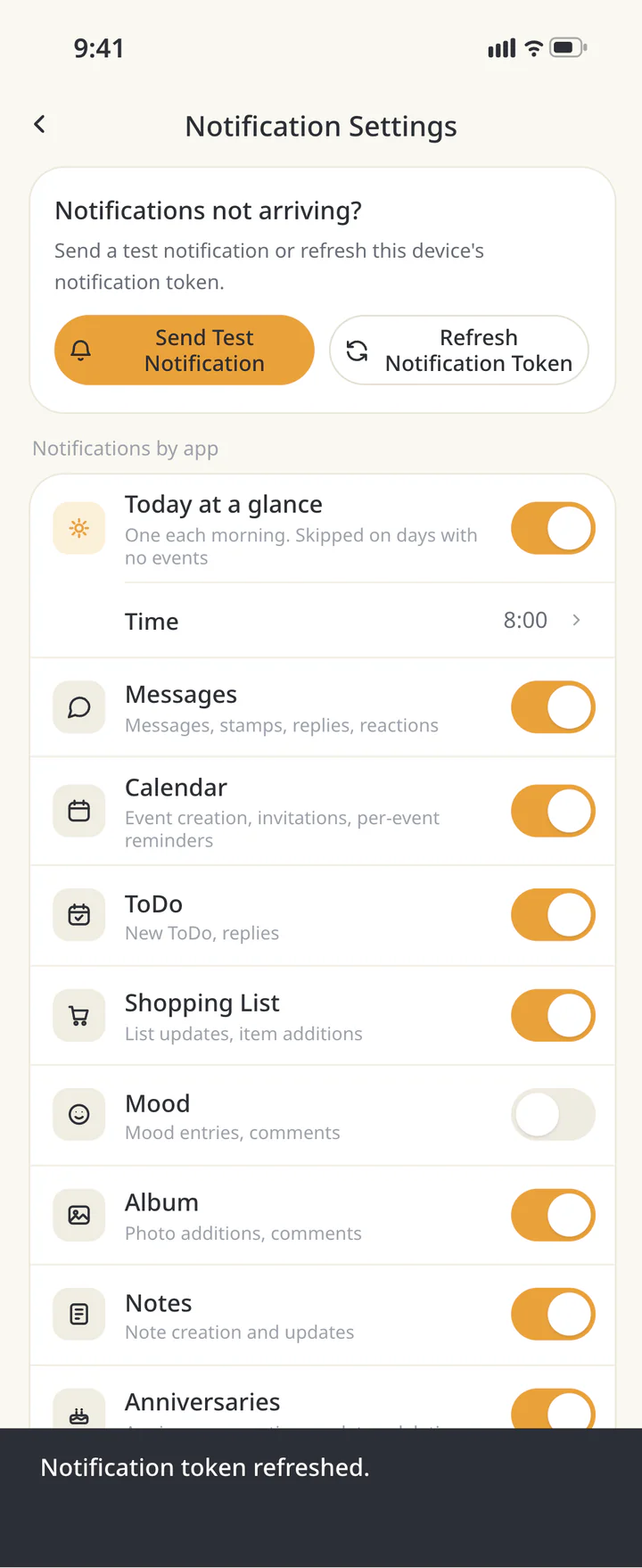
Open “Notification Settings” and use the switches under “Notifications by app” for messages, calendar, shopping, and other apps. Incoming call alerts cannot be turned off. Check shared content in each app even when its alerts are off.
Choose alerts by app - 3
Step 3If needed
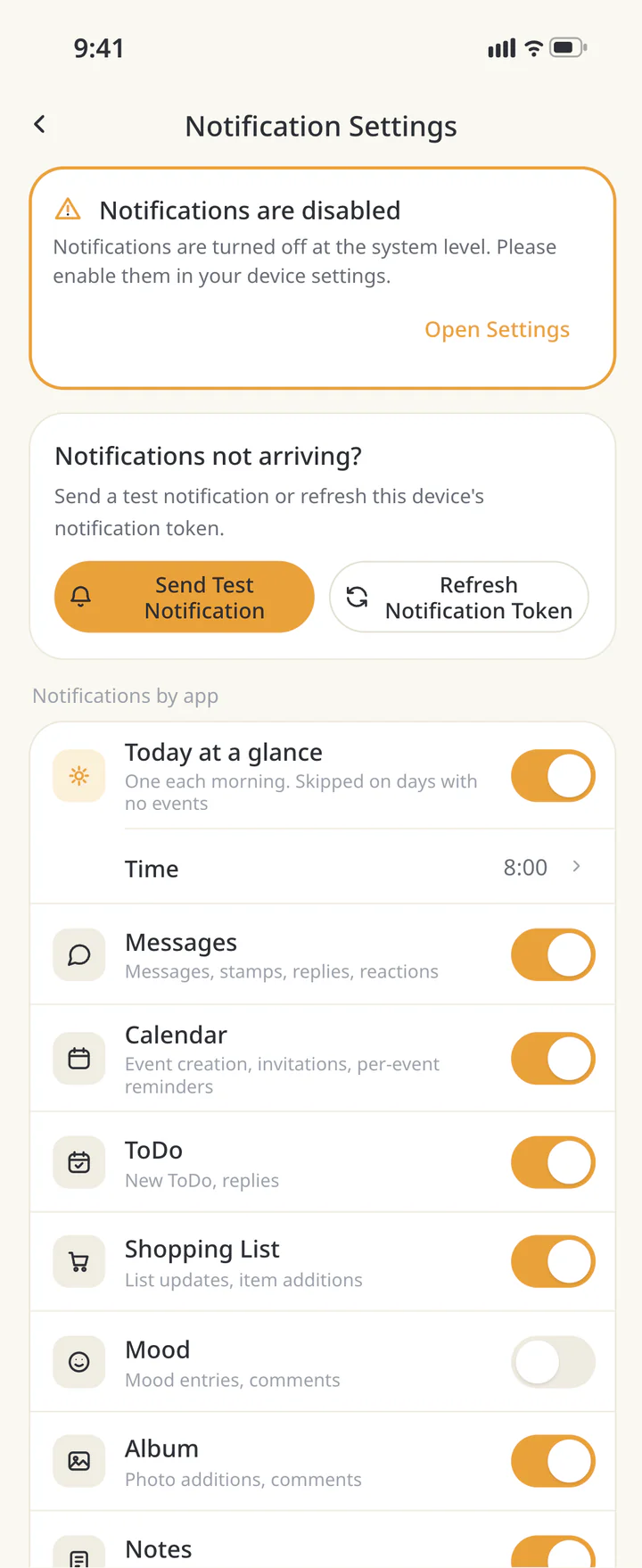
Check device permission too
If the page says notifications are disabled, tap “Open Settings” and allow ienon notifications in your device settings. Follow your device’s prompts, then return to the app.
Check device permission too - 4
Step 4If needed
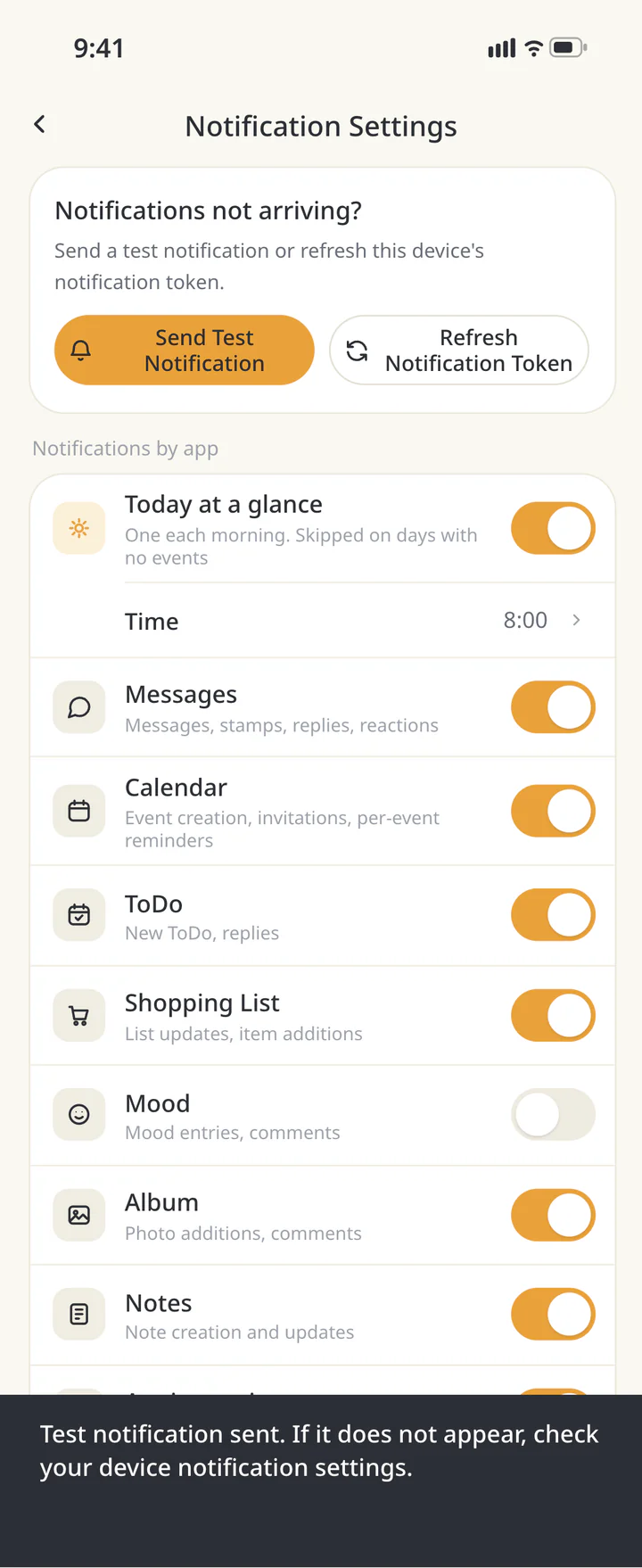
Send a test if alerts do not arrive
Tap “Send Test Notification”. Read the result and check whether an alert reaches this device. A successful test request does not guarantee every future notification will arrive.
Send a test if alerts do not arrive - 5
Step 5If needed
Refresh the token when prompted
If the result says the notification token is missing, tap “Refresh Notification Token”. Check the update result, then send another test.
Refresh the token when prompted - 6
Step 6If needed
Review Premium when you need an extra feature
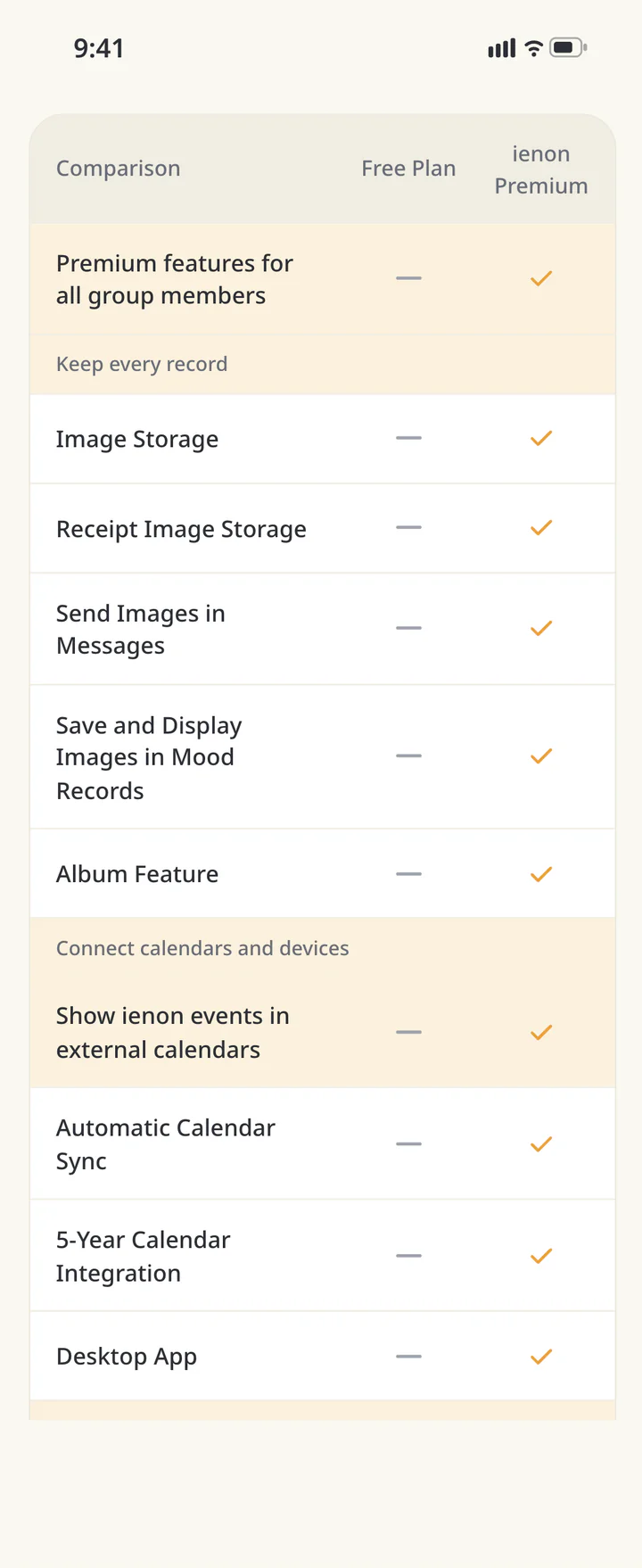
Return to the top-left Home menu and open the Premium information. Subscribers see an entry for their current status. Check the features you need, such as Inventory, Personal, or viewing ienon in another calendar. Review purchase terms in the store.
Review Premium when you need an extra feature


TROUBLESHOOTING
If something doesn’t work
QCan we start sharing for free?
You can start with shared plans, shopping lists, and shared spending in Group. Extras such as Inventory and Personal require Premium. Check the feature information when you need one.
QWill every reminder arrive if calendar alerts are on?
Check the event’s reminder as well as the app switch and device permission. Device and connection conditions can affect delivery time.
QDoes one person’s Premium cover the Home?
The Premium information covers extra features for all members of the same Home. Check that everyone has joined that Home, then review the features you need.
Download ienon
Choose useful alerts and keep your Home in sync.
History: Published October 9, 2026 — checked against app 16.5.0