
SITUATION — Invite
Start on your own and invite people later
Start with one plan of your own without waiting for someone else to install the app. Invite them to that Home when you are ready.
Start here
- 1.A Home can start with one personAfter signing in, choose to start fresh. A Home holds plans and shopping; everyone does not need to join at once.
- 2.Start with one featureAdd one plan or shopping item. You do not need to configure every feature first.
- 3.Review what you will share before invitingPeople who join use the same Home’s shared content. Keep personal events private and use Personal for personal spending.
HOW TO
Three steps in ienon
- 01
Sign in and create a Home
Sign in with Apple or Google and choose “Start fresh”. Check the Home name, currency, your name, and avatar, then tap “Create this Home”. Use “Later” on the invitation screen to invite later.
- 02
Add one plan or shopping item
Use + in the calendar or Shopping to add one item. Open it through “Apps” if it is not in your tabs.
- 03
Invite someone when you are ready
Review the Home’s shared content, then send an invitation through “Invite” in the Home menu. The other person joins through the invitation rather than creating a separate Home.
SCREENS
See it in the app
These are app screens from version 16.3.0. The numbers match the 3 steps above.
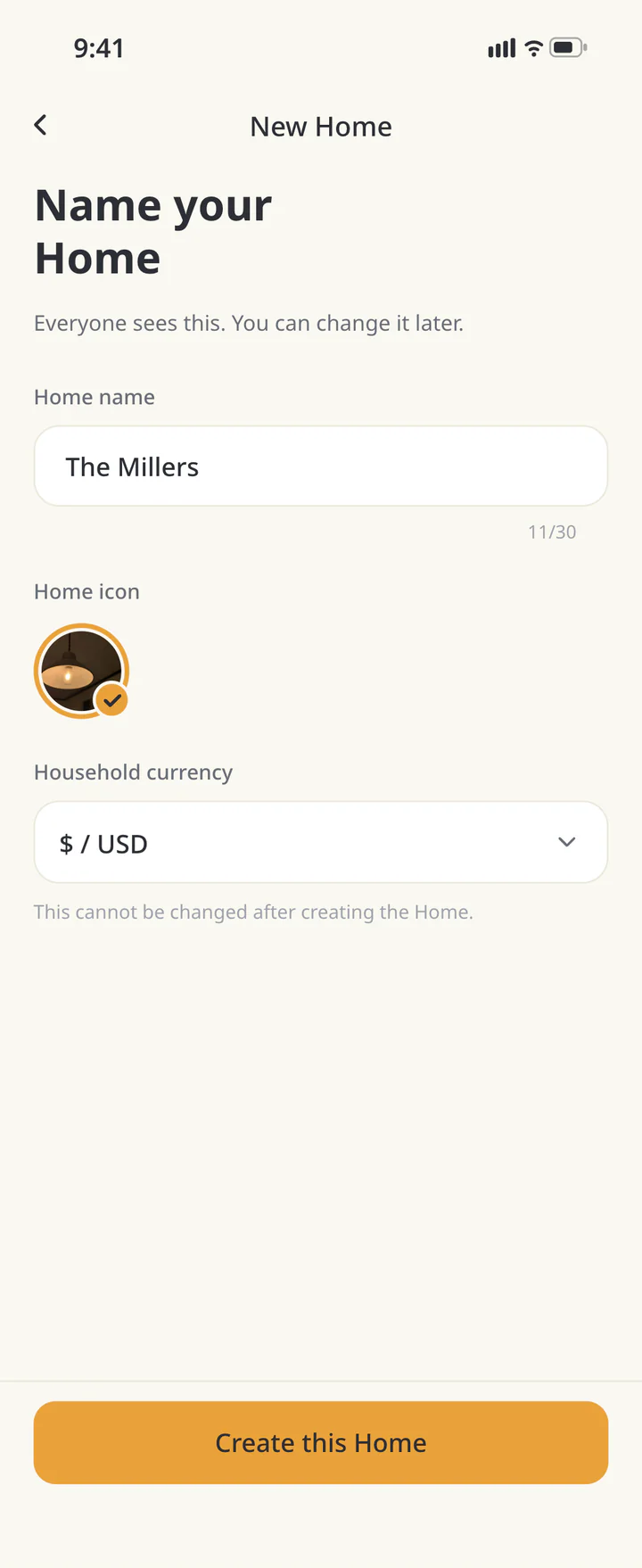 1Sign in and create a Home
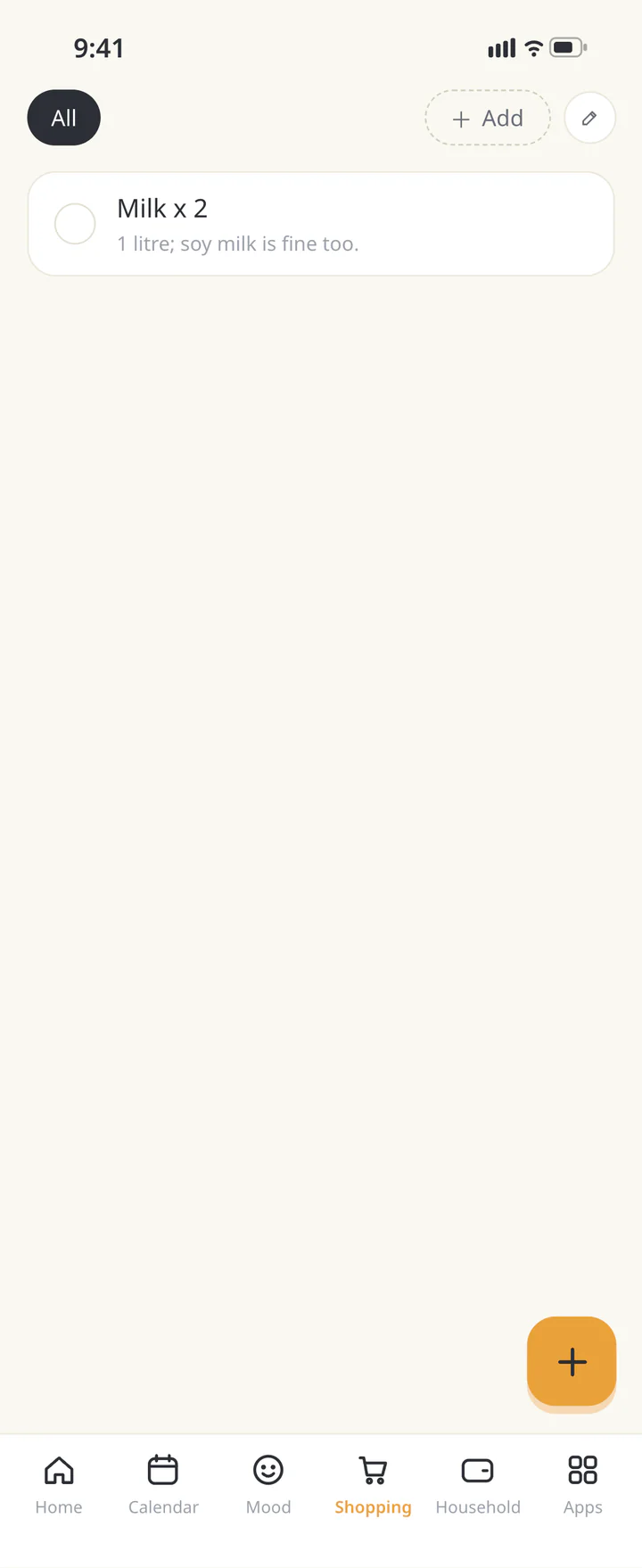 2Add one plan or shopping item
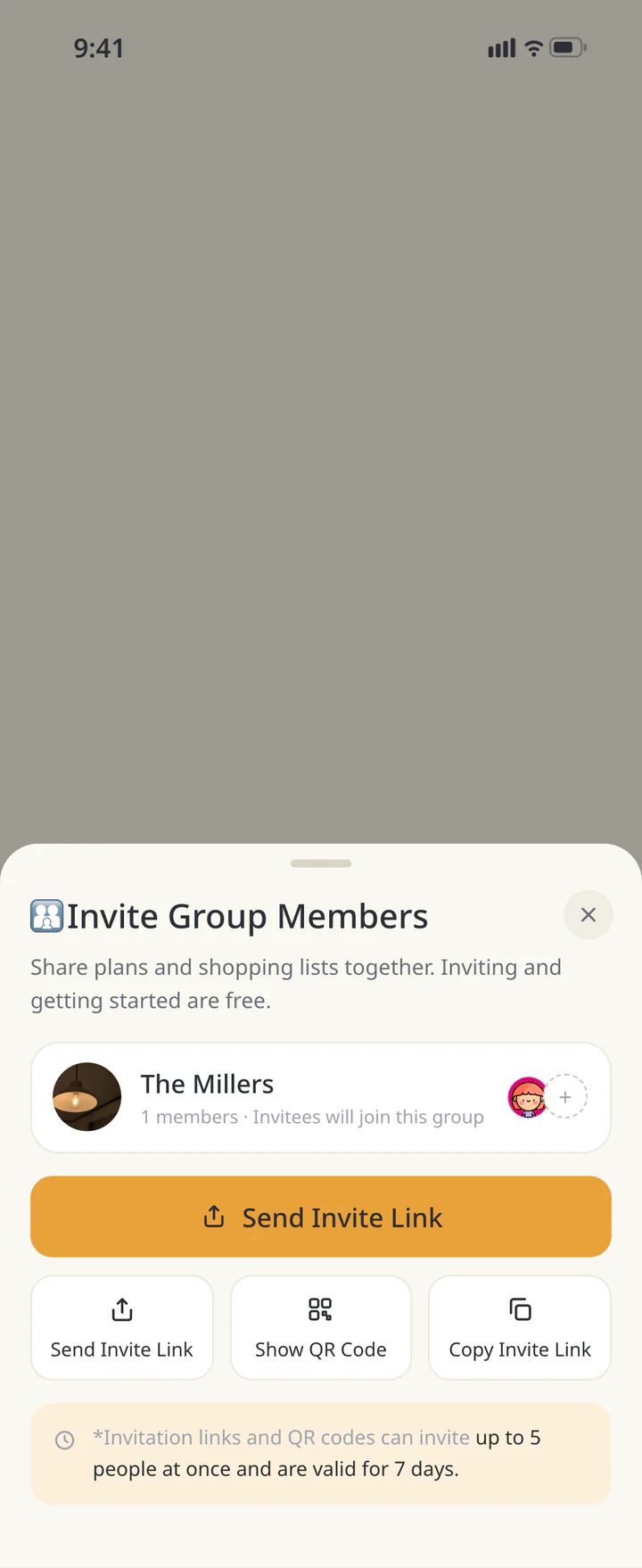 3Invite someone when you are ready


FAQ
Common questions
QDo I have to invite someone before starting?
You can create a Home and invite later. Start with your own plans or shopping list.
QWhat if we each started separately?
Choose the Home you want to share and invite from it. The other person can use the invitation-code entry on the Home selection screen. This does not automatically merge records from separate Homes.
QCan I return to the same Home on a new phone?
Sign in with the original Apple or Google account and select your existing Home. Keep track of that account and check the return guide before creating another Home.
History: Published October 9, 2026 — checked against app 16.5.0