
STEP BY STEP
Add shopping items and restock from inventory
Start with the shared shopping list. Add Premium inventory later if you want to track what is still at home.
Before you start
- 01If a feature is not in your bottom tabs, open it from “Apps”.
- 02Only the inventory branch requires Premium access for your Home.
Steps
Which side are you on?
- 1
Step 1
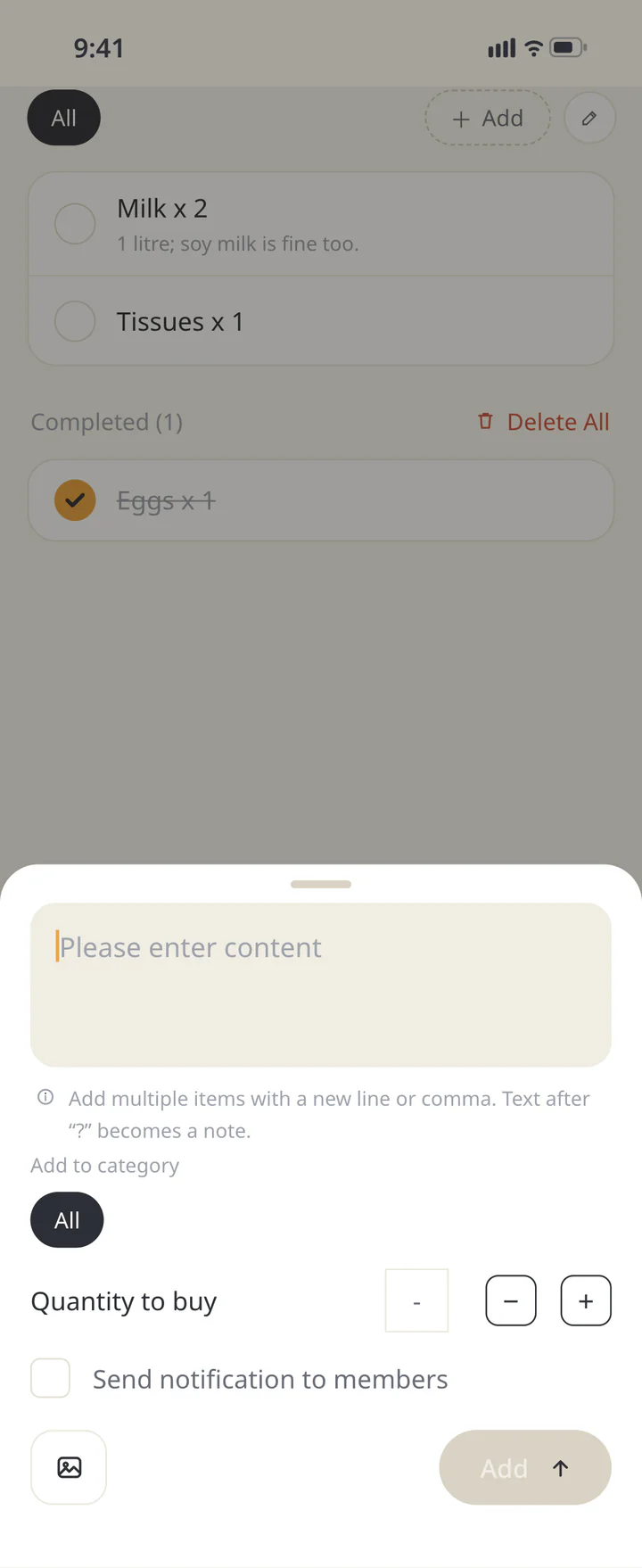
Tap + in Shopping
Open “Shopping” and tap + to add an item.
Tap + in Shopping - 2
Step 2
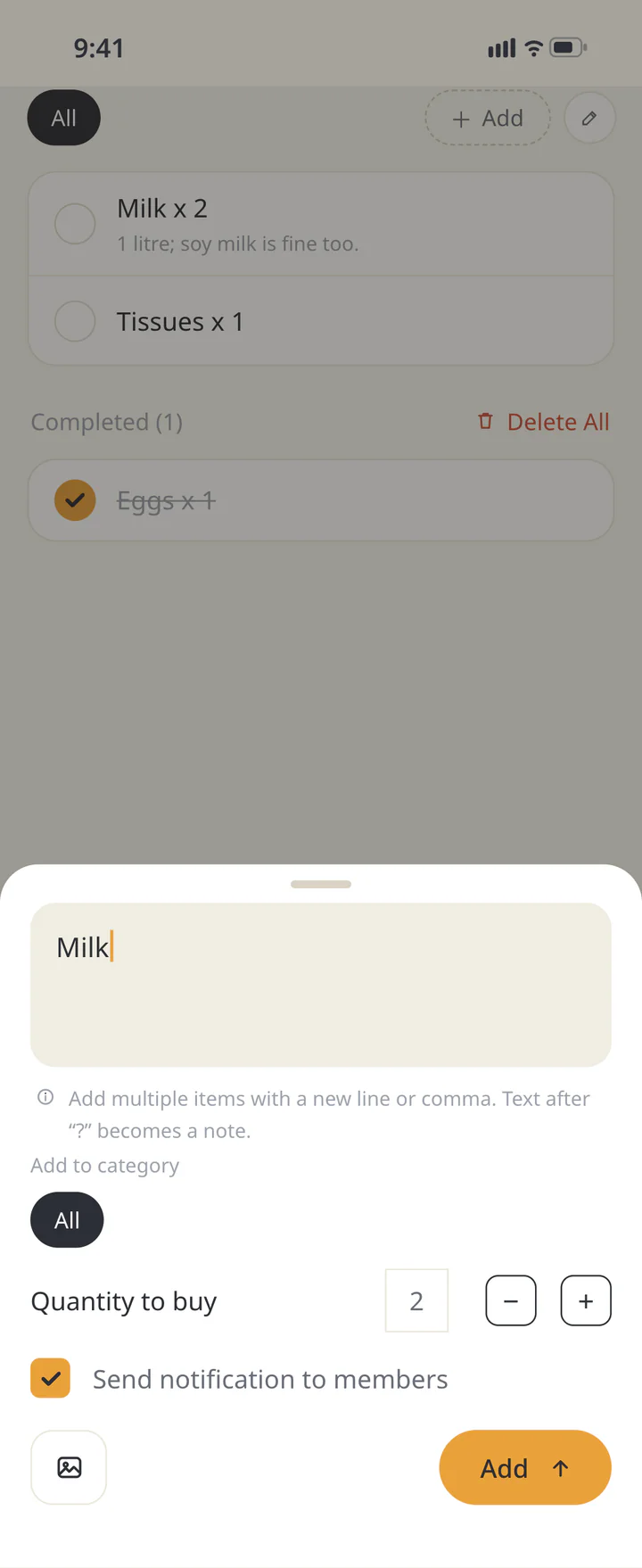
Enter the item, quantity, and note
Enter the item and set “Quantity to buy”. Use “Enter memo” for pack size or an acceptable substitute. Put multiple items on separate lines to add them together.
Enter the item, quantity, and note - 3
Step 3
Choose whether to notify and add it
Turn on “Send notification to members” if you want an alert, then tap “Add”. With notification off, the item is still added to the shared list.
Choose whether to notify and add it - 4
Step 4
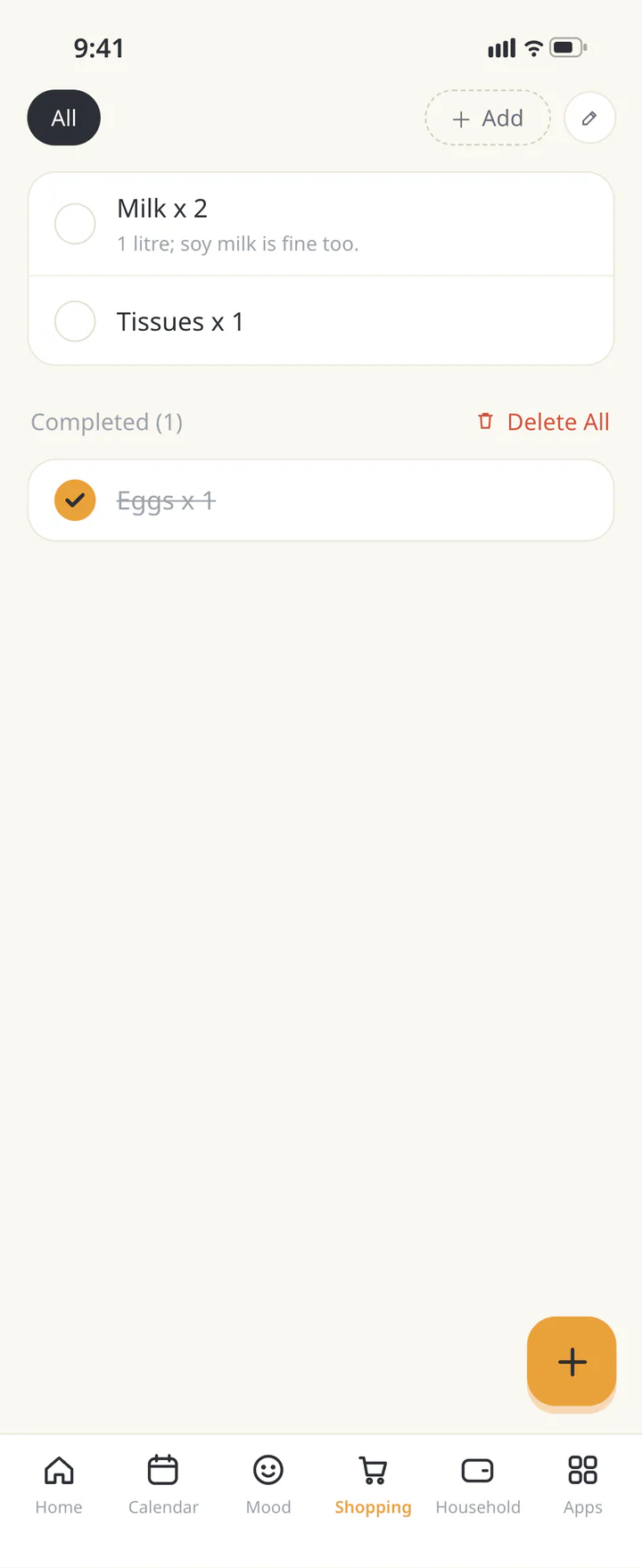
Check it off after buying it
Use the item’s checkbox once it has been bought. Check the list before shopping to reduce duplicates. The check marks a purchase, so leave it unchecked while it is still a request.
Check it off after buying it - 5
Step 5If needed
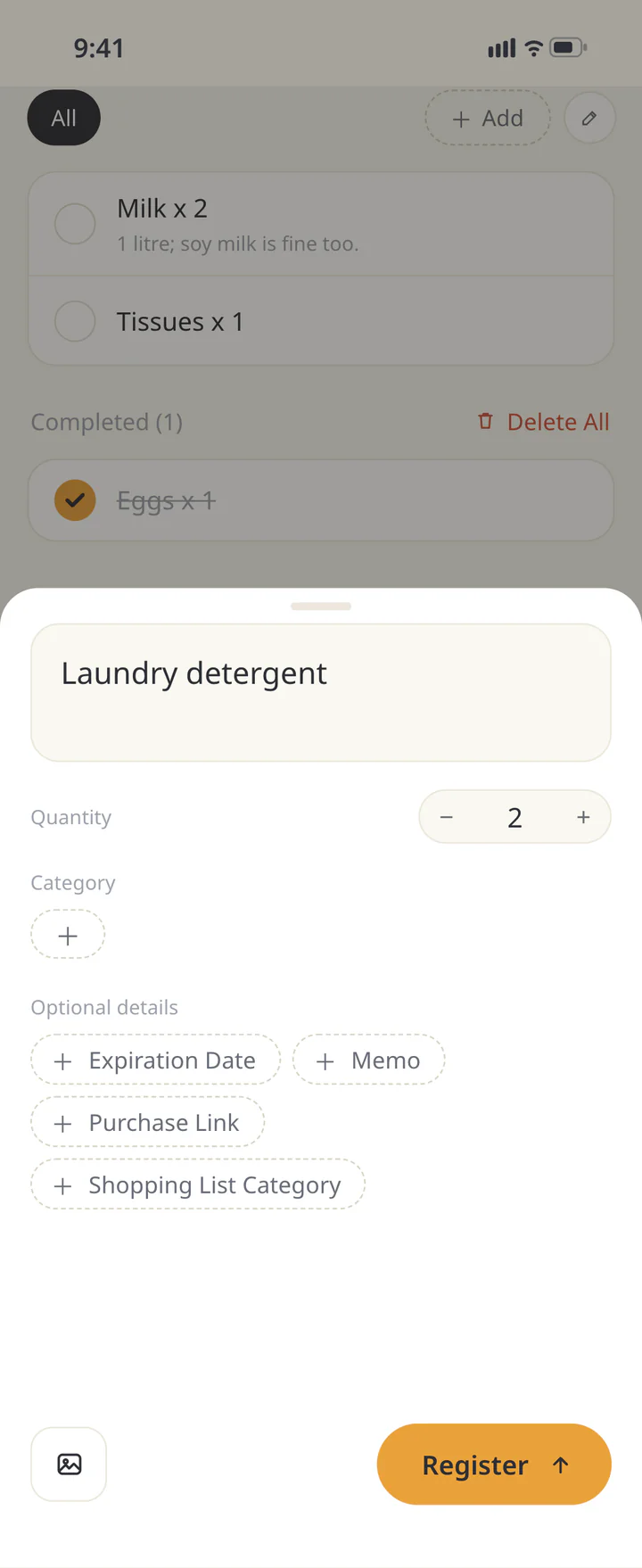
Open Inventory and add an item
With Premium, open “Inventory” and tap +. Enter “Name” and “Quantity”, then tap “Register”. Start with the quantity actually at home.
Open Inventory and add an item - 6
Step 6If needed
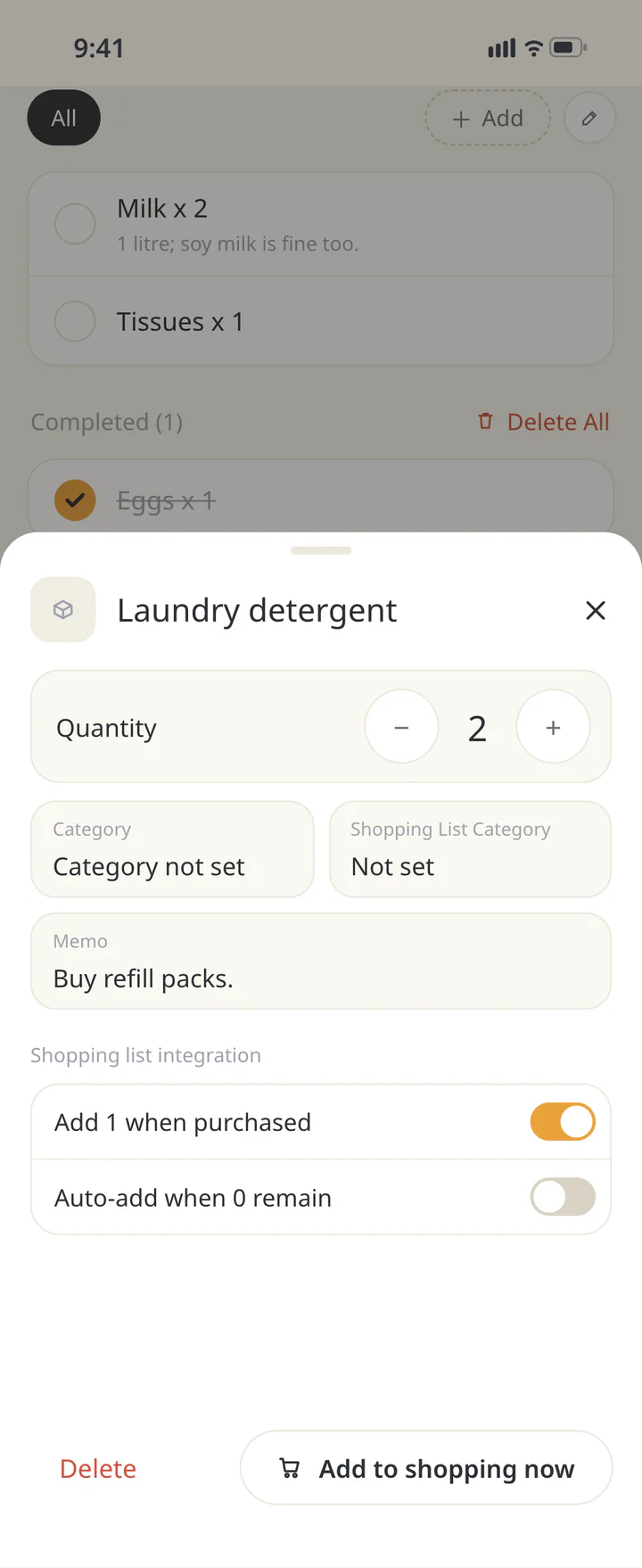
Adjust stock as you use it
Open the inventory item and use + or − by its quantity to adjust the stock. Updating it after use helps you see when to restock.
Adjust stock as you use it - 7
Step 7If needed
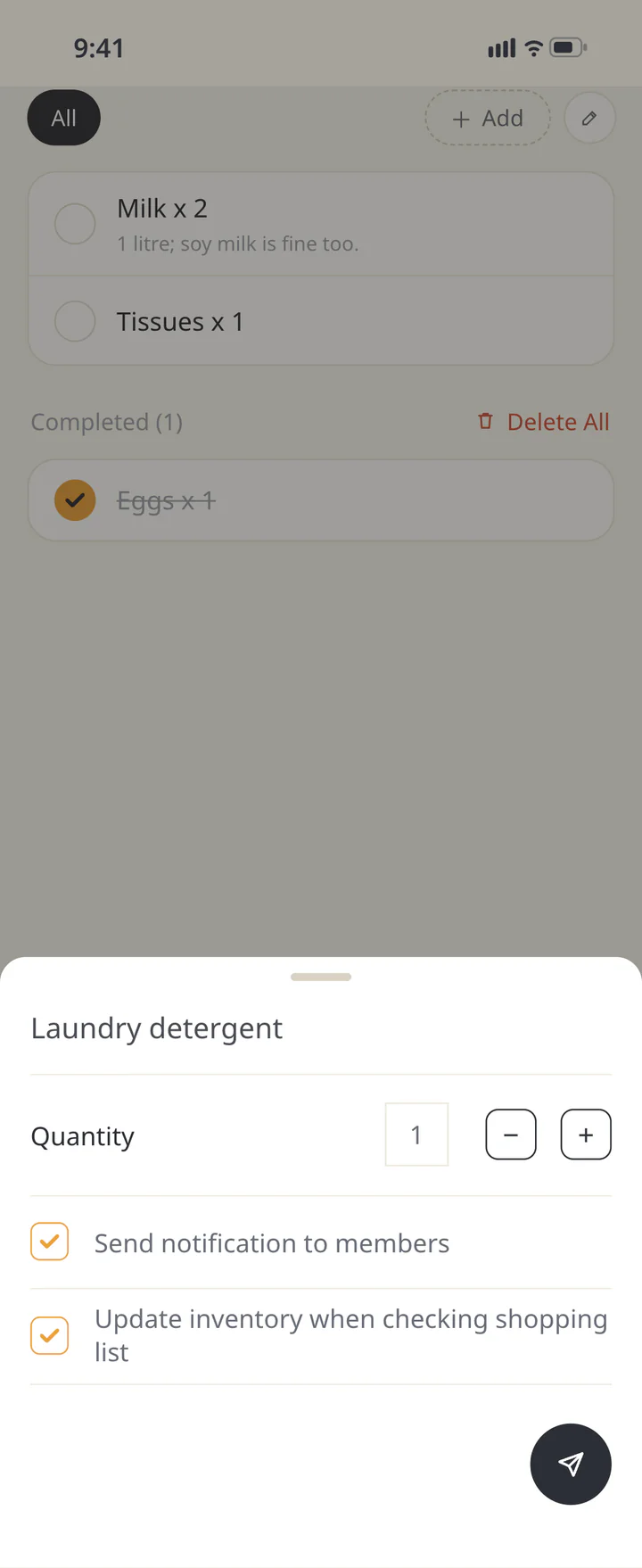
Add a restock item to Shopping
Press the add-to-shopping button in the inventory detail and set the replenishment quantity. Enable “Update inventory when checking shopping list” if buying it should increase stock. Review the notification option and tap the send icon.
Add a restock item to Shopping - 8
Step 8If needed
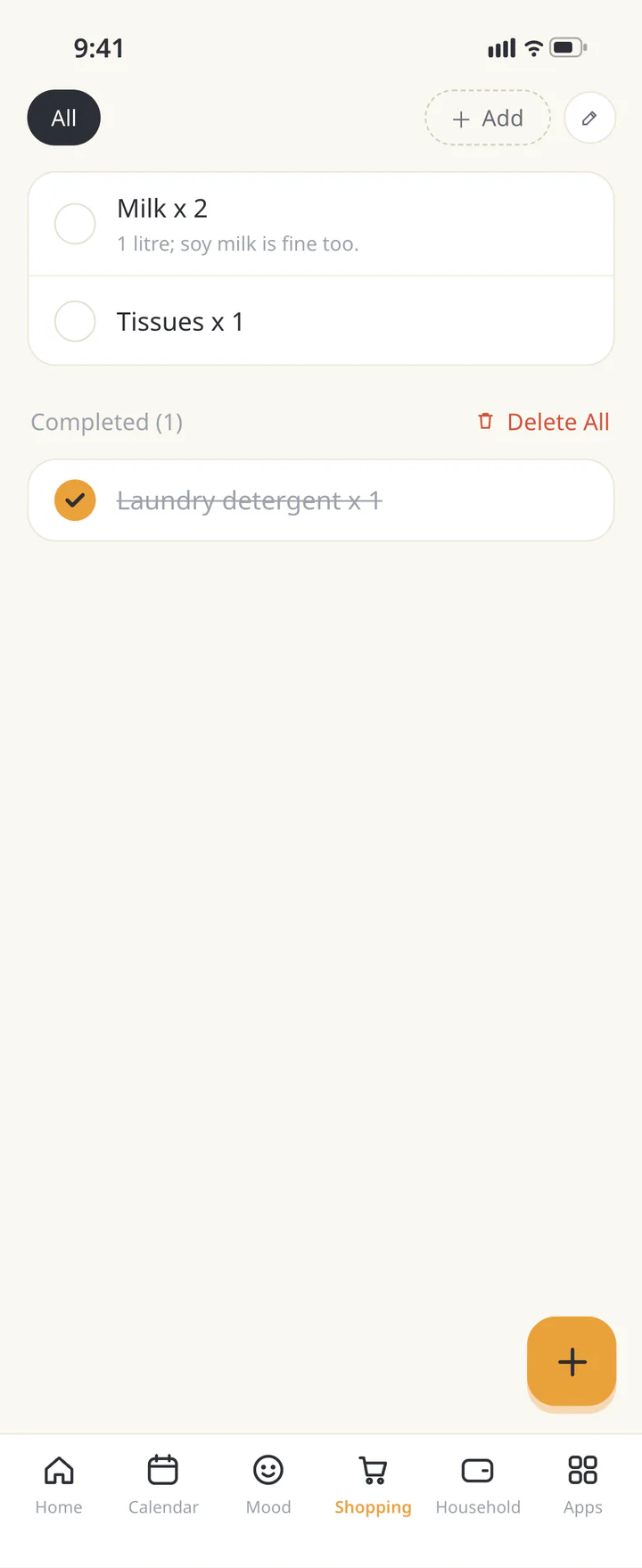
Check off the restock purchase
Check off the restock item after buying it. If inventory updating was enabled, check the stock quantity afterward too.
Check off the restock purchase


TROUBLESHOOTING
If something doesn’t work
QCan an item be saved without the alert arriving?
Check whether the item is in the list. If the screen says it was saved and the notification is pending, retry the notification as instructed rather than creating the item again.
QIs Inventory included for free?
The shared shopping list is free to start. Inventory is a Premium feature. You can still add and check off shopping items without tracking stock.
Download ienon
Add one item for your next shopping trip.
History: Published October 9, 2026 — checked against app 16.5.0