
How to Share a Grocery List with Your Family (2026)
Updated November 16, 2026
Your family can keep one grocery list even if some of you use iPhone and some use Android. This guide covers each option using Apple’s and Google’s help pages (checked November 16, 2026), along with what each one can’t do.
Quick answer
- Everyone on iPhone: Share a list in the Reminders app. People who accept the invitation can add and edit items and mark them as completed.See the steps
- Google Keep: Add family members as collaborators on a Keep list, or share it with your Google family group. Google’s help has steps for both Android and iPhone.See the steps
- A family app: Everyone installs the same shopping list app on iPhone or Android. In ienon, everyone who joins the same Home sees the same list, whether they’re asking for something or doing the shopping.See the steps
1. iPhone: share a list in Reminders
If everyone in your family has an iPhone, you can share a list in the built-in Reminders app. Apple’s iPhone User Guide says people who accept the invitation can add and edit items and mark items as completed, and everyone on the list can see each other’s changes. Here’s how to share a list:
- 1Open the Reminders app, view the list you want to share, then tap the Share button.
- 2Choose how to send your invitation, for example Messages or Mail.
- 3Once the other person accepts, you can both add and edit items on the same list.
- What they need: Everyone you collaborate with must be signed in to their Apple Account and have Reminders turned on in iCloud settings.
- Groceries list type (iOS 17 and later): In iOS 17 and later, you can choose Groceries as the List Type when you create a list, and items are sorted into categories such as Produce automatically (grocery categorization is available for supported languages). To use Groceries lists, you need to turn on iCloud for Reminders. You can share an ordinary list without choosing this type.
- Notifications: In the shared list, tap the Collaborate button, then Manage Shared List. Under Notify When, turn Adding Items and Completing Items on or off.
- Assigning items: In a shared list, type @ followed by a person’s name to assign an item to them.
- Inviting others: By default, people on the list can invite others. To turn this off, tap “People you invite can add others” when sharing, then turn off “Allow others to invite.”
2. Google Keep: share a list
Google Keep lets your family edit the same note or list. Google’s help has steps for the app on Android and on iPhone and iPad (checked November 16, 2026). Here’s how to share a note:
- 1On your Android phone or iPhone, open the Google Keep app.
- 2Tap the note you use as your grocery list.
- 3Tap Action, then Collaborator (on iPhone, Collaborators).
- 4Enter a name, email address, or Google Group, then choose the person.
- 5In the top right, tap Save (on iPhone, Done).
- What they can edit: People you share with can edit text, lists, images, drawings, and audio recordings.
- Their own settings: Anyone you share with can label, color, archive, or add reminders without changing the note for others.
- View only: To share a note without letting others edit it, send the Keep note with another app.
- Deleting: If you delete a shared note that you own, it’s deleted for everyone.
Share with your Google family group
If you have a family group on Google, you can share a Keep note with the whole group instead of adding each person. Anyone in the family can edit or delete notes shared with the family group. The family manager can invite up to 5 people to the group, who must live in the same country and be at least 13 years old (or the applicable age in your country). Kids under 13 can only be added if the family manager created the child’s supervised Google Account.
- 1Open the Google Keep app and open the note.
- 2On Android, tap Action, then Collaborator, then Family group. On iPhone, tap Action menu, then Collaborators, then Family group.
- 3In the top right, tap Save (on iPhone, Save sharing changes).
To create a family group, go to g.co/YourFamily and select Create a family group, then Get started. Under “Ready to be a family manager?,” select Confirm. Enter the names of family members you want to invite and select Send. If you already manage a family group, you can add people later: go to g.co/YourFamily, select Send invitations, enter their email address, and select Send.Google Keep: Share a Keep note with your family groupGoogle: Create a family on GoogleGoogle: Manage your family on Google
3. Use a shared grocery list app
Another way is for everyone to install the same shopping list app, available on both iPhone and Android. Each app handles joining and organizing lists differently. Here are the steps in ienon.
How to share a shopping list in ienon
- 1The first person opens the top-left menu in “Home”, taps “Invite”, then taps “Copy Invite Link” and sends the link. An invitation link or QR code can invite up to 5 people and is valid for 7 days.
- 2The person joining installs ienon, opens the link, and chooses “Sign in with Apple” or “Sign in with Google”. They check the Home name and inviter, then tap “Join this Home”. The Apple option appears on supported devices.
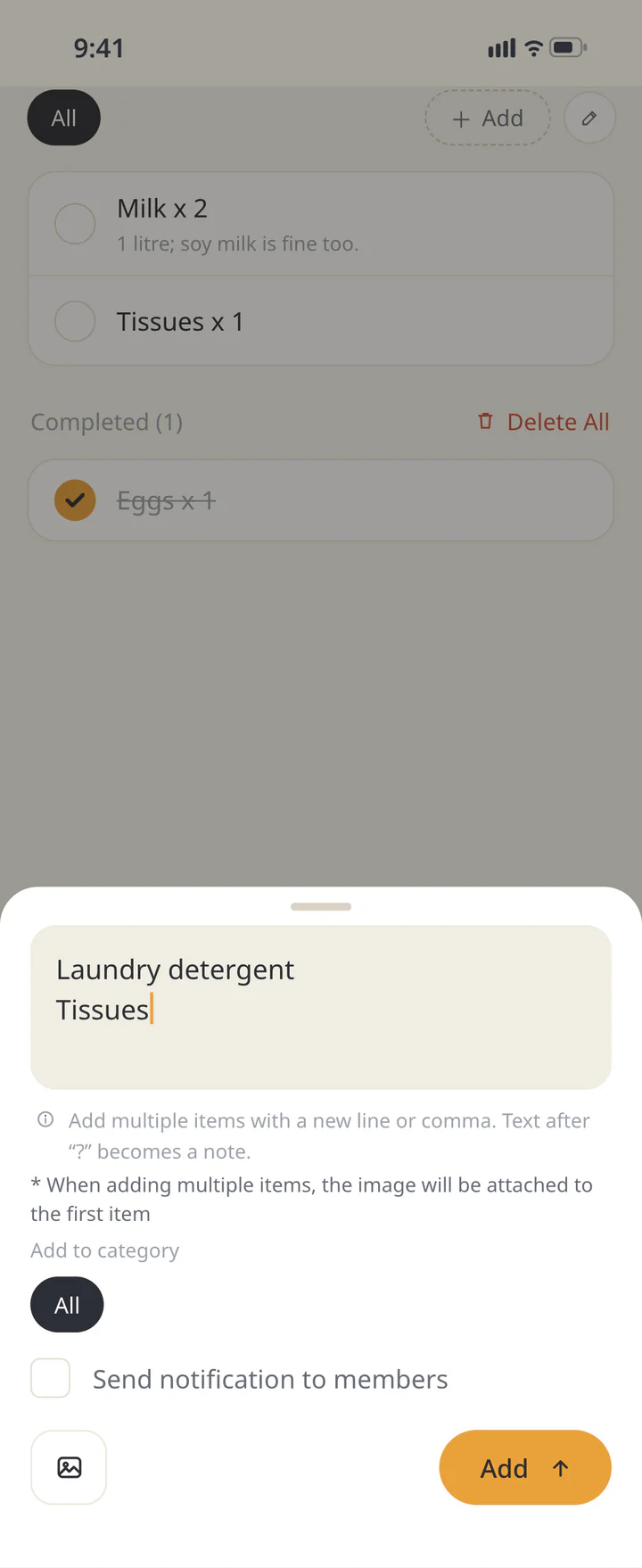
- 3Tap + in “Shopping” to add an item. You can enter multiple items on separate lines.
- 4Set “Quantity to buy” and add a note. To alert others, choose “Send notification to members”, then tap “Add”.
- 5The buyer checks the item off. The next person going shopping opens the list to see what’s left.
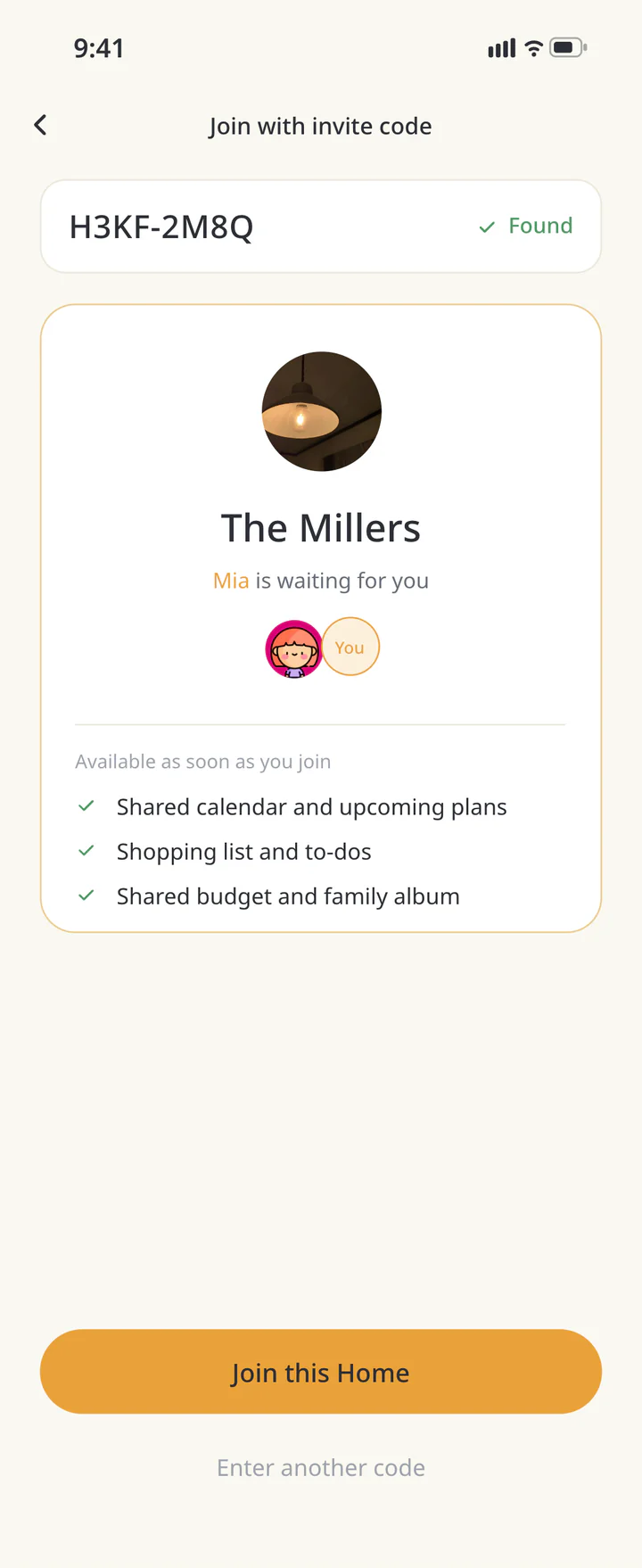 Check the Home you are joining
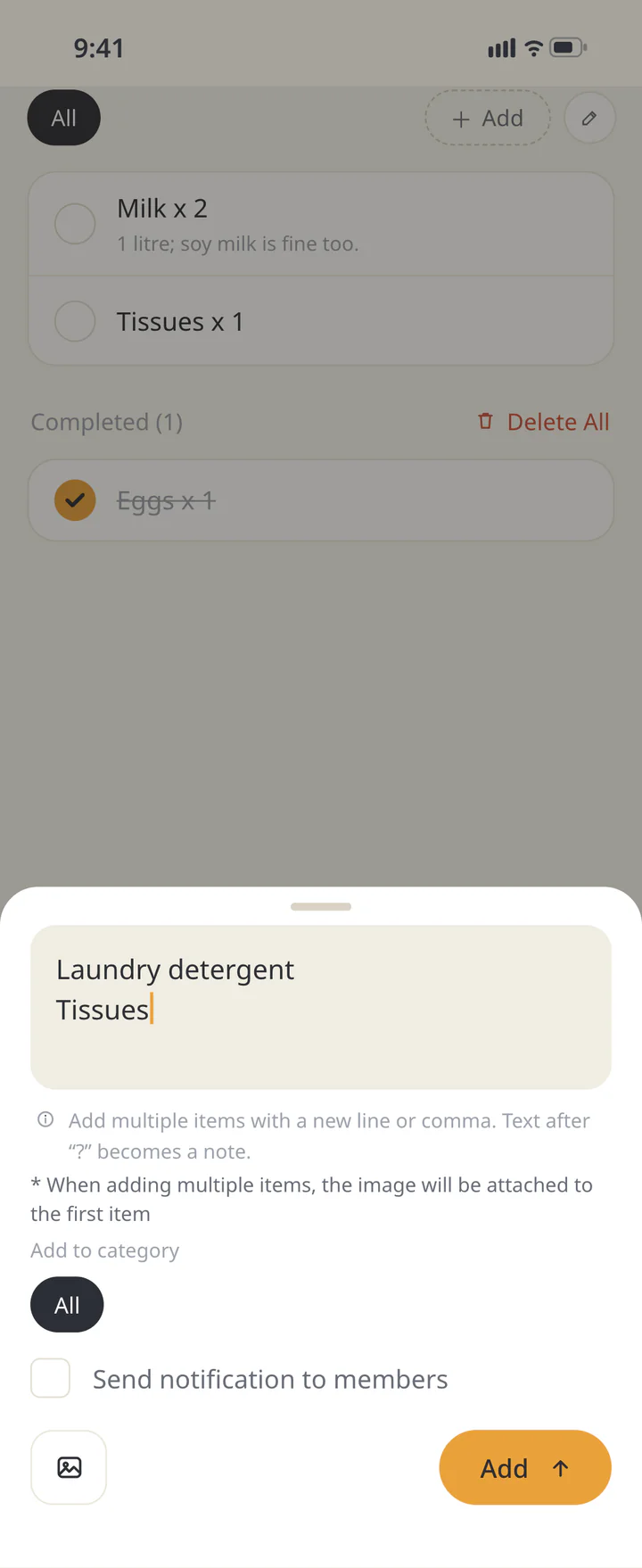 Add an item
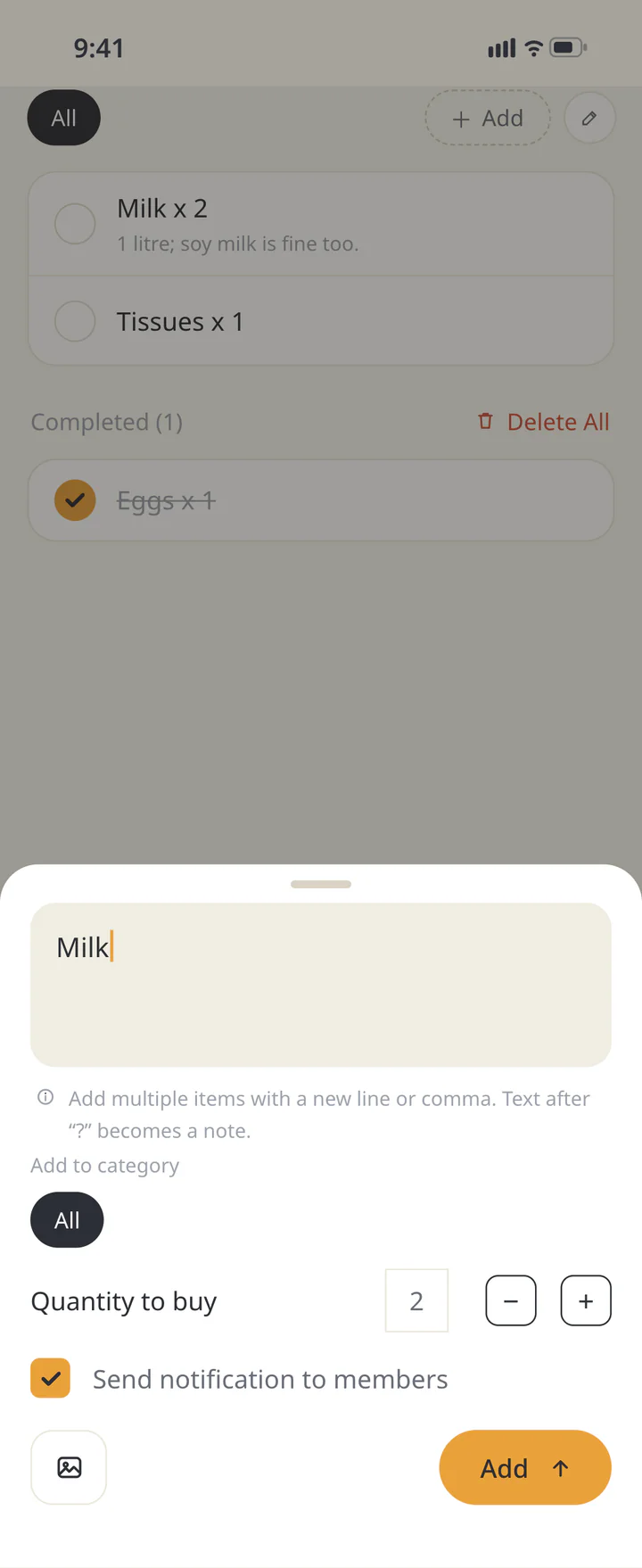 Add quantity and notes
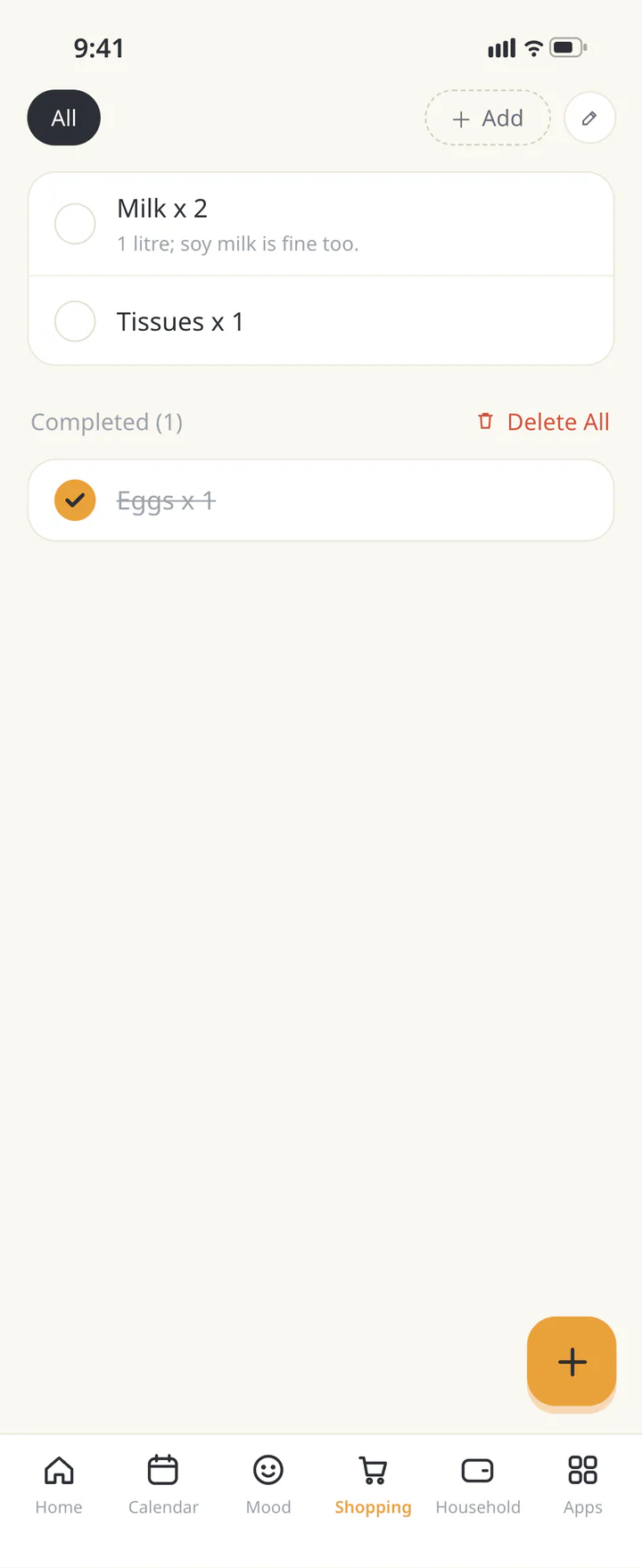 Check off purchases and review before shopping



Things to know in ienon
- Everyone installs it: Each person installs ienon and signs in with their own Apple or Google account. The Apple option appears on supported devices. You don’t need to share login details.Invite someone to your Home
- What’s free: The shared shopping list is free to start. Inventory and shopping categories are Premium extras.
- Notifications are separate: Even without “Send notification to members”, the item is added to the same Home’s list.
- Inventory: For a restock item added from Inventory, you can turn on “Update inventory when checking shopping list”. Checking items off doesn’t create inventory records for every ordinary shopping item.Add shopping items and restock from inventory
Which one to choose
Here’s how the options differ, based on each company’s help pages.
| Option | iPhone Reminders |
|---|---|
| What’s shared | One list at a time |
| What the other person needs | An invitation (Messages, Mail, and so on), an Apple Account, and Reminders turned on in iCloud |
| Who can edit | People who accept can add, edit, and complete items |
| Option | Google Keep |
|---|---|
| What’s shared | One note at a time |
| What the other person needs | To be added as a collaborator (name, email address, or Google Group) |
| Who can edit | Collaborators can edit text and lists |
| Option | Google Keep (family group) |
|---|---|
| What’s shared | One note, shared with the whole family group |
| What the other person needs | To be in your Google family group (up to 5 invited, same country, 13 or older, or a child whose supervised account the family manager created) |
| Who can edit | Anyone in the family can edit or delete the note |
| Option | ienon |
|---|---|
| What’s shared | A Home (invite people to join the same Home) |
| What the other person needs | The invitation link, ienon, and an Apple or Google account (the Apple option appears on supported devices) |
| Who can edit | Everyone in the Home sees the same list, and the buyer checks items off |
- If everyone has an iPhone, start with a shared Reminders list.
- If your family mixes iPhone and Android and everyone has a Google account, try Google Keep.
- If you want requests, alerts, and check-offs in the same place as your calendar and chores, try a family app.
Frequently asked questions
QCan I share an iPhone Reminders list with someone who uses Android?
Apple says everyone you collaborate with must be signed in to their Apple Account and have Reminders turned on in iCloud settings. If someone in your family can’t do that, use Google Keep or a family app instead.
QI shared the list, but my family can’t see it. What should I check?
In Reminders, check that the other person accepted the invitation and that they’re signed in to their Apple Account with Reminders turned on in iCloud settings. In Keep, check that you added them as a collaborator and saved. In ienon, check that everyone is in the same Home.
QCan my family get a notification when I add something?
In iPhone Reminders, people can turn on Adding Items and Completing Items under Notify When in Manage Shared List. In ienon, you can choose “Send notification to members” when you add an item.
QCan other people change items I added?
In Google Keep, people you share with can edit the list. In Reminders, people who accept the invitation can add and edit items. If you want to share a Keep note without letting others edit it, send it with another app instead.
One grocery list for iPhone and Android
With ienon, everyone who joins the same Home can use the shopping list, calendar, and chores together. The shared shopping list is free to start.