
STEP BY STEP
Send a message and check its read status
Use your Home’s messages for a note that needs to stay visible. If you need a response, ask for one rather than relying on the read label.
Before you start
- 01If a feature is not in your bottom tabs, open it from “Apps”.
- 02Check that you and the recipient are in the same Home. Join through an invitation first if you are in separate Homes.
Steps
- 1
Step 1
Open Messages
Open “Messages” from “Apps”, or use its bottom tab if you have placed it there.
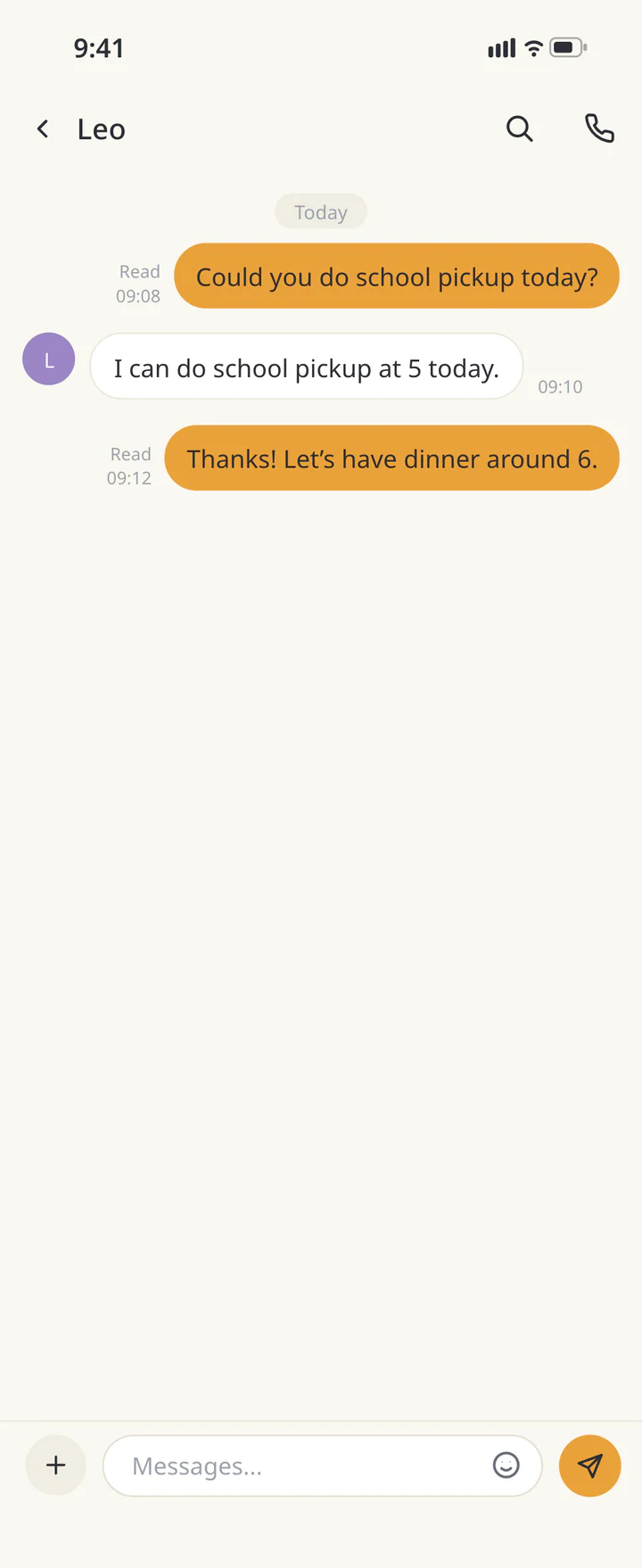
Open Messages - 2
Step 2
Type and send
Type in “Messages…” and tap the send icon. Check any dates and the request before sending.
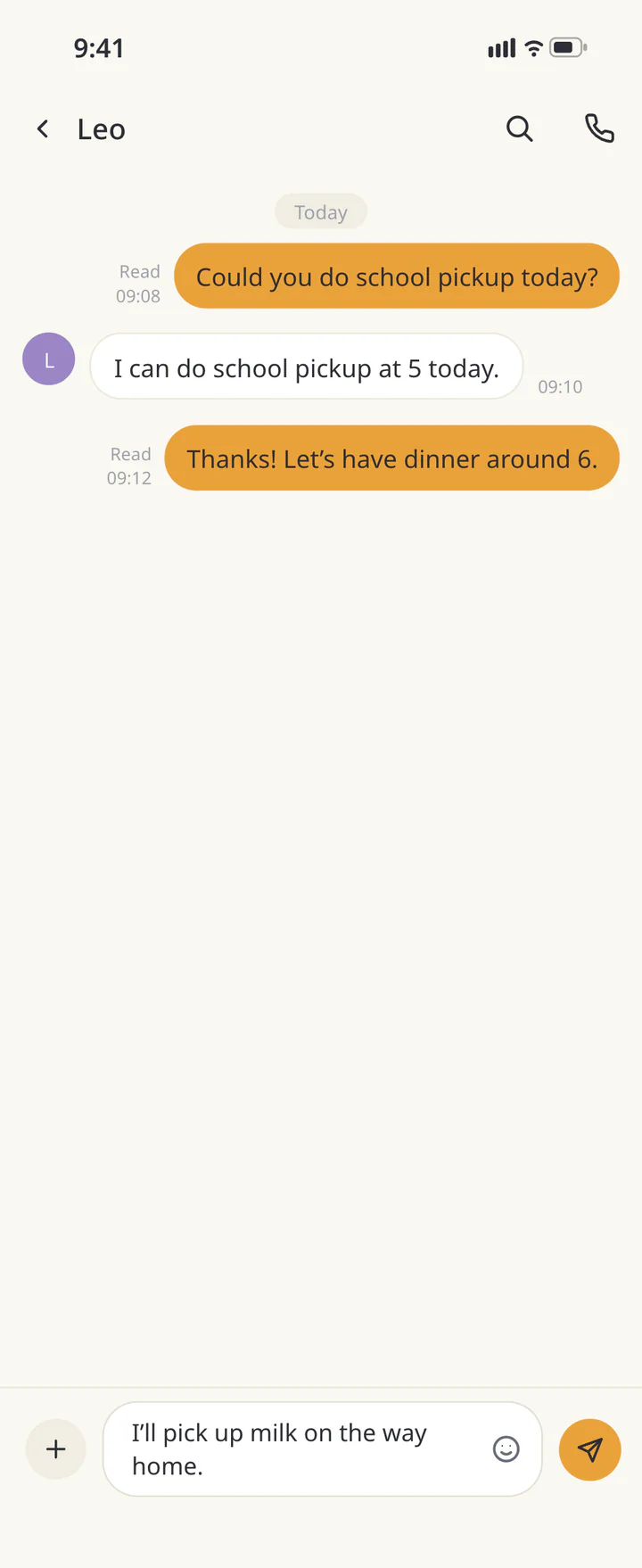
Type and send - 3
Step 3
Review the sent message and Read label
Check that your message appears in the conversation. “Read” on a message you sent means at least one member has read it. If the label is absent, wait for a reply as needed rather than drawing conclusions about every member.
Review the sent message and Read label


TROUBLESHOOTING
If something doesn’t work
QDoes Read mean everyone has seen it?
Not necessarily. Read means at least one member has read the message. Ask each person to reply if everyone must confirm.
QDoes turning off notifications remove messages?
Notifications and the conversation are separate. Set message alerts in notification settings and check the content in Messages.
Download ienon
Keep an important note in your Home.
History: Published October 9, 2026 — checked against app 16.5.0