
STEP BY STEP
Record shared expenses and review reimbursements
To review reimbursements, record who paid as well as the amount. Check that the record destination is Group so you can both see the expense.
Before you start
- 01If a feature is not in your bottom tabs, open it from “Apps”.
- 02Household uses your Home’s currency. Agree which expenses to include and how you want to share them.
Steps
Which side are you on?
- 1
Step 1
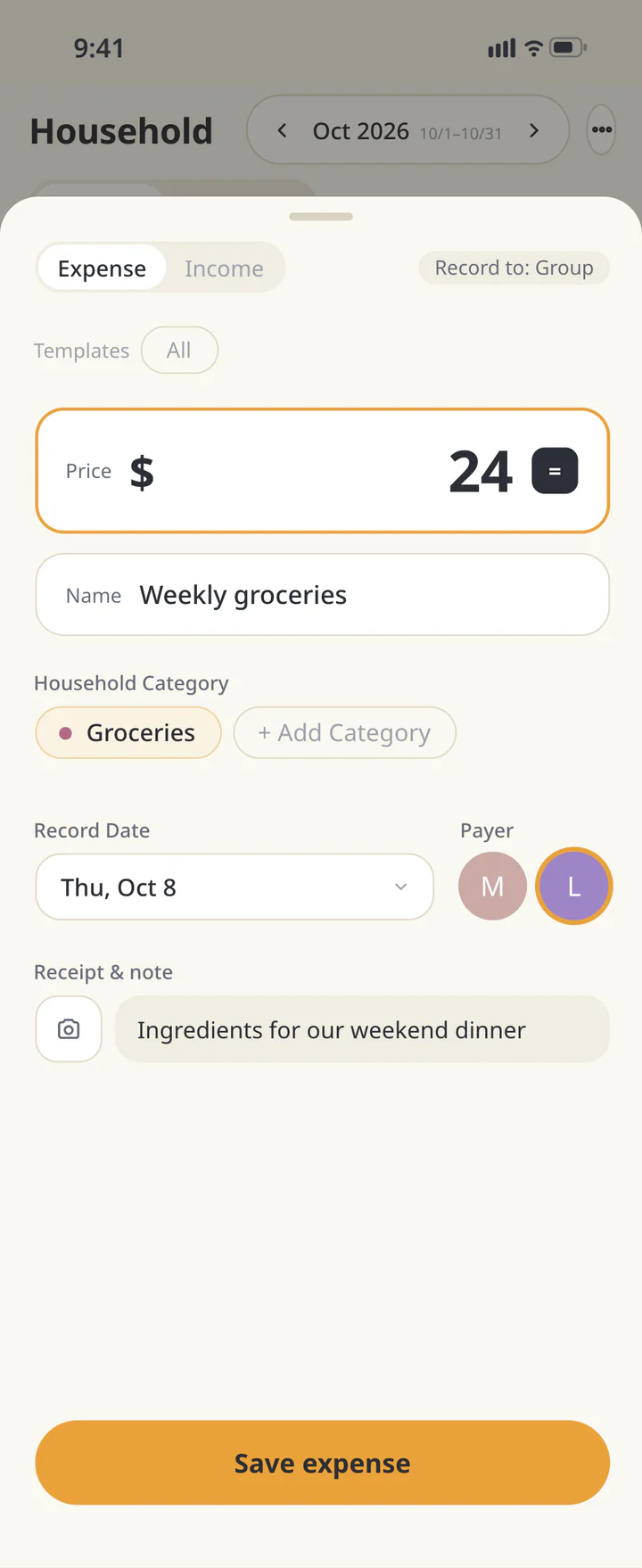
Check the recording screen’s destination (Group)
Open “Household”, select the “Group” tab, and tap “Record”. Check “Record to: Group” on the recording screen. “Personal” is a Premium budget.
Check the recording screen’s destination (Group) - 2
Step 2
Open Record and enter the expense
Tap “Record” and select “Expense”. Enter the amount and choose “Household Category”. Add a recognizable expense name in “Name” if useful.
Open Record and enter the expense - 3
Step 3
Set the date and payer
Check the date row. Select the person who actually paid under “Payer”. Set a payer for expenses you want included in reimbursement estimates. Add context in the note under “Receipt & note”.
Set the date and payer - 4
Step 4
Save and review the month
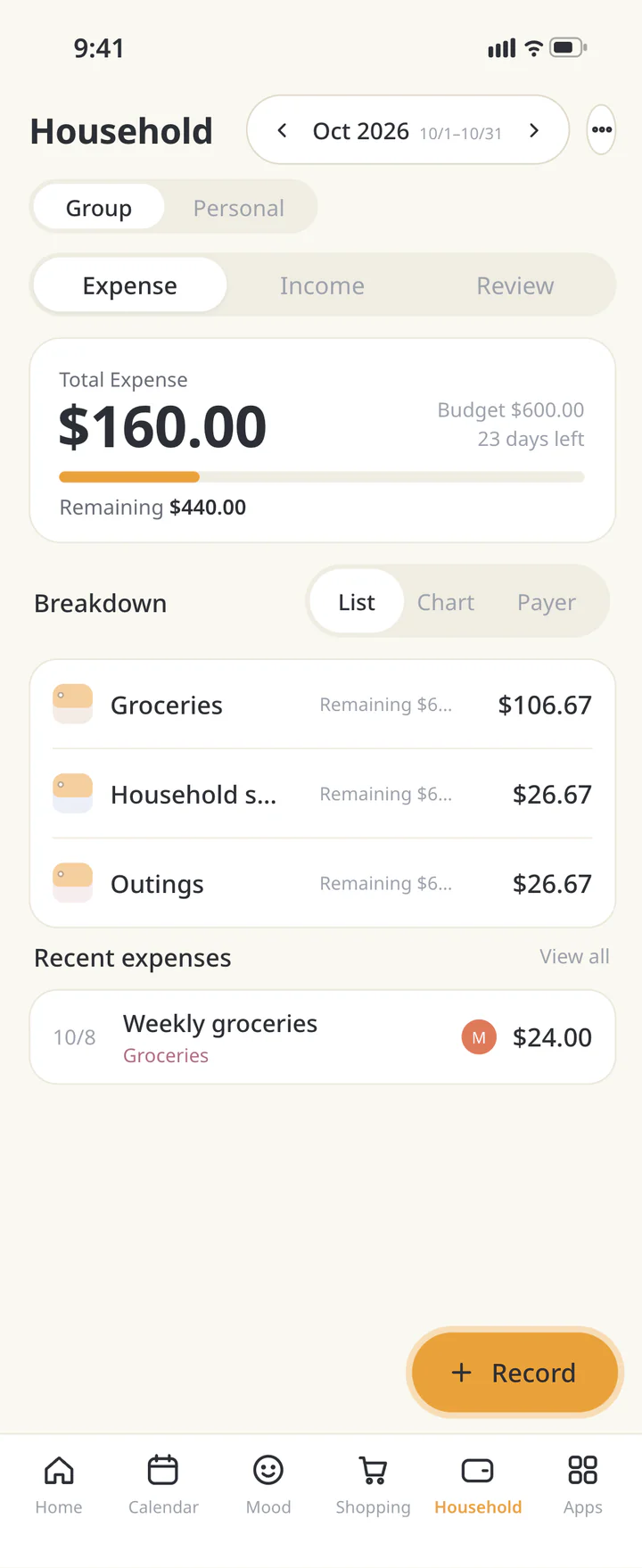
Check that the recording screen shows “Record to: Group”, then tap “Save expense”. Review the saved expense, date, and category in the month view.
Save and review the month - 5
Step 5
Review payers for the right month
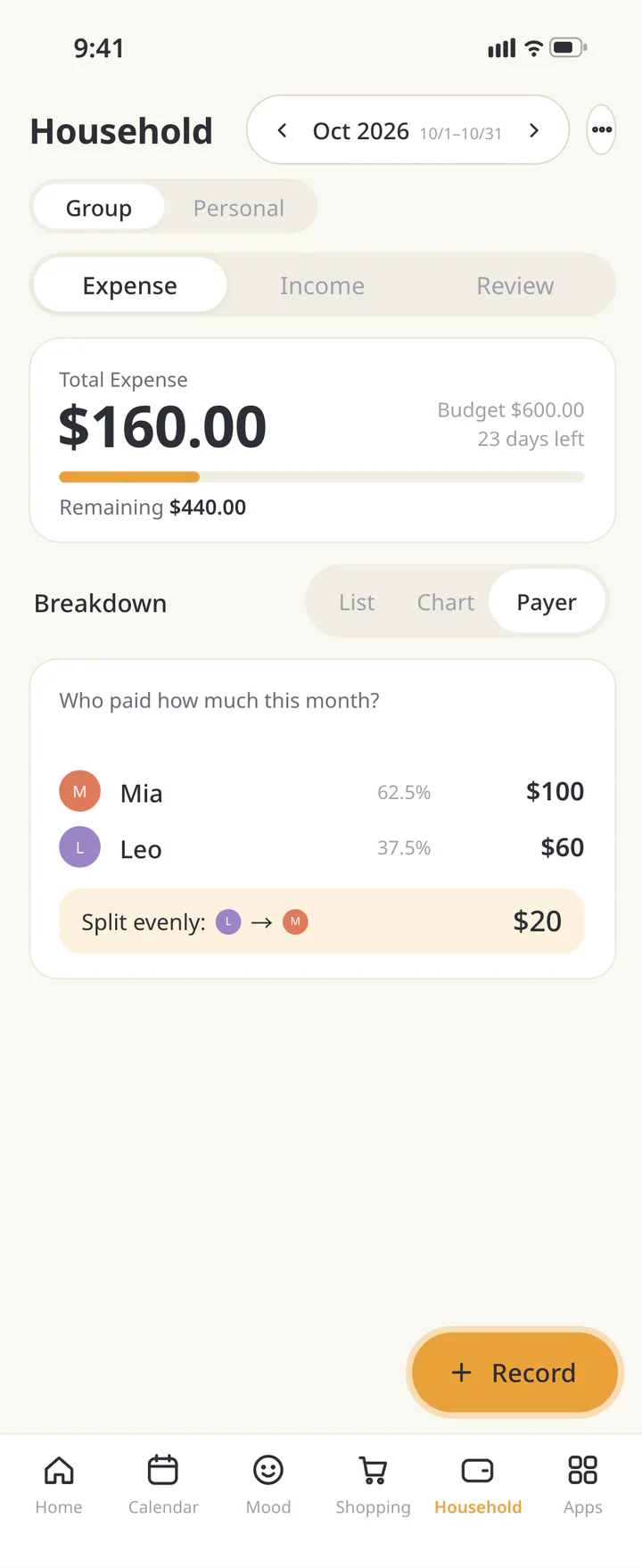
Select the relevant month in Group and open “Payer” under “Expense”. Review payer totals and the estimate for an equal split. Expenses without an assigned payer are excluded from that estimate.
Review payers for the right month - 6
Step 6
Compare the estimate with your agreement
The estimate divides the total equally among the included members. If you agreed on a different split, use that agreement. This screen does not transfer money; arrange any reimbursement separately.
Compare the estimate with your agreement - 7
Step 7If needed
Record income when it arrives
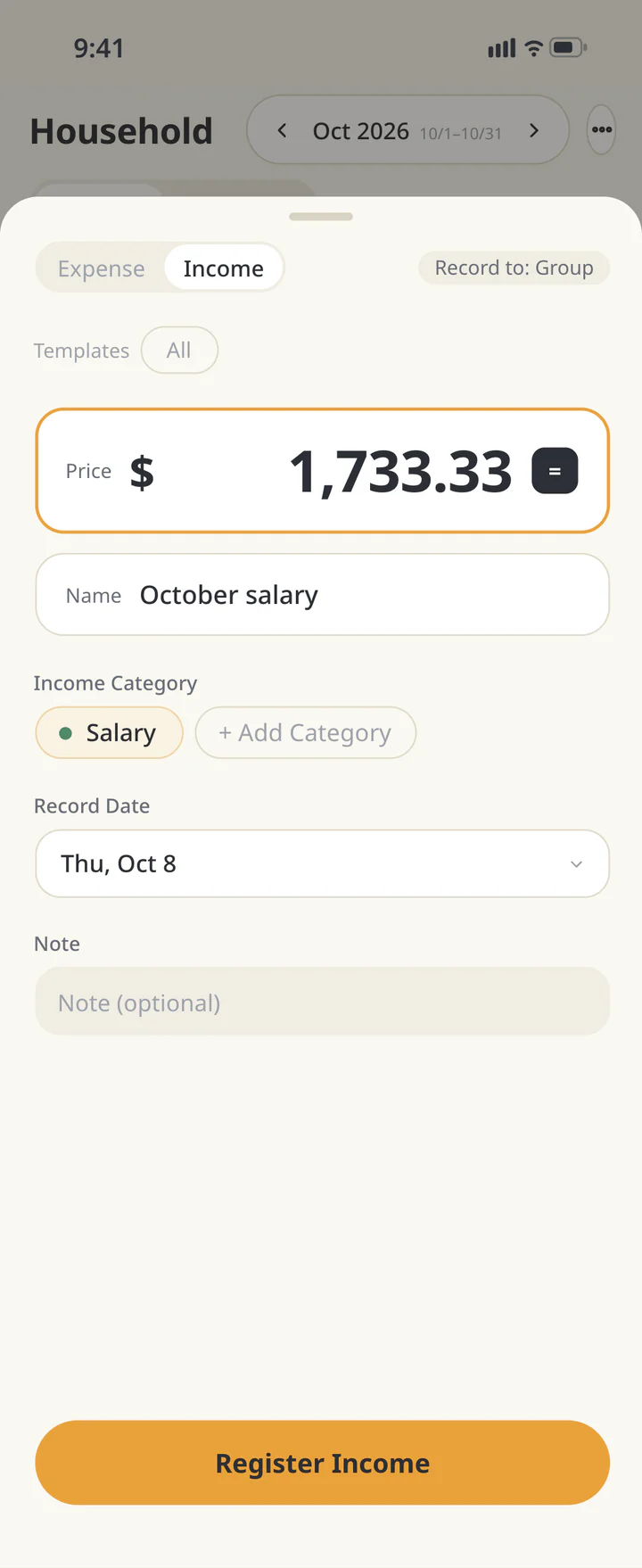
To record income, choose “Income” in “Record”, fill in the details, and tap “Register Income”. Record each regular payment separately too.
Record income when it arrives


TROUBLESHOOTING
If something doesn’t work
QCan my family see my Personal budget?
Expenses entered in Group are shared with your Home, so check the destination before recording.
QDoes ienon automatically split and pay the bill?
No money is transferred. The payer view provides an equal-share estimate. Check expenses without a payer, then agree the actual split and reimbursement yourselves.
QWhere do I choose the currency?
Choose it in “Household currency” when creating a Home. Check the currency shown before recording. For a foreign-currency expense, agree the amount to enter first.
Download ienon
Record your first shared expense, including who paid.
History: Published October 9, 2026 — checked against app 16.5.0