
How to Share a Household Budget as a Couple or Family (2026)
Updated November 23, 2026
Sharing money as a couple gets easier once you agree on two things: which costs you share, and how you keep track of who paid. This guide covers three common money setups and three ways to track shared spending, with the official Google help steps (checked November 23, 2026) and the steps in ienon. It works even if one of you has an iPhone and the other uses Android.
Quick answer
- Joint account or settling up: Pay shared bills from an account you both put money into, or let whoever pays keep track and settle up later.See how
- Shared spreadsheet: Make a budget sheet in Google Sheets and share it with your partner as an editor. You decide the columns and formulas.See how
- Shared budget app: Both of you join the same budget app on iPhone or Android. In ienon, you record each expense with who paid and see an equal-split estimate.See how
First, pick a money model
Before choosing a tool, agree how you handle money as a couple. Most households use one of these three models, or a mix of them.
- Pool everything: All income goes into one shared pot, and all spending comes out of it. There’s no need to work out who owes whom.
- Split shared costs: Each of you keeps your own money and pays into shared costs such as rent and groceries, half each or in a ratio you agree on, for example by income.
- Split by category: Each of you covers certain bills. For example, one pays the rent and the other pays groceries and utilities.
There’s no single right model. Whichever you choose, write down which costs are shared and how you split them, and check in once a month. The methods below help you keep track.
2. Share a spreadsheet
Make a budget sheet in Google Sheets and share it so you can both add entries. On a phone, Google’s help explains sharing through the Google Drive app. The flow is the same on Android and iPhone (checked November 23, 2026).
- 1Open the Google Drive app.
- 2Next to the budget file’s name, tap More, then tap “Share”.
- 3Enter your partner’s email address.
- 4Choose “Viewer”, “Commenter”, or “Editor”. If you both want to add entries, choose “Editor”.
- 5Choose whether to notify them, then tap “Send”.
- Columns: Date, item, amount, category, and who paid. You decide the layout and any formulas for settling up.
- Sharing by link: If you set general access to “Anyone with the link”, anyone who has the link can open the file without signing in. Sharing with a specific email address limits who can open your budget.
- Work or school accounts: An organization may restrict sharing files outside it.
3. Use a shared budget app
With a budget app on both iPhone and Android, each of you records spending as it happens. Each app handles joining and records differently. Here are the steps in ienon.
How to share a household budget in ienon
- 1The first person opens the top-left menu in “Home”, taps “Invite”, then taps “Copy Invite Link” and sends the link. An invitation link or QR code can invite up to 5 people and is valid for 7 days.
- 2The person joining installs ienon, opens the link, and chooses “Sign in with Apple” or “Sign in with Google”. They check the Home name and inviter, then tap “Join this Home”. On iPhone, choose Apple or Google; on Android, choose Google.
- 3Open “Household”, select the “Group” tab, tap “Record”, and select “Expense”. Enter the amount and choose a “Household Category”.
- 4Check the date and choose who actually paid under “Payer”. Make sure the screen shows “Record to: Group”, then tap “Save expense”.
- 5At the end of the month, select the month in “Group” and open “Payer” under “Expense”. You’ll see each payer’s total and an estimate of who owes what if costs are shared equally.
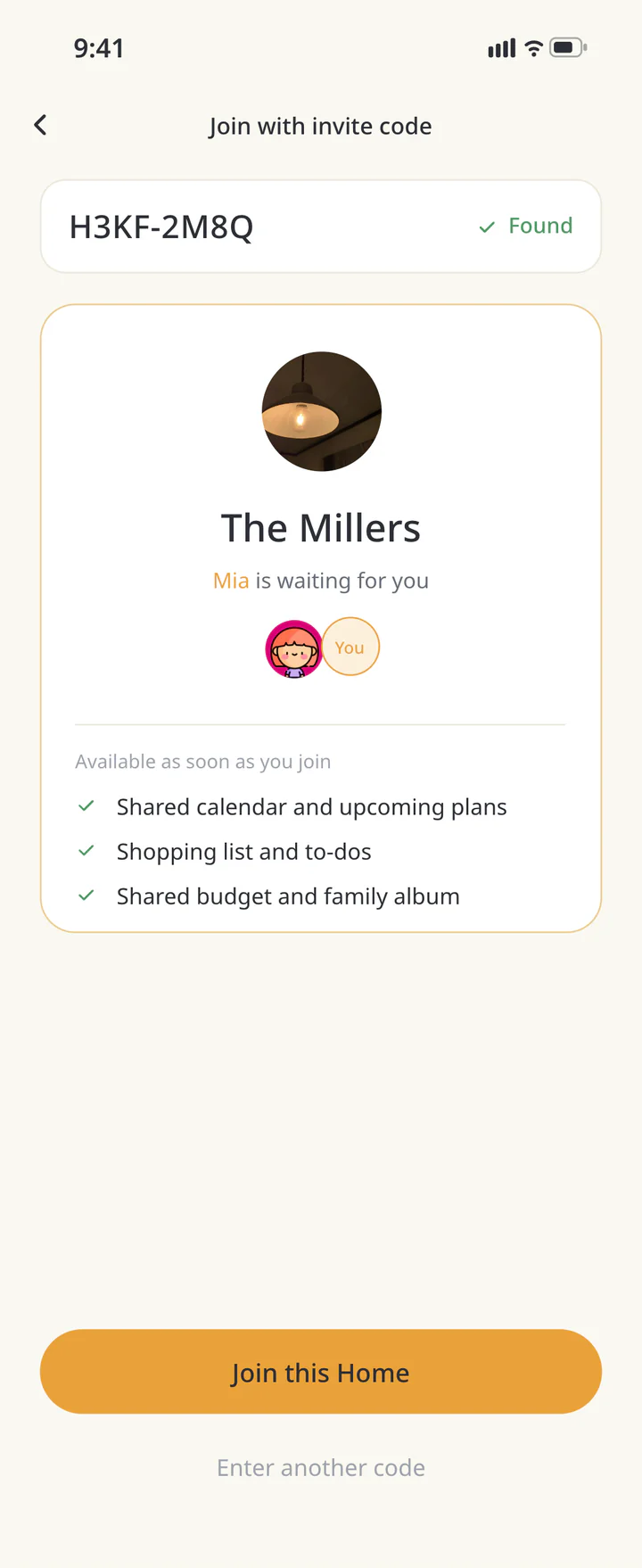 Check the Home you are joining
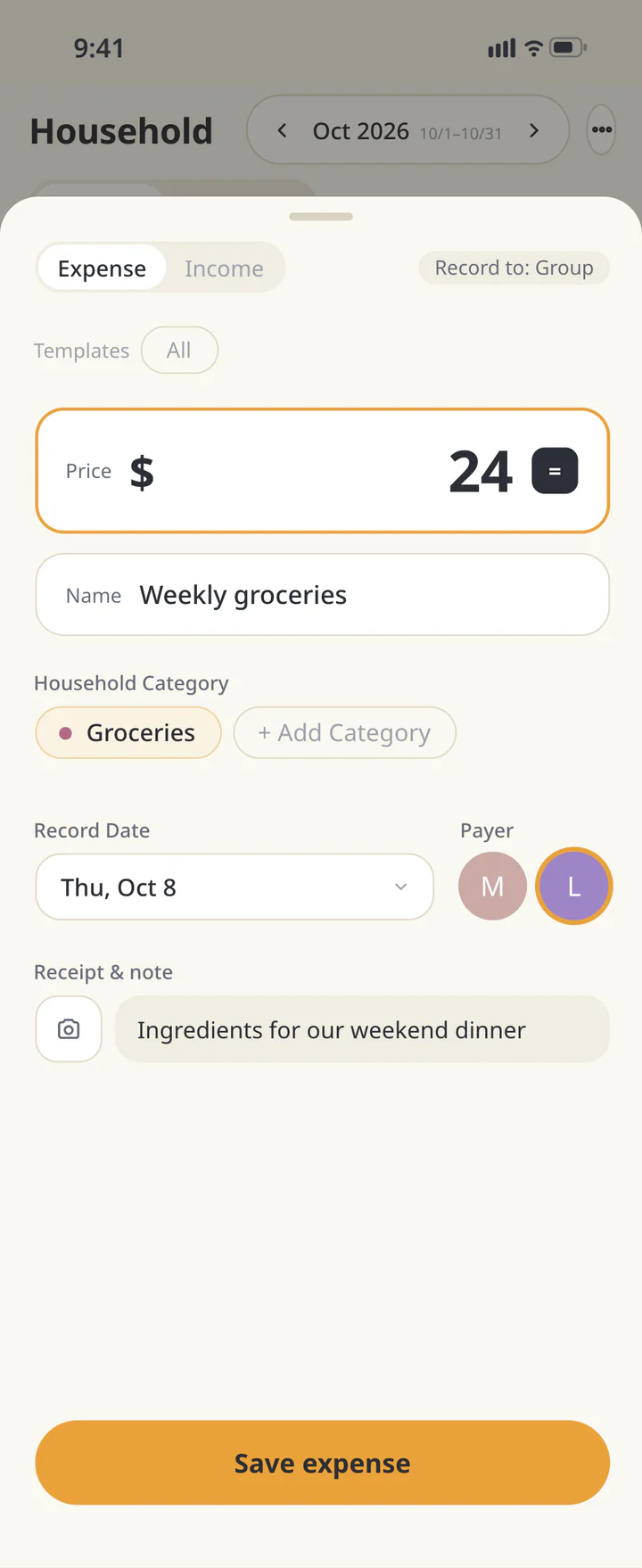 Record the expense and who paid
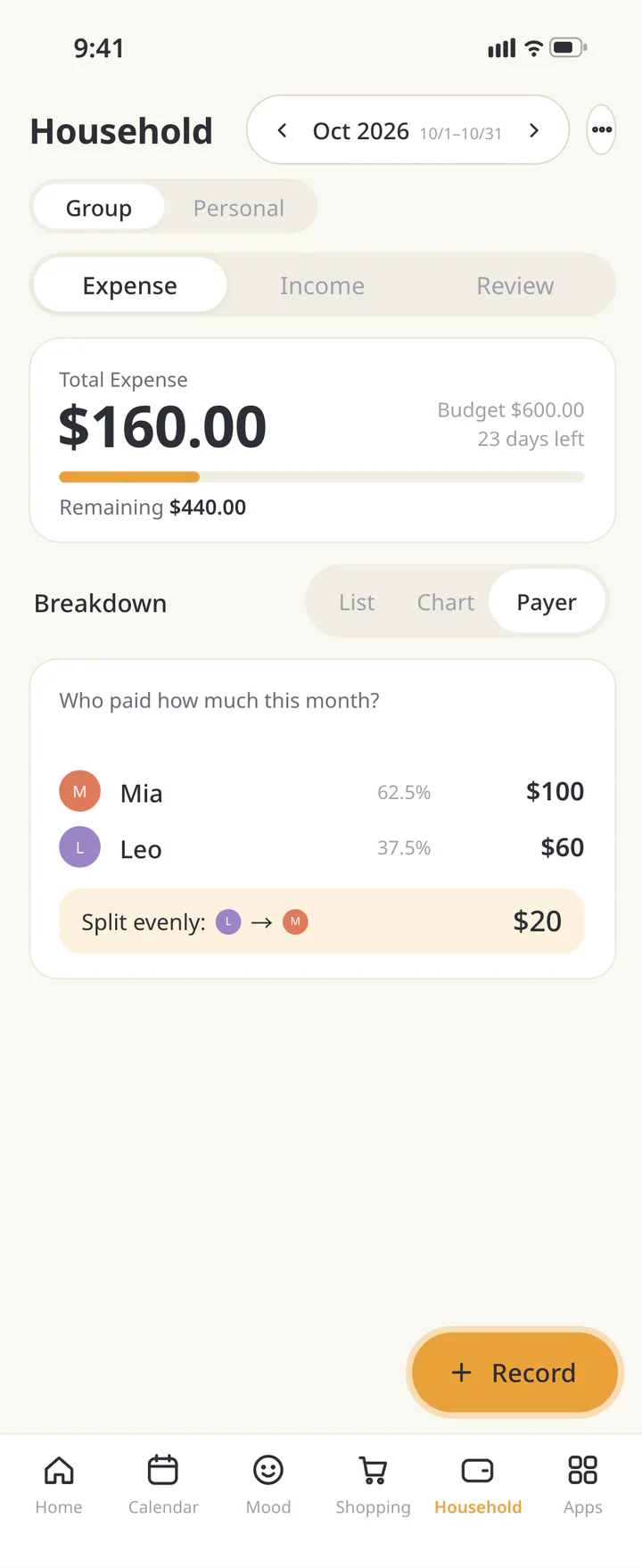 Review payers for the month



Things to know in ienon
- Everyone installs it: Each person installs ienon and signs in with their own Apple or Google account. You don’t need to share login details.Invite someone to your Home
- Group or Personal: Expenses recorded to “Group” are shared with your Home. To record your own spending separately from the family budget, use “Personal”, a personal budget available with Premium. Check where you’re recording before you save.
- The settle-up estimate: The estimate assumes equal shares among the included members. Expenses without a payer aren’t included. ienon doesn’t transfer money, so pay each other back separately, and follow your own agreement if you split costs differently.Record shared expenses and review reimbursements
- Currency: The household budget uses the Home’s currency, chosen in “Household currency” when you create a Home. For purchases in another currency, agree on the amount to enter first.
Which one to choose
Here’s how the options differ. Splitwise and Tricount are apps made for splitting costs within a group; check their own pages for their current features.
| Method | Joint account |
|---|---|
| Good for | Regular shared bills |
| Who paid | Paid from the joint account |
| Settling up | Agreed payments into the account |
| Method | Spreadsheet |
|---|---|
| Good for | Your own layout |
| Who paid | A column you add |
| Settling up | Formulas you build |
| Method | Split apps (Splitwise, Tricount) |
|---|---|
| Good for | Groups and trips |
| Who paid | Recorded with each expense |
| Settling up | Balances shown in the app |
| Method | ienon |
|---|---|
| Good for | An ongoing family budget |
| Who paid | “Payer” on each expense |
| Settling up | Monthly equal-split estimate |
- If you mostly pay the same bills every month, a joint account keeps things simple.
- If you want full control over the layout, use a shared spreadsheet.
- For one-off group costs such as a trip, a split app or a group split link works well.
- To keep the family budget, who paid, the grocery list, and the calendar in one place, try a family app.
For trips and one-off group costs
Not every shared cost belongs in the monthly budget. For a trip or a dinner with friends, a link everyone can open without installing anything may be easier.
- Group expenses: Share one link, add who paid for what, and see who owes whom.Split group expenses with one link
- Trips: Put the itinerary, the packing list, and trip expenses in one link for family or friends.Plan a trip with Trip Pack
- More link tools: See all the tools you can share with one link.Share a link and get things done together
Common questions
QOne of us has an iPhone and the other uses Android. Can we share one budget?
Yes. Google’s help covers sharing on both Android and iPhone, and people on iPhone and Android can join the same Home in ienon.
QHow do we settle up who paid what?
In ienon, “Payer” shows each person’s total and an estimate for an equal split. It doesn’t transfer money, so pay each other back separately. If you agreed on a different split, use your agreement. In a spreadsheet, you build the calculation yourselves.
QCan I record my own spending separately?
In ienon, open the “Personal” tab in “Household” (Premium) and record it there. Expenses recorded in the “Group” tab are shared with your Home.
QAn expense I added doesn’t show up for my partner.
In a spreadsheet, check that your partner was added to the same file. In ienon, check that you’re both in the same Home and that the expense was recorded to “Group”.
One household budget, on iPhone and Android
With ienon, everyone in the same Home shares the household budget, grocery list, and calendar. Record each expense with who paid.