
STEP BY STEP
Add anniversaries, sort them, and mark favourites
Give each occasion a name and its original date. Use Soonest first for upcoming days, or favourites for the occasions you check often.
Before you start
- 01If a feature is not in your bottom tabs, open it from “Apps”.
- 02Check the original date if you want to see how many years have passed.
Steps
Which side are you on?
- 1
Step 1
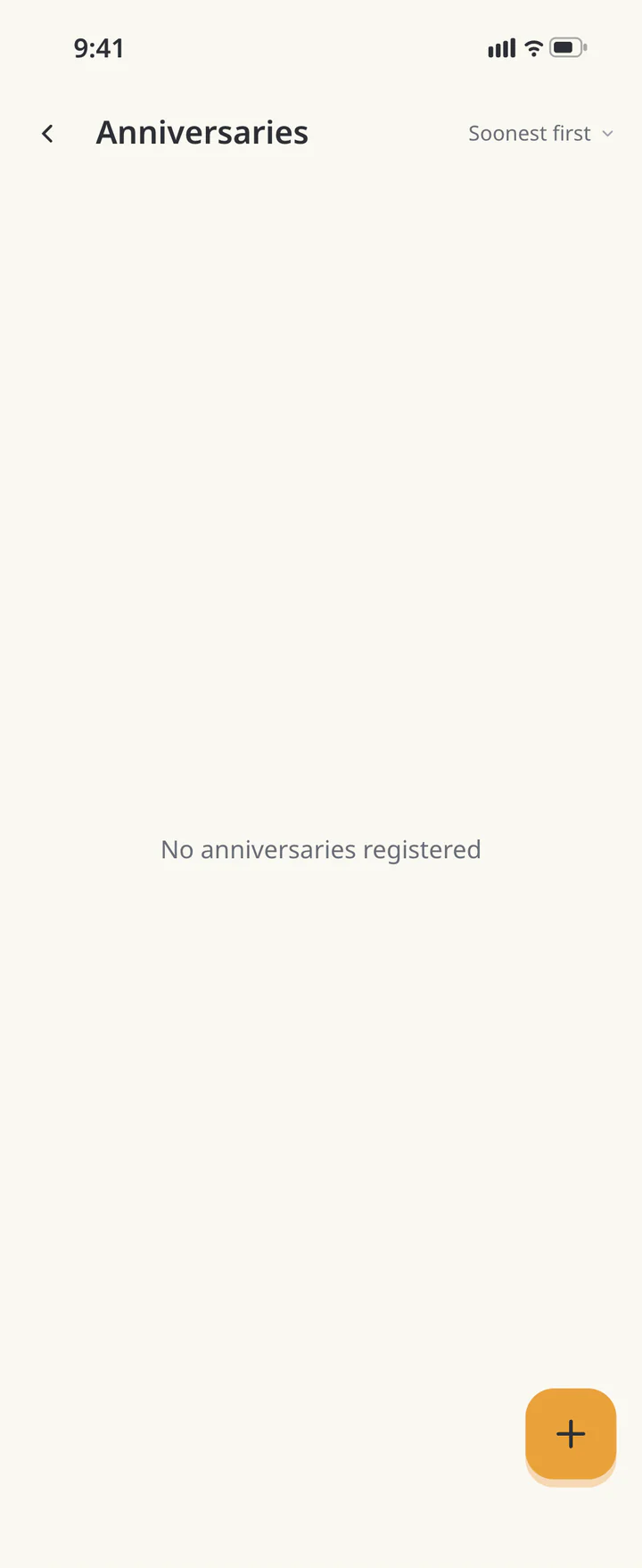
Tap + in Anniversaries
Open “Anniversaries” and tap +.
Tap + in Anniversaries - 2
Step 2
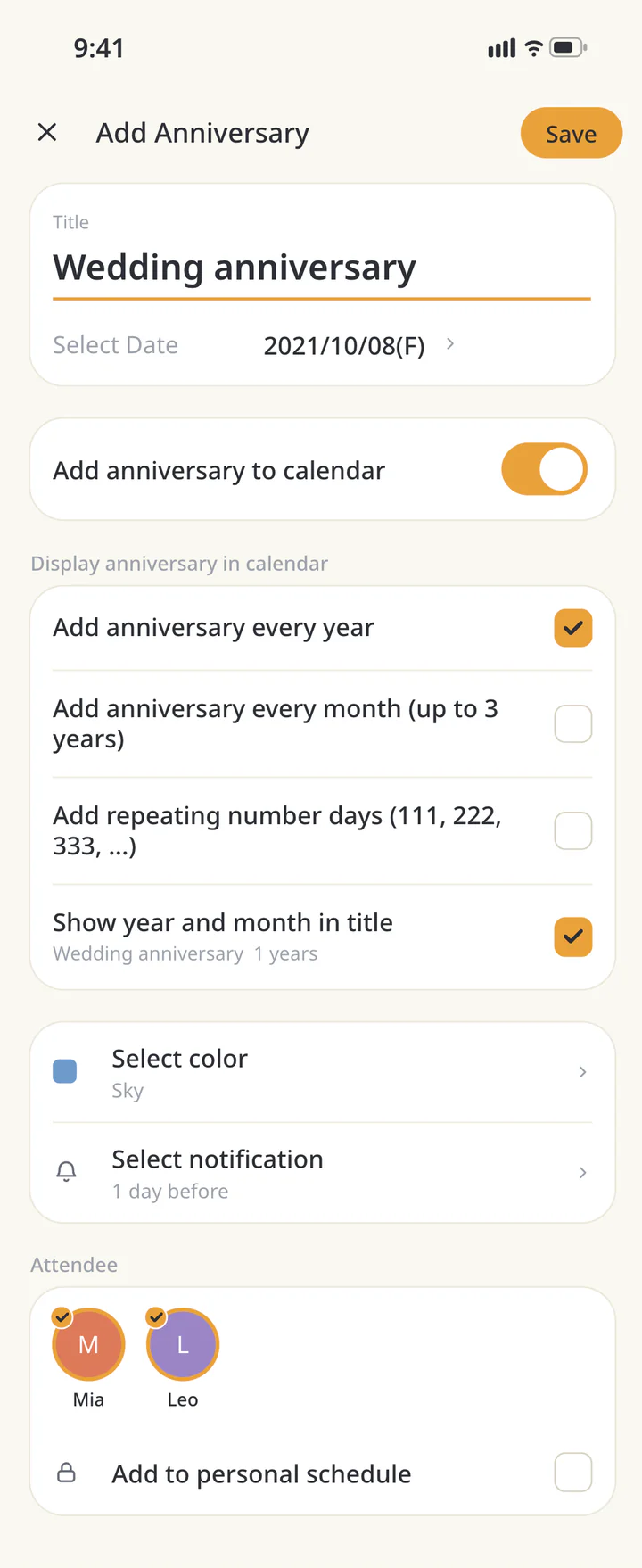
Enter the name and date
Enter a name such as “Wedding anniversary” or “Birthday” in “Title”. Choose the original date under “Select Date” and add a note in “Enter Memo” if useful.
Enter the name and date - 3
Step 3If needed
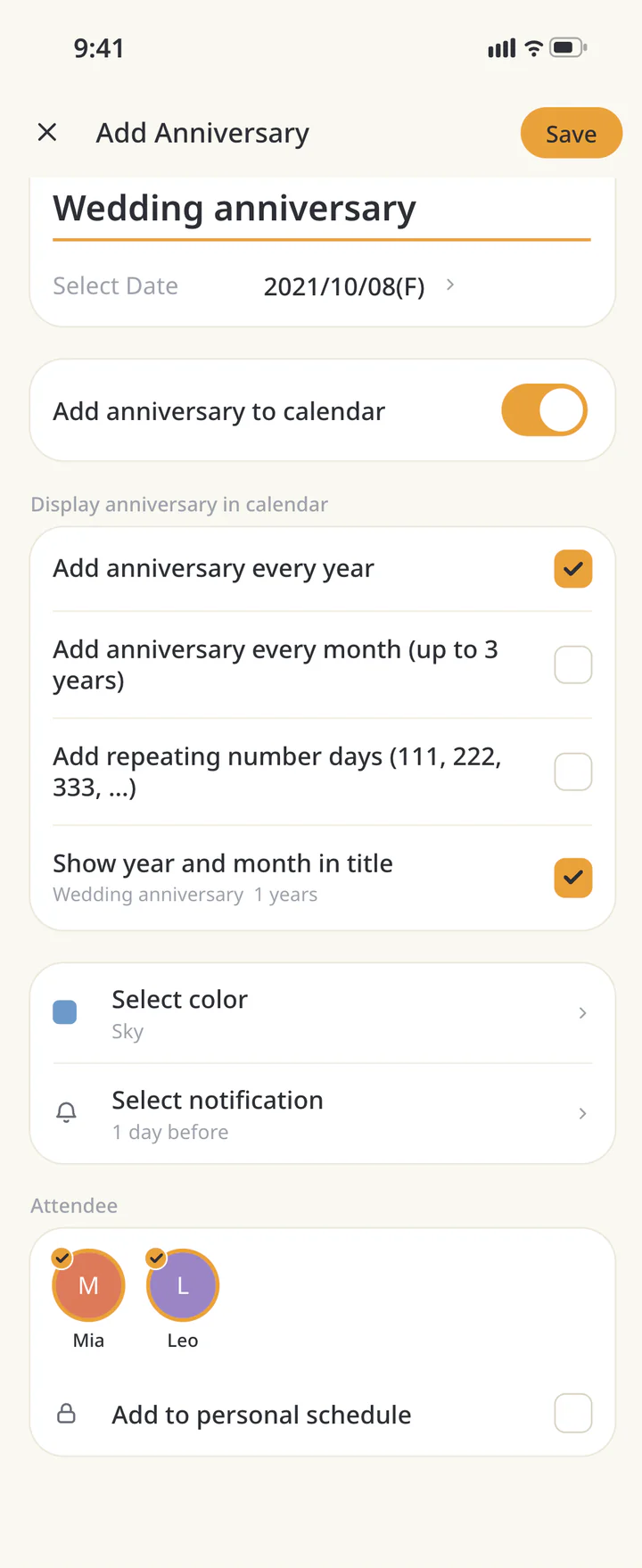
Choose calendar options if needed
Turn on “Add anniversary to calendar” to include it in the calendar, then choose “Add anniversary every year” and “Select notification” as needed. Saving an anniversary and adding calendar events are separate settings.
Choose calendar options if needed - 4
Step 4
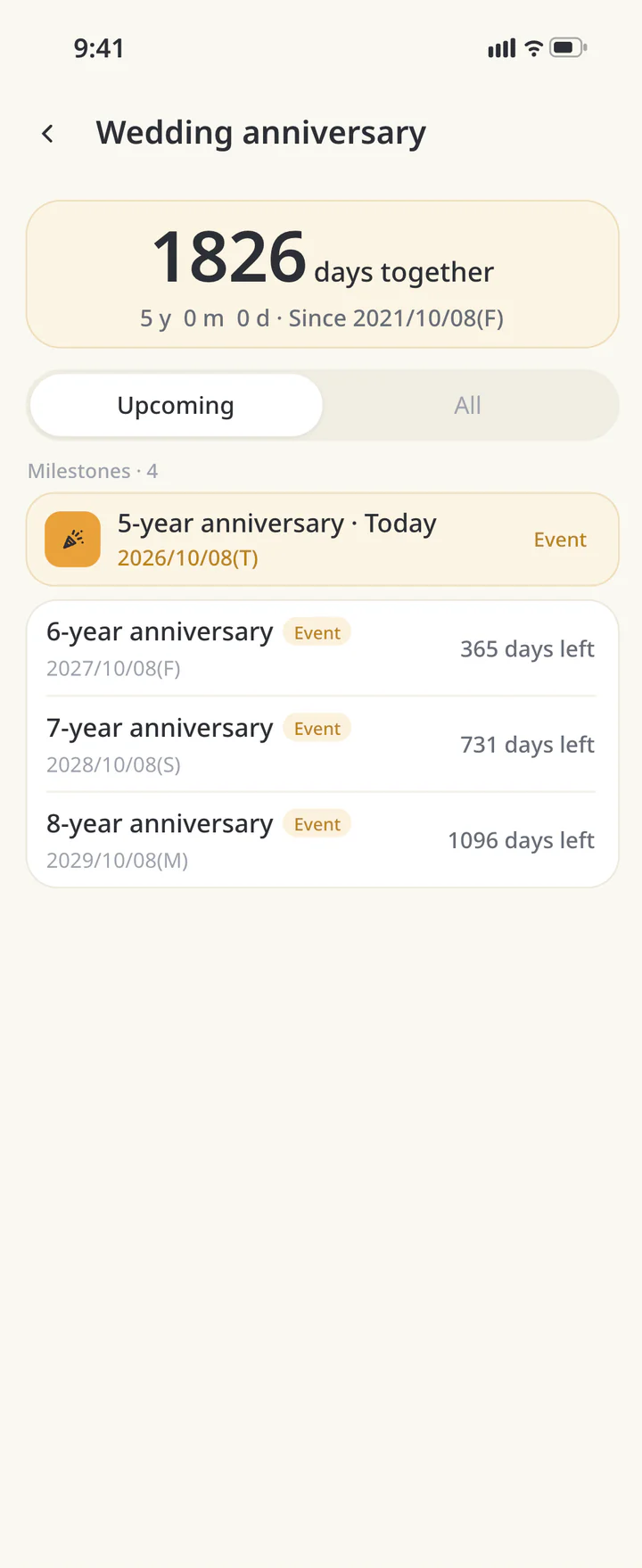
Save and review it
Tap “Save”. Open the saved occasion to check the date and elapsed days. Tap the star in its detail to mark it as a favourite.
Save and review it - 5
Step 5
Choose a list order
Return to the list and open “Sort by”. Choose “Soonest first”, “Favourites first”, or “Recently added”. The selected order is saved on this device.
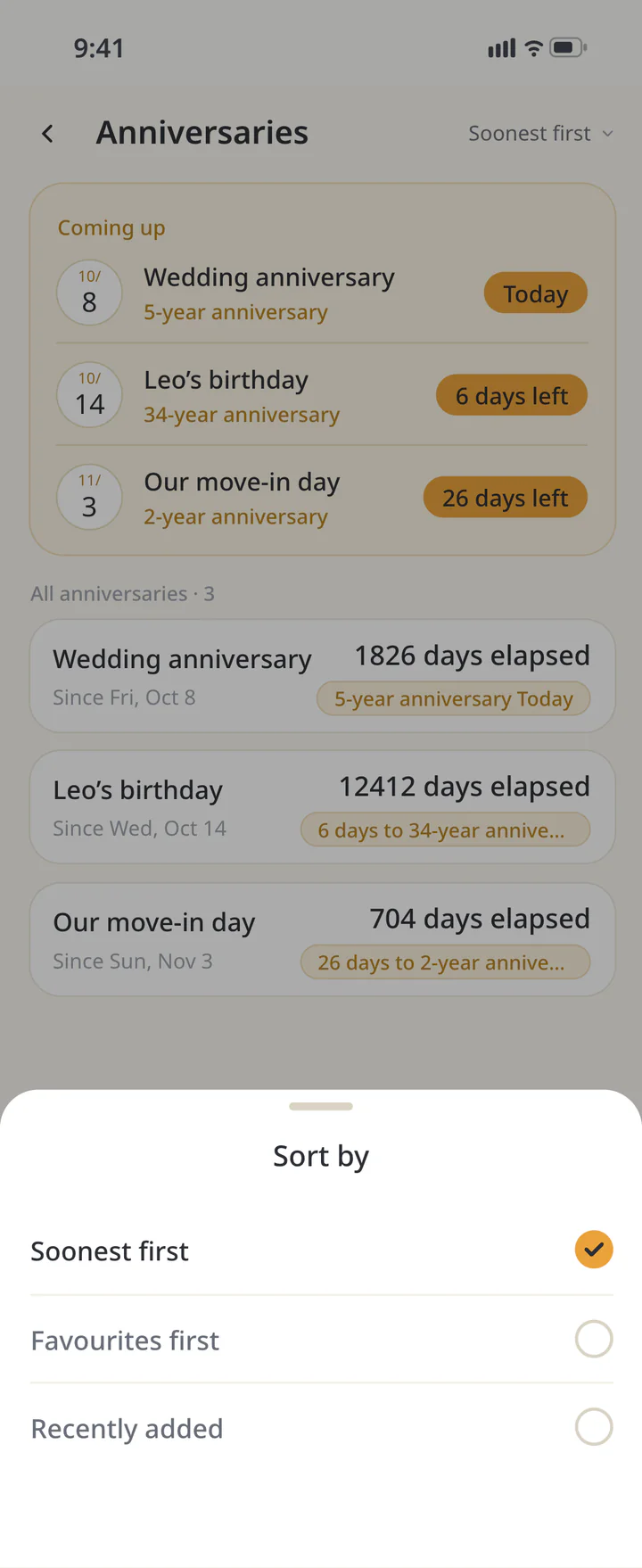
Choose a list order


TROUBLESHOOTING
If something doesn’t work
QWhy is it missing from my calendar?
Check the add-to-calendar option as well as the anniversary record. For alerts, also check its reminder setting and device notification permission.
QCan I drag occasions into a custom order?
Choose Soonest first, Favourites first, or Recently added. To keep an important occasion near the top, mark its star in the detail view and choose Favourites first.
QWill this change the order on my family’s devices?
The sort preference is saved on your device. It does not change the order on your family’s devices.
Download ienon
Save one day you want to remember.
History: Published October 9, 2026 — checked against app 16.5.0